
Orthomosaic definition made simple
An orthomosaic is a single, flat map image made from many aerial photos. You fly a drone or plane and take lots of pictures. Software then stitches them together and corrects each photo so the final image has true scale and straight lines. You can treat it like a giant photo map you can measure on.
Think of an orthomosaic as a jigsaw puzzle where each piece is fixed to the ground. The software matches overlap, removes tilt and hill bumps, and places each piece in the right spot. That gives you correct measurements, locations, and a map you can trust for planning and analysis.
This image type is used in farming, building sites, and rescue work. For example, you can fly a field, make an orthomosaic, and count crop rows or find bare patches. You get a clear, scaled view that helps you plan action fast.
What orthomosaic means and why it matters
An orthomosaic aligns and corrects aerial pictures so distances and shapes are true. Ordinary photos bend and lean because of camera angle and hills. The orthomosaic removes that bend so a road looks straight and a house has the right footprint.
Why it matters: you can measure with confidence. Use it for accurate geolocation, mapping, and change tracking. Whether you’re fixing a roof, checking plant health, or planning a road, the orthomosaic provides a real-world map you can rely on.
How orthorectification turns photos into maps
Orthorectification is the process that fixes each photo. It uses a DEM (digital elevation model) and camera data. The software reads where the camera was and how it pointed, then stretches or warps pixels so ground positions match true coordinates.
Collect lots of overlapping shots, add GCPs or use an RTK drone for better position data, and the software links photos with ground shape. The output is one smooth, accurate image — your orthomosaic — ready for measuring and analysis.
| Item | Role in the process | Why it matters |
|---|---|---|
| Overlap | Helps software match photos | Reduces gaps and errors |
| DEM | Models ground height | Corrects hill and slope distortion |
| GCPs / RTK | Improves positioning | Raises accuracy for measurements |
Plan your drone flight for mapping
Start by drawing the area you need to map and picking a flight pattern that covers it cleanly. Think of the map as a quilt: each photo is a square that must overlap the next to avoid holes. Set a clear mission boundary, pick safe launch and recovery spots, and factor in no-fly zones and local rules so your flight isn’t cut short.
Decide on your target Ground Sampling Distance (GSD) and then pick an altitude and camera setting that hit that GSD. Keep the camera at nadir (straight down) unless you need oblique shots for features, and keep shutter speed fast enough to stop motion blur. Remember the goal captured by Orthomosaic Explained: How Aerial Images Become Accurate Maps: crisp, evenly spaced photos that can be stitched into a reliable map.
Plan time of day and weather. Fly when the sun is steady, not low on the horizon, and avoid gusty wind. Book extra batteries and a margin of time so you can re-fly strips if the first pass has glare, blur, or a sudden gust.
Set overlap, altitude, and flight lines for aerial image mosaicking
Set frontlap (along-track overlap) high when you want good vertical accuracy, and set sidelap (across-track overlap) to cover edges. Aim for 70–80% frontlap and 60–70% sidelap for most maps; raise both if you fly over rough terrain or tall crops. Higher overlap gives better matching but means more photos and more processing time.
Pick flight lines so the camera faces across the long axis of a field or feature, and plan lines that give even coverage. If the site has tall objects or shadows, add a cross-hatch pass at 45 degrees to improve tie points and vertical accuracy. Keep flight lines evenly spaced based on altitude and camera field of view.
| Objective | Frontlap | Sidelap | Notes |
|---|---|---|---|
| Standard mapping | 70–80% | 60–70% | Good balance for most surveys |
| Dense vegetation or tall objects | 80–90% | 70–80% | Reduces gaps and improves tie points |
| Fast surveys / coarse output | 60–70% | 50–60% | Fewer photos, lower detail, faster processing |
Use drone orthomosaic mapping best practices for consistent captures
Use manual camera settings: set ISO low, shutter speed high, and lock white balance. Turn off automatic exposure shifts and HDR so every photo has steady brightness and color. Consistent images make stitching much easier and reduce weird seams in the final orthomosaic.
Place Ground Control Points (GCPs) or use a survey-grade GNSS base if you need high absolute accuracy. Mark targets with high-contrast patterns and record their coordinates. Fly at a steady pace, keep altitude constant, and avoid pausing mid-strip; think of the drone as a paintbrush laying down a steady stroke.
Preflight checklist for reliable image capture
Check battery levels, SD card space, GNSS lock, camera settings, prop condition, firmware, wind forecast, and permissions before takeoff; verify GCP markers and sync time between devices so photos and coordinates line up.
Photogrammetry and aerial image mosaicking
Photogrammetry turns overlapping aerial photos into a map you can trust. Each photo is a piece of a giant jigsaw puzzle: keypoints on roofs, roads, and fields are the knobs that make the pieces fit. The goal — captured well by Orthomosaic Explained: How Aerial Images Become Accurate Maps — is an accurate, flat map where distances and positions match real-world measurements.
Feed your images, approximate GPS, and camera info into software that finds matching features across photos. The software builds a sparse model with those matches, tightens the fit with bundle adjustment to reduce errors, then projects images onto a common surface. After the math, the software warps and blends images into a single orthomosaic, corrected for scale and perspective so you can measure areas and distances directly.
How photogrammetry orthomosaic processing matches features
First, the software detects keypoints in each photo — corners, edges, and textures that stand out — and creates descriptors for those points (a fingerprint). It then searches for the same fingerprints in overlapping images and links them as tie points.
Those tie points let the software estimate camera positions and angles. Bundle adjustment refines those estimates, reducing mismatches and improving geometric accuracy. Provide ground control points or good GPS data and the whole model aligns better to real-world coordinates.
Stitching images into a seamless orthoimage generation
Once geometry is set, each image is orthorectified — adjusted so terrain tilt and camera angle no longer skew positions. The software uses a DEM (or builds one from your photos) to place pixels correctly on the map grid.
Next comes color correction and seam handling: color balancing, seamline selection, and pixel blending produce a cohesive orthoimage ready for analysis.
Core steps in orthomosaic processing
You move through a pipeline: image ingestion, feature matching, bundle adjustment, dense point cloud and DEM generation, orthorectification, and finally color correction and mosaicking. Each step tightens geometry and visual quality so the final orthoimage both looks right and measures right.
| Step | What it does | Quick tip |
|---|---|---|
| Image Capture | Collects overlapping photos with consistent exposure | Aim for 60–80% overlap |
| Feature Matching | Finds and links tie points across images | More texture = better matches |
| Bundle Adjustment | Refines camera positions and reduces error | Add GPS/GCPs to improve accuracy |
| Dense Cloud & DEM | Builds elevation model used for correction | Crucial for hilly terrain |
| Orthorectification | Removes perspective and scale distortions | Produces map-accurate pixels |
| Color Balancing & Mosaicking | Blends images and hides seams | Use seamlines through low-detail areas |
| Export | Saves orthomosaic in a map projection | Choose appropriate CRS for your project |
Use orthorectification to correct image distortion
Orthorectification makes aerial photos usable as maps. Images come back with distortion from hills, buildings, and the camera. By applying orthorectification, you move each pixel so it sits where it really belongs on the ground — like stretching and pinning a wrinkled bedsheet so the pattern lines up straight.
Run orthorectification with two main inputs: a DEM and a camera model. The DEM tells the software the height of the ground under each pixel. The camera model tells the software how the camera viewed the scene. Together they let the program remove the bumps and tilt that push features out of place. The result is an orthomosaic you can measure from.
If you need a quick refresher, resources under the topic Orthomosaic Explained: How Aerial Images Become Accurate Maps show before-and-after examples that make errors in raw imagery obvious.
Why orthorectification removes terrain and sensor errors
Terrain causes parallax (relief displacement). When a hill or building sticks up, nearby pixels appear shifted. Orthorectification uses the DEM to move those pixels back to the correct ground position.
Sensor errors come from lens distortion, tilt, and varying altitude. A camera that leans a few degrees will skew distances. A good camera model describes focal length and distortion so the software can apply the reverse math and restore true shape.
DEMs and camera models used in orthorectification
DEMs vary in detail. A DTM (digital terrain model) shows bare earth, a DSM (digital surface model) includes trees and buildings, and LiDAR DEMs capture tiny breaks in slope. Choose the DEM that matches your job: survey-grade tasks need high-res LiDAR; broad-area maps can use public DEMs.
Camera models fall into two practical camps. A physical camera model uses known interior parameters like focal length and lens distortion. An RPC (rational polynomial coefficients) model is a compact fit used by many satellites and some drones. Mix DEM and camera models to optimize speed and accuracy.
| Item | What it fixes / Why it matters | Typical sources |
|---|---|---|
| DTM (bare earth) | Removes terrain displacement for true ground position | LiDAR surveys, processed photogrammetry |
| DSM (surface) | Keeps buildings/trees in place when you need them | Photogrammetry, LiDAR point cloud |
| Physical camera model | Corrects lens distortion and sensor tilt | Calibrated cameras, survey rigs |
| RPC model | Fast, compact correction where full calibration isn’t available | Satellites, some drone vendors |
How orthorectification improves map accuracy
Orthorectification improves scale stability and positional accuracy, so distances and areas you measure on the map match the real world. It removes mismatches when you stitch photos, so lines and edges are continuous. The net effect: a final map you can trust for planning, inspection, and legal-grade measurements.
Georeference images with ground control
Georeferencing ties your images to the real world. Use ground control points (GCPs) to anchor the photos. With good GCPs, your map lines up with roads, fences, and survey markers — like nails that hold a loose carpet in place.
A solid georeference cuts down on drift and scale error. Place GCPs where they show up clearly in many photos. When processing, the software matches GCP coordinates to image pixels — that’s where accuracy happens. Spread points across the site and record them with a good GNSS setup.
Place and measure ground control points for georeferencing aerial imagery
Place GCPs on firm, level ground where they won’t move. Use high-contrast targets—black and white, checkerboard, or bright paint—so they stand out. Put targets near edges and corners, and sprinkle a few in the center to reduce warping.
When you measure GCPs, record exact coordinates and the measurement method. Use a survey-grade GNSS or a reliable RTK/PPK unit when possible. Take a handheld photo showing each target and label them consistently between field notes and processing.
Use GPS and RTK to boost spatial accuracy
Positioning tech changes the game. Standard GPS gives meter-level accuracy. RTK (Real-Time Kinematic) and PPK (Post-Processed Kinematic) bring that down to centimeters — essential for construction stakes, cadastral lines, or precise volume work.
| Method | Typical Horizontal Accuracy |
|---|---|
| Smartphone GPS | 2–10 m |
| SBAS / WAAS | 0.5–3 m |
| Consumer GNSS (differential) | 0.1–1 m |
| RTK / PPK (survey-grade) | 0.01–0.05 m |
If you use RTK, set up a stable base or connect to an NTRIP caster. With PPK, log raw data and process against a known base station. Record antenna height and offsets — small mistakes here bite you later.
Simple GCP workflow for better georeferencing
Plan GCP layout before the flight, place visible targets across the site, record coordinates with GNSS/RTK/PPK gear, fly your mission with good overlap, import photos and GCPs into processing software, run georeference, and check residuals and alignment. If residuals are high, re-check point IDs and measurements and reprocess.
Control resolution with ground sample distance
You control map detail by setting Ground Sample Distance (GSD). GSD tells you how much ground each pixel represents. A smaller GSD means finer detail — like standing closer to a painting to see more brush strokes.
GSD depends on three things: altitude, camera pixel size, and focal length. Lower altitude or a smaller pixel size gives a smaller GSD and sharper maps. See Orthomosaic Explained: How Aerial Images Become Accurate Maps for examples of how small GSD translates into final positional accuracy.
Pick a GSD that matches what you need to spot. For meter sticks or small cracks, choose a fine GSD. For field-level patterns, a coarser GSD saves flight time and storage. Run a short test flight to confirm.
Calculate ground sample distance to set mapping detail
Use a simple formula. If height H is in meters, pixel size ps in millimeters, and focal length f in millimeters:
GSD (m/pixel) = H (ps / f). Multiply by 100 to get cm/pixel. Example: H = 120 m, ps = 0.0043 mm (4.3 µm), f = 24 mm → GSD ≈ 0.0215 m/pixel = 2.15 cm/pixel.
Rule of thumb: pick a GSD about half the smallest object you need to identify.
Tradeoffs between GSD, altitude, and data size
Finer GSD = lower altitude or better optics → more images and bigger datasets. Processing takes longer and batteries drain faster. Match needs to limits: if timelines or storage are tight, relax the GSD; if legal altitude limits force you higher, use a higher-resolution sensor.
| Typical GSD (cm/px) | Approx. Altitude (m) with 24mm lens | Typical use case | Rough data per hectare |
|---|---|---|---|
| 1–2 cm | 50–120 m | Inspection, detailed forensics | 3–6 GB/ha |
| 2–5 cm | 120–300 m | Surveying, crop scouting | 1–3 GB/ha |
| 5–10 cm | 300–600 m | Planning, land management | 0.5–1.5 GB/ha |
| 10–20 cm | 600–1200 m | Regional mapping, overview | 0.2–0.6 GB/ha |
Choose GSD for your project goals
Start with the smallest feature you must detect, halve that size to pick a GSD, then check camera specs and legal limits. Do a short test flight, inspect sample images, and adjust altitude or overlap until the images show the detail you need.
Choose software for orthomosaic processing
Choose software that turns flight photos into a clean, accurate map. List what you need: speed, price, output formats. Pick tools that export orthomosaic files in the coordinate system you use and check whether they use GPU or CPU for faster runs.
If projects are large, pick software with batch processing and good memory management. For small jobs, a simple program with a clear interface may save time. Also weigh support and updates — active development and clear docs matter.
Compare tools for orthomosaic processing and orthoimage generation
Compare popular options by features, speed, and cost. Check whether a tool focuses on photogrammetry or is a GIS with ortho features. Compare output quality on the same dataset before committing.
Also consider platform and licensing: desktop vs cloud, Windows vs macOS, and file format compatibility for contractors.
| Software type | Photogrammetry | Batch processing | Georeferencing | Typical cost |
|---|---|---|---|---|
| Standalone photogrammetry (desktop) | High | Often Yes | Built-in | Mid–High |
| Cloud-based services | High | Yes, scalable | Auto or manual | Pay-per-job |
| GIS with ortho tools | Medium | Limited | Strong GIS options | Low–Mid |
Look for photogrammetry, batch processing, and georeferencing features
Ensure the tool uses proven photogrammetry algorithms (tie-point matching, dense point cloud generation, accurate DEM creation). Batch processing saves hours for repeat surveys. Georeferencing must support GCPs, RTK/PPK metadata, and coordinate transforms.
Pick software that fits your workflow
Choose cloud if you want no installs, desktop if you need local control, or hybrid if you want both. Test with a real project and confirm processing time, export types, and error handling before you commit.
Check accuracy for accurate map production
Check accuracy because maps that look pretty can still be wrong. Measure the difference between your processed orthomosaic and real ground points. Use RMSE, point residuals, and visual overlays to spot shifts or warping. Clients care about numbers, not just looks.
Common culprits include poor overlap, weak GPS, lens error, or the wrong camera model. For example, stretched edges may indicate too few GCPs or low side-overlap. If the whole map is shifted, check geotags and survey logs.
Decide whether to accept the map or fix it. If RMSE is within project spec, move on. If not, reprocess or collect more GCPs. A few extra minutes in the field can prevent big headaches later.
Validate orthomosaic accuracy with checkpoints and statistics
Place check points (CPs) separate from your GCPs. Survey visible targets and import CP coordinates into your mapping software to run the accuracy report. Look at residuals for each CP and overall RMSE. These numbers tell you how close your map is to reality.
Use both table and visual checks. A cluster of large residuals indicates localized distortion; random high residuals suggest tagging or measurement mistakes. Produce a short report with CP stats, a residuals map, and screenshots for clarity.
Correct errors with reprocessing or additional GCPs
If stats show trouble, start with reprocessing: increase tie-point density, try a better camera model, or tighten outlier rejection. If that fails, go back to the field and add GCPs at corners, edges, and distorted areas using RTK/PPK. Reprocess and validate again until CP stats look good.
Simple QA steps to ensure accurate map production
Check flight logs and image overlap. Verify camera model and lens parameters. Survey a handful of GCPs and separate CPs. Run the software report and note RMSE and per-point residuals. Do a quick visual overlay against a trusted base map. If numbers or views look off, reprocess or collect more GCPs.
| Metric | Target | Action if out of range |
|---|---|---|
| RMSE (horizontal) | < project spec (e.g., 5–10 cm) | Reprocess or add GCPs |
| Per-point residual | Low and uniform | Check CP tagging and survey |
| Visual fit to base map | No large warps | Add GCPs at distorted areas |
Create orthoimages and mapping deliverables
Turn raw aerial photos into a usable map: align patches, correct tilt and lens error, and blend colors so seams vanish. The result is a high-resolution orthomosaic you can trust.
Tie the mosaic to a coordinate system with GCPs or GPS tags to get a georeferenced product that lines up with other GIS layers. Package deliverables: export files, test in a GIS, and run accuracy checks. If something looks off, revisit control points or processing settings.
Export georeferenced orthomosaics for GIS and mapping
When exporting, pick a format that keeps geodata intact. Common choices: GeoTIFF with embedded coordinates or a paired world file, and Cloud-Optimized GeoTIFF (COG) for web maps. Set projection (CRS) correctly — mismatched CRS will place your map in the wrong spot.
Set resolution and compression with care. Use overviews or tile pyramids so GIS programs can zoom smoothly. Always include metadata: capture date, sensor, flight altitude, GSD, and georeference method.
Common outputs: orthomosaic, DEM, and accuracy reports
Typical package includes an orthomosaic, a digital elevation model (DEM), and an accuracy report. The orthomosaic gives a true top-down view with color-corrected imagery. The DEM provides ground height for slope, volume, and hydrology work. The accuracy report lists GSD and RMSE so users know how much trust to place in the data.
| Output | Common File Formats | Typical Use |
|---|---|---|
| Orthomosaic | GeoTIFF, COG, JPEG2000 | Base map, inspection, visual planning |
| DEM / DSM | GeoTIFF, ASCII GRID | Volume calc, slope, flood modelling |
| Point Cloud | LAS, LAZ | 3D modeling, feature extraction |
| Accuracy Report | PDF, TXT, CSV | QA/QC, project acceptance |
Shareable map files and formats for your projects
For sharing, stick with formats that play well with most tools: GeoTIFF/COG for rasters, LAS/LAZ for point clouds, GeoPackage or Shapefile for vector layers, and KML/MBTiles for simple web delivery. Compress when you can, and add a short README with CRS, resolution, and key processing notes.
Frequently asked questions
Orthomosaic Explained: How Aerial Images Become Accurate Maps?
“Orthomosaic Explained: How Aerial Images Become Accurate Maps” shows how many photos turn into one true map. You get a flat, scale-correct image suitable for measurement and analysis.
What steps do you follow to make an orthomosaic?
Fly with lots of overlap, ingest images into processing software, run feature matching and bundle adjustment, orthorectify using a DEM and camera model, and add GCPs for higher accuracy.
What gear and settings do you need?
Use a drone or plane with a good camera. Fly steady, keep 60–80% overlap, choose bright, clear light, and mark GCPs on the ground. Lock camera exposure and white balance for consistent images.
How do you check and improve accuracy?
Compare the orthomosaic to known GCPs, use RTK/PPK for better positioning, reprocess with improved settings, or add more well-distributed GCPs if needed.
- ### What can you do with your orthomosaic? Measure areas and distances, inspect sites, make maps, and monitor crops or construction with a georeferenced, accurate imagery base.
(Use this guide as a practical reference when you want an actionable workflow for turning aerial images into reliable, measurable maps. For a concise reminder, the phrase Orthomosaic Explained: How Aerial Images Become Accurate Maps summarizes the aim: accurate, georeferenced photo maps you can depend on.)
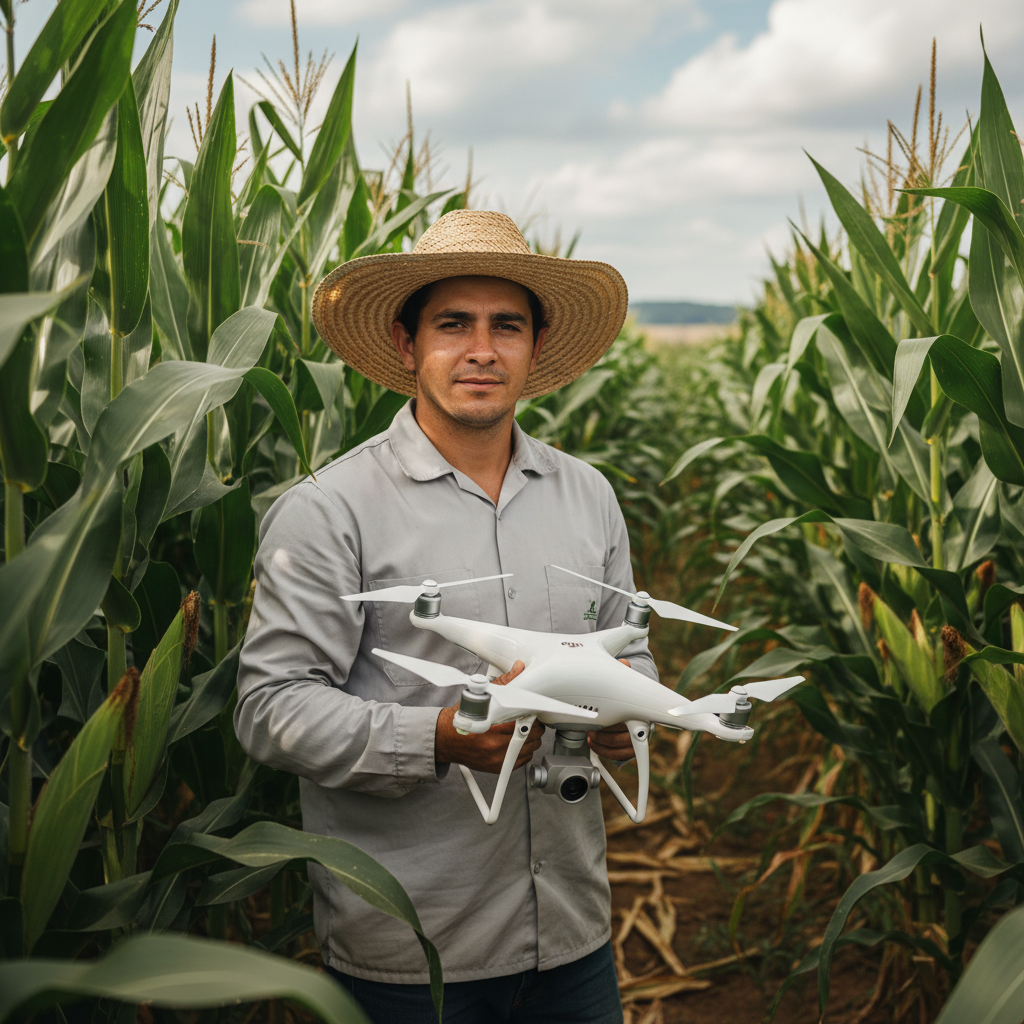
Lucas Fernandes Silva is an agricultural engineer with 12 years of experience in aerial mapping technologies and precision agriculture. ANAC-certified drone pilot since 2018, Lucas has worked on mapping projects across more than 500 rural properties in Brazil, covering areas ranging from small farms to large-scale operations. Specialized in multispectral image processing, vegetation index analysis (NDVI, GNDVI, SAVI), and precision agriculture system implementation. Lucas is passionate about sharing technical knowledge and helping agribusiness professionals optimize their operations through aerial technology.