
Mapping Software Integration with Autonomous Tractors and Agricultural Machinery for your farm
You want tools that save time and cut costs. Mapping Software Integration with Autonomous Tractors and Agricultural Machinery ties your GPS, cameras, and farm computer into a single picture of each field. When you connect those pieces, your tractor follows precise lines, avoids wasted passes, and remembers every change you make.
Start small and test. Use high-accuracy GNSS (RTK) and a simple drone or tractor camera to build a field map. That map becomes the base for seeding, spraying, and harvest plans. With clear maps, you can plan work like you would follow a good road map—no backtracking, no guesswork.
Maps turn into action. Your machines read the map and drive to exact waypoints, follow prescription zones, and stop at geofenced areas. That cuts overlap, saves inputs, and puts you in control of each acre.
How autonomous tractor mapping helps you
Mapping gives you automated guidance that cuts human error. When you load a field map, the tractor steers itself along optimized paths, keeping row spacing and overlaps consistent. That means fewer missed strips and less chemical or seed waste.
You also get traceable logs. Each pass creates a record you can replay to check speed, spray rate, and coverage. If a problem shows up in harvest, you can pull the map and see which pass caused it, which helps you fix the issue fast.
Why precision agriculture mapping software matters to your yield
Precision maps let you use inputs where they pay off. With a yield map and soil data, you can run variable-rate prescriptions so seed and fertilizer go where the soil can use them best. That small change often lifts yield more than a blanket application.
Over seasons, maps reveal patterns—wet spots, low-productive strips, pest hotspots. Think of maps as a crop diary: they show what worked and where you should change tactics next year.
Feature | What it does | Benefit to you
- — | — | —
Field Mapping | Builds boundaries and zones with GNSS or drone imagery | Cuts overlap and saves fuel
RTK GNSS | Gives centimeter-level position | Accurate seed rows and sprayer tracks
Variable Rate Tech | Applies inputs by zone | Higher yield per dollar spent
Obstacle Maps | Marks trees, ditches, and hidden hazards | Safer autonomous runs and fewer stoppages
Quick steps to start mapping software
Begin with one field and collect base data: run a tractor with GNSS to trace boundaries, fly a quick drone pass for imagery, import both into your mapping app, set up RTK correction, create a simple prescription or guidance line, test the tractor in manual assist, then switch to autonomous mode once you trust the map. Use the phrase Mapping Software Integration with Autonomous Tractors and Agricultural Machinery when discussing requirements with vendors to ensure end-to-end compatibility.
RTK GNSS integration for your tractors
RTK GNSS gives you centimeter-level positioning by combining a base station or network corrections with a receiver on your tractor. When you add RTK, your mapping and image processing data line up with the real field. This improves maps, sprayer tracks, and planting passes because the location of every action is accurate and repeatable.
You’ll link the RTK feed to your tractor controller and to your mapping software. With Mapping Software Integration with Autonomous Tractors and Agricultural Machinery, your maps and guidance systems speak the same precise language. That means less overlap, cleaner passes, and maps that truly reflect what happened in the field.
To get there you need the right hardware and settings: a quality RTK rover, a suitable antenna mount, a base station or NTRIP account, a compatible controller, and mapping software that accepts RTK corrections. Plan for cabling, antenna height, and a short field test so you can confirm the setup before a full job.
How RTK GNSS integration for tractors boosts accuracy
RTK replaces normal GPS drift with real-time corrections, so your tractor holds lines to within a few centimeters. That means rows are straight, passes don’t overlap, and inputs go exactly where you want them. Your yield maps and application logs will match field reality, making decisions easier and more honest.
Think of RTK as switching from a blurry camera to a high-resolution lens. You’ll stop second-guessing where you put seed or where you sprayed. That clarity reduces rework, saves input costs, and gives you cleaner data for variable-rate decisions and automated tasks.
Simple setup steps you can follow
- Mount your RTK rover and antenna on the highest stable point of the tractor.
- Connect the rover to your controller or display via serial, CAN, or USB.
- If you use a local base station, set it up in a known position and broadcast corrections; if you use an NTRIP service, configure the login and stream on your controller or modem.
- Configure your mapping software to accept RTK inputs and set the antenna offset so the software knows the antenna’s location relative to implements.
- Run a short calibration pass and check for a steady RTK fix. If the fix drops, inspect antenna placement, radio links, or NTRIP connectivity before full operations.
Checklist for RTK GNSS checks
Check | Why it matters | Pass criteria
- — | — | —
RTK fix status | Confirms centimeter accuracy | Steady fixed RTK (not float)
Correction source | Ensures correct base/NTRIP stream | Correct network ID or base coordinates
Antenna placement | Prevents obstruction and multipath | Clear sky view, stable mount
Antenna offset | Aligns GPS point to implement | Offset set and saved in software
Comm link (radio/4G) | Keeps corrections flowing | Low latency, stable connection
Firmware & compatibility | Prevents data errors | Matching supported versions
Logging enabled | Lets you diagnose issues | Logs saved and accessible
Sensor fusion for your farm machinery
Sensor fusion brings multiple sensor streams together so your machine sees more than any single device can. You get combined data from cameras, LiDAR, and GNSS that fills gaps: cameras read color and texture, LiDAR measures distance and shape, and GNSS places everything on a map. When you fuse them, your tractor or harvester can recognize rows, obstacles, and field features with more accuracy and fewer mistakes.
Fusion reduces false alarms and improves path planning. For example, a camera might mistake a shadow for a rock, but LiDAR will show there’s no solid return. With data aligned in time and space, your controller can weigh each sensor’s vote and pick the best action. That means smoother turns, safer obstacle avoidance, and fewer wasted passes.
Plan sensor roles and data flow before mounting: LiDAR for depth, camera for classification, GNSS for global position. Then choose fusion methods—time sync, spatial alignment, and a lightweight filter like an Extended Kalman Filter or a simpler rule-based combiner—so your machine reacts quickly and predictably.
What sensor fusion for farm machinery does
Sensor fusion aligns streams in time and space so data makes sense together. You synchronize timestamps, transform sensor coordinates into a common frame, and merge measurements. GNSS gives rough location, LiDAR refines structure, and cameras add context like crop health or marker flags.
Fusion also helps your autonomy stack decide what to act on. If GNSS drifts under a canopy, LiDAR and camera cues can keep you in the row. If dust or low light degrades the camera, LiDAR still sees objects by shape. In short, fusion gives you resilient perception across changing conditions.
Tips to pair cameras, LiDAR, and GNSS
- Place sensors so their fields of view overlap where critical decisions happen—front bumper, cab roof, and side mounts for row following.
- Give cameras a clear view and LiDAR a stable mount above vibration sources. Keep GNSS antennas high and free of obstructions.
- Tune sensor trust: weight cameras more in daylight, shift to LiDAR and GNSS in dust or darkness.
- Time-sync sensors with hardware triggers or precise timestamps to manage latency.
Sensor combo | Strengths | Watchouts | Best use
- — | — | — | —
Camera GNSS | Cheap, good visual cues, geo-tagging | Fails in low light or dust | Visual mapping, crop scouting
LiDAR GNSS | Accurate depth/shape, works day/night | More costly, needs solid mounting | Obstacle avoidance, row geometry
Camera LiDAR GNSS | Balanced, robust perception and position | Complex calibration and sync | Full autonomy and Mapping Software Integration with Autonomous Tractors and Agricultural Machinery
Quick sensor calibration routine
Park on level ground, power all sensors, and record a short synchronized dataset while you move a known marker across the view. Measure offsets between camera optical center and LiDAR origin, and GNSS antenna offset to vehicle reference. Enter these offsets into your transform matrix, run a reprojection check (LiDAR points map onto camera pixels), then save parameters and test with a slow drive-by.
Path planning for your autonomous tractors
Path planning puts you in the driver’s seat before the tractor starts. You draw or import a field map, set pass counts, and choose turn styles. With clear passes, consistent coverage, and optimized turns, your tractor follows the smartest lines. Think of it like plotting a road trip: you skip backtracking and get where you need faster.
Good path planning uses GPS, maps, and data layers together. Load soil maps, slope data, or planting prescriptions, then let the software lay out routes that cut overlap and limit wasted fuel. Use RTK positioning, headland passes, and turn optimization so the machine moves efficiently.
Keep the plan flexible: run a simulation, review for hazards, and update boundaries if the field changed since last season. Share route files with your team and keep a log of edits. That habit boosts productivity, reduces mistakes, and keeps safety front and center.
Planning step | What you do | Why it matters
- — | — | —
Map setup | Import field outline, slopes, and prescriptions | Sets the work area and coverage goals
Route generation | Choose pass width, turn type, and guidance mode | Minimizes overlap and travel time
Validation | Simulate and test-run the route | Catches hazards and avoids costly errors
How path planning for autonomous tractors saves time
A thoughtful route shrinks field hours because it cuts overlap and idle driving. You’ll plan straight, efficient passes and fewer headland turns, so the tractor spends more time treating crop and less time turning or repeating passes.
With Mapping Software Integration with Autonomous Tractors and Agricultural Machinery, you can push updated routes wirelessly, start jobs from a tablet, and watch telemetry in real time. When something changes, tweak the plan and rerun the job without walking the whole field.
Use boundaries and obstacles to guide paths
Draw field edges, waterways, and crop lines so the software avoids sensitive areas. Mark no-go zones for buried lines or wet spots, and set buffers around trees or fence rows so the tractor keeps a safe margin.
Obstacles change—animals, trailers, or people might show up. Use sensors, geofences, and exclusion polygons so routes adapt or pause when a hazard appears. Set exclusion zones and automatic stop rules, then re-run the route after you clear the obstruction.
Validate a route before run
Always simulate and then do a short test run down one or two passes. Check for correct overlaps, safe distances from obstacles, and that turn behaviors match what you expect. Review logs and sensor triggers, tweak the route if needed, and only then send the tractor to do the full job.
GIS integration agricultural machinery for your maps
You want your field maps to speak the same language as your machines. Match coordinate systems and units so your tractor reads rows and boundaries exactly where they sit in the field. Sync your GNSS/RTK settings in the software, export a test map, and load it to a controller.
When you set up, remember Mapping Software Integration with Autonomous Tractors and Agricultural Machinery as a checklist: confirm file format support, task controller compatibility, and whether your machine uses ISOBUS/ISOXML or simple file drops via USB. A neighbor switching from unlinked prescription maps to ISOXML tasks cut overlap by half—real savings in time and seed.
Keep maps simple and layered: base layer for field shape, guidance layer for lines, and prescription layer for rates. Label layers clearly (e.g., FieldBoundary, GuidanceLines, Fertilizer_Prescription) so loading under pressure is faster and less error-prone.
Link field layers with your machinery
Assign the boundary layer as the job limit, the guidance layer for steering, and the prescription layer for output rates. Tag each layer with its role so the export bundles them correctly. Use attributes (for example a RATE field in polygons) so the tractor applies the intended seed or fertilizer rate. If your controller supports ISOXML the software will carry those attributes as task data; if not, export a shapefile with attribute columns and convert as needed.
Data types for GIS integration agricultural machinery
Know your data types: vector for boundaries and prescriptions; raster for imagery like NDVI; and point data for stations or sample spots. Vector polygons tell your sprayer where to apply, lines give auto-steer rows, and rasters show vigor for variable-rate work. Keep vectors clean—no tiny slivers or overlaps—so machines don’t get confused mid-run.
Process some data before export: convert satellite or drone images to GeoTIFF with proper georeference, simplify complex polygons to reduce file size, and clean yield map outliers. Use clear filenames (NDVI, DEM, Yield) so you find layers quickly.
Export map formats your tractor accepts
Format | Type | Typical Use | Notes
- — | — | — | —
Shapefile (.shp) | Vector | Boundaries, prescriptions | Widely supported; include .dbf with attributes
ISOXML | Task data | Variable-rate tasks, logs | Best for ISOBUS controllers; carries attributes cleanly
GeoTIFF (.tif) | Raster | NDVI, DEM | Use georeferenced TIFFs; large files may need clipping
CSV | Point/waypoint | Sample points, waylines | Simple; needs proper columns (lat/lon, id)
KML | Vector | Quick visualization | Not always supported by consoles; convert if needed
Field-scale SLAM for your agricultural vehicles
Field-scale SLAM (Simultaneous Localization and Mapping) lets vehicles build a live map and find their place inside it. SLAM fuses lidar, cameras, IMU, wheel odometry, and GNSS to track position when satellites falter. If you use Mapping Software Integration with Autonomous Tractors and Agricultural Machinery, SLAM fills gaps and keeps tasks steady when GNSS wobbles.
Hardware and software choices matter: mix high-rate sensors (lidar or stereo cameras) with an IMU and wheel encoders. Onboard compute runs algorithms and stores the map. Sensors should see crop rows or field edges—forward lidar works well in orchards; in wide fallow ground those sensors will struggle.
The payoff: smoother passes, fewer overlaps, and safer maneuvers in tight spots. SLAM reduces drift but needs calibration, tidy mounts, and periodic map updates—treat it like a reliable partner that needs maintenance.
When to use field-scale SLAM on your farm
Use SLAM when GNSS is weak or jittery—near tall hedges, barns, terraces, or under heavy canopy. In orchards and vineyards, trees provide features so SLAM excels. If you’ve lost fixes because of multipath or radio interference, switch to SLAM-aided control.
Choose SLAM for tasks where relative accuracy matters: planting, band spraying, and edge guidance. Start with a low-speed mapping pass to build a reliable map, then follow it. Combine SLAM with RTK or PPP GNSS for both global position and local consistency.
SLAM limits in wide or low-feature fields
In open, flat fields with few landmarks, SLAM loses lock and drift grows. There, RTK GNSS is usually the better primary tool. Mitigate limits by placing reflective markers, field edge beacons, or temporary stakes; fuse wheel odometry and higher-rate GNSS when possible.
Scenario | SLAM suited? | Quick fix if SLAM struggles
- — | — | —
Orchards, vineyards, hedged fields | Yes | Use lidar or stereo cameras; run a mapping pass
Wide open, featureless paddocks | No | Use RTK GNSS and strong odometry; add markers if possible
Near buildings or silos with multipath | Conditional | Fuse SLAM with GNSS and short-range beacons
Run SLAM checks before long jobs
Do a short mapping loop at low speed, check sensor mounts, confirm IMU and lidar calibration, and review the generated map for holes or jumps. Verify RTK base links, battery levels, and storage.
Yield map integration with autonomous tractors for better decisions
Connect yield maps to your autonomous tractors so you can make faster, smarter choices in the field. Load historical yield layers into the tractor’s guidance system or your fleet dashboard to put a visual memory of past performance where your machines drive. Use the phrase Mapping Software Integration with Autonomous Tractors and Agricultural Machinery when talking to vendors so they know you want data flow between maps and machines.
When yield maps sit inside the same platform that plans routes, you cut guesswork. You spot low-yield pockets and tell machines to avoid compaction, or apply variable rates only where they pay off. Think of it like a GPS that knows soil and crop history—the tractor follows a route that fits crop health, not just the fastest line.
Keep the process simple: save matched coordinate systems, clip yield layers to field boundaries, and archive raw harvest files. Run a quick visual check before sending routes to tractors to avoid misaligned instructions.
How you merge yield maps with routes
- Align coordinate systems and timestamps so yield points match GPS tracks.
- Convert yield files into a common format (CSV, GeoTIFF) and reproject to your tractor GNSS datum.
- Layer yield data into your route planner and set rules: avoid compaction zones, prioritize high-yield strips, or split fields into management zones.
Use precision agriculture mapping software to analyze yield
Open your mapping software and run yield analysis to find patterns: consistent low spots, wheel-track losses, or edge effects. Use zonal statistics and heat maps to compare yields across seasons. When you spot a repeating low-yield area, test fixes like drainage, seed rate tweaks, or different varieties on that spot alone.
Turn analysis into action with prescription maps and scenario layers. Create a variable-rate plan from your yield zones, simulate cost and return, then send the prescription to your autonomous tractor or sprayer. That closes the loop: map, analyze, plan, and execute with more precision.
Sync yield data with your mapping system
Set up a regular sync that pulls raw harvester logs into your mapping system after each harvest. Use automated imports or a cloud sync so files convert from machine format to your map layers quickly. Keep one source of truth and tag each import with date, machine ID, and calibration notes.
File Type / Source | Typical Use | Quick Tip
- — | — | —
ISO-XML | Full machine logs, boundaries, passes | Convert to GeoJSON or CSV for quick viewing
CSV | Simple point yields, easy to edit | Include lat/lon, timestamp, and yield column
GeoTIFF | Raster yield maps for visual overlays | Reproject to field datum before routing
Cloud Sync | Auto-import from machines | Schedule nightly sync and keep calibration notes
Telematics and mapping agricultural equipment for your fleet
Telematics links GPS, sensors, and mapping so you can see where machines are, what they’re doing, and how hard they’re working. With Mapping Software Integration with Autonomous Tractors and Agricultural Machinery, you tie location tracks to field maps, application zones, and machine settings so your team stops guessing and starts acting.
Mapped work lines, soil zones, and prescriptions let each machine follow a plan like a driver using a GPS. That map becomes a live instruction set: where to apply more, where to back off, and which rows need rework. You get real-time location, coverage maps, and task completion status all in one place to reduce overlaps and missed passes.
Telematics plus mapping also highlights problems early: fuel spikes, abnormal engine hours, or sudden hydraulic issues become visible against a map of recent work. Send a tech where the tractor actually needs help, not where a ghost fault suggests.
Track machine health with telematics and mapping agricultural equipment
Monitor engine hours, coolant temperature, and fuel use from your desk or phone. Telematics alerts flag when values fall outside safe ranges. Mapping ties those alerts to location and task—if several machines show torque spikes in one field, it points to tough ground or a sticky implement, not a single bad sensor.
Send map updates to your tractors
Push new field boundaries, no‑spray zones, and prescription maps straight to machines over the air. Over-the-air (OTA) map updates mean tractors run the latest plan without USB swaps. Match mapping format and communication protocol to the tractor controller. Test on one unit, then roll fleetwide.
Monitor live data from the field
Tap live telemetry to watch fuel burn, implement status, and coverage maps as work happens. Seeing progress in the moment lets you reassign tasks, pull a machine for service before a failure, or send a second pass to finish a missed strip.
Telemetry Metric | What it shows | Typical action
- — | — | —
Fuel rate | How hard the engine is working | Adjust speed or load to save diesel
Engine temp | Cooling performance | Route change or check coolant
Coverage map | Ground already treated | Redirect operator to gaps
Hydraulic pressure | Implement stress | Inspect implement or slow operation
Geofencing and virtual boundaries farming to keep you safe
Geofencing puts a virtual fence around your fields so machines know where they belong. Draw the boundary on a map, link it to your tractor or harvester, and the system watches for breaches. If a machine crosses that line, you get an instant alert and the machine can stop or slow automatically.
Virtual boundaries protect crops, equipment, and people. They keep machines away from roads, sensitive habitats, and neighbors’ land, which reduces accidents and costly claims. With Mapping Software Integration with Autonomous Tractors and Agricultural Machinery, fences can follow real field shapes and adjust to obstacle maps.
Think of geofencing as a safety net with brains: you set rules, the software watches, and your machines follow orders so you can focus on higher-value tasks.
How geofencing and virtual boundaries farming protect your assets
Geofencing stops runaways before they happen. If a tractor drifts toward a ditch or into a public road, the system triggers a cut-off or slow-down, preventing damage and liability. Virtual boundaries also deter theft—if a machine leaves a farm boundary after hours, you get a location alert and can lock functions remotely.
Test rules and alerts you should set
Start with simple rules: boundary breach, speed limit, and no-go zones near roads or streams. Add alerts for signal loss, low battery, and manual overrides. Set severity so only urgent events trigger calls while others log.
Rule | Trigger | Alert Type | Auto Action
- — | — | — | —
Boundary breach | Crosses virtual fence | Push SMS | Slow/stop and notify
Speed limit exceeded | Over set km/h | Push | Reduce throttle
Signal loss | GPS/comm drop > 30s | Push email | Safe stop and hold
Low battery | < threshold | Push | Return-to-base or halt
Time-based no-op | Work outside allowed hours | Push | Lock controls
Use the table to pick rules that fit your farm. Test one at a time to avoid alert fatigue.
Run a geofence safety trial
Do a short, controlled trial: enable the geofence, start the tractor at low speed, and deliberately cross the line while a teammate watches. Check alerts, machine response, and manual override. Log results, tweak thresholds, and repeat until responses match your safety goals.
Frequently asked questions
- How do I connect Mapping Software Integration with Autonomous Tractors and Agricultural Machinery to my GPS system?
Pair the tractor GPS to the mapping app via USB, Bluetooth, or an RTK radio. Calibrate and run a short test pass.
- What data formats work with Mapping Software Integration with Autonomous Tractors and Agricultural Machinery?
Common files include SHP, GeoJSON, KML, CSV, ISOXML, and GeoTIFF. Export in an accepted format and check your tractor display for supported types.
- How do you ensure safety when using Mapping Software Integration with Autonomous Tractors and Agricultural Machinery?
Set speed limits, geofences, and no‑go zones. Keep a manual stop switch and a human observer on initial runs.
- How often should you update mapping software integration and tractor firmware?
Update when vendors release critical fixes; for active farms, check monthly. Backup maps first and test functions after each update.
- How do I measure ROI from Mapping Software Integration with Autonomous Tractors and Agricultural Machinery?
Track fuel, time, and labor before and after. Compare yields and input use per acre, then calculate savings and payback time.
Implementation checklist (quick)
- Choose one field to pilot Mapping Software Integration with Autonomous Tractors and Agricultural Machinery.
- Collect base GNSS traces and drone imagery.
- Set up RTK corrections and verify antenna offsets.
- Calibrate sensors and run a synchronized test dataset.
- Export layers in supported formats (ISOXML, Shapefile, GeoTIFF).
- Simulate routes, validate with a short test run, then scale up.
- Enable telematics, geofences, and logging for traceability.
Mapping Software Integration with Autonomous Tractors and Agricultural Machinery ties these steps together so your maps become actionable, repeatable, and profitable.
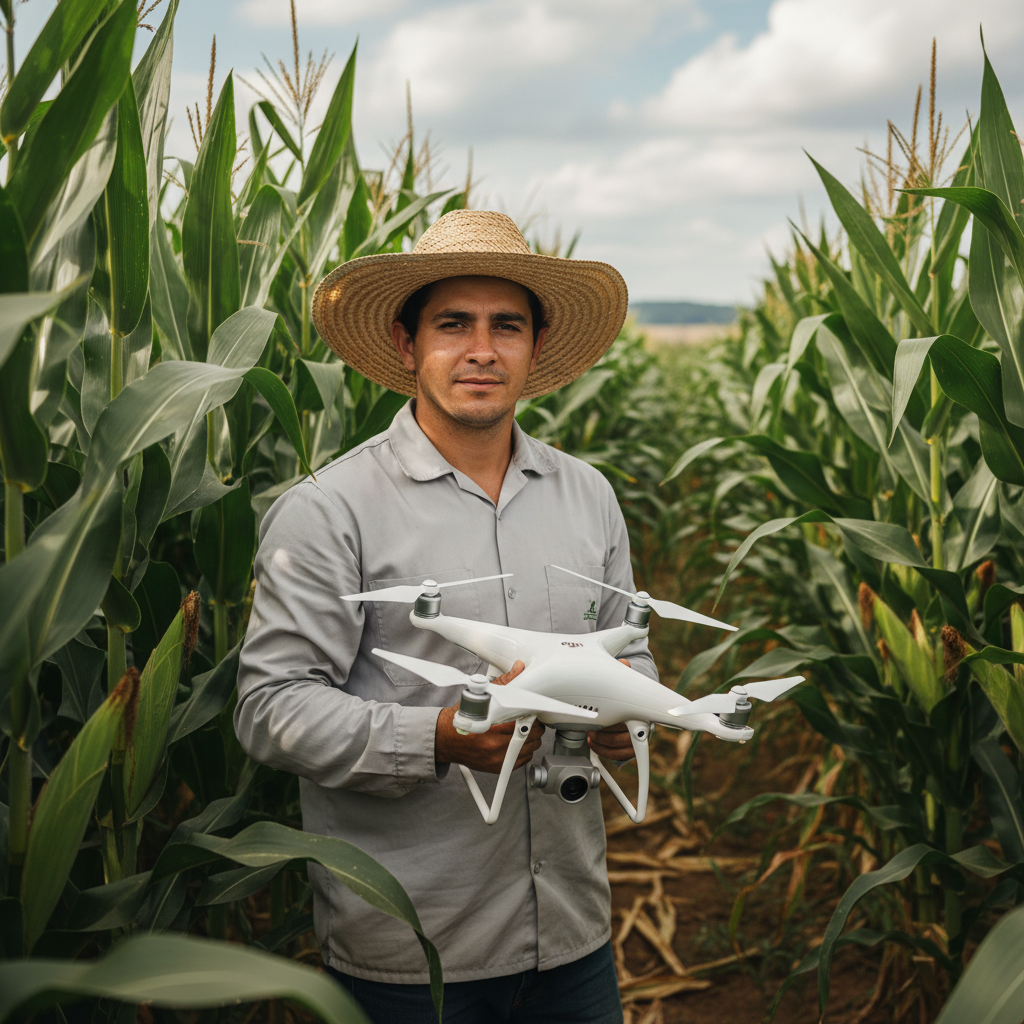
Lucas Fernandes Silva is an agricultural engineer with 12 years of experience in aerial mapping technologies and precision agriculture. ANAC-certified drone pilot since 2018, Lucas has worked on mapping projects across more than 500 rural properties in Brazil, covering areas ranging from small farms to large-scale operations. Specialized in multispectral image processing, vegetation index analysis (NDVI, GNDVI, SAVI), and precision agriculture system implementation. Lucas is passionate about sharing technical knowledge and helping agribusiness professionals optimize their operations through aerial technology.