
Understand lens distortion correction in aerial imagery
You want maps and models that match the real world, not a funhouse mirror. Lens distortion bends straight lines and changes scale across your frame, so orthomosaics and measurements can be wrong. Lens Distortion and Calibration: How to Correct Geometric Errors in Aerial Images is the task you need to tackle: correct the lens, then let your photogrammetry software stitch properly. Think of calibration like ironing a wrinkled shirt — you smooth the image so features line up.
Start with the types of errors you’ll face. Radial distortion makes lines bow outward or inward, mostly near the edges. Tangential distortion shifts parts of the image because the lens and sensor aren’t perfectly aligned. Your camera model in the photogrammetry software stores these distortion coefficients. During calibration the software solves for those coefficients and reports a reprojection error you can watch like a fuel gauge for accuracy.
Put this into practice with a consistent workflow: fly with good overlap, keep camera settings steady, and use a calibration pattern or run a camera calibration routine in the lab. Add ground control points (GCPs) to lock your model to real coordinates. After processing, check residuals and compare known distances to measurements in your map. If things still look off, re-run calibration or adjust GCP placement.
What causes geometric errors in UAV photos
Some errors come from the gear. Lenses are shaped to bend light; that bending causes radial and tangential errors. Manufacturing variances, cheap wide-angle optics, or a slightly tilted sensor mount introduce geometric errors. Rolling-shutter motion can add skew when the drone moves.
Other errors come from the flight and the scene. Inconsistent altitude, steep angles, or weak overlap lets scale change between images. Wind shakes the aircraft and vibrations move the camera; bad lighting hides features. GPS/IMU drift can shift image positions and make stitching harder. Control both hardware and flight to keep errors small.
How radial and tangential errors affect your maps
Radial distortion acts like ripples from a stone: things near the center stay close to true, while edges bow inward or outward. On an orthomosaic this shows up as curved roads, stretched parcels, and scale that varies away from the frame center. Measurements taken without correction will be biased, especially at photo edges.
Tangential distortion tilts and skews the image because the lens and sensor are offset. That creates small shears that throw off tie points and push features sideways. In DEMs and 3D models, tangential errors can cause dents or shifts in building corners. To get accurate boundaries or volume calculations, remove both radial and tangential errors.
| Aspect | Radial Distortion | Tangential Distortion |
|---|---|---|
| Cause | Lens curvature and wide-angle optics | Lens-sensor misalignment |
| Visible sign | Curved straight lines; stretching at edges | Slight shear; shifted corners |
| Effect on maps | Scale variation; curved features; wrong distances | Misaligned features; small positional offsets |
| Fix | Calibrate radial coefficients; use software correction | Calibrate decentering terms; adjust camera model |
Quick definition checklist
- Radial distortion: lens-caused bending of straight lines; looks like barrel or pincushion.
- Tangential distortion: shift from lens and sensor not centered; produces shear.
- Calibration: process that finds distortion coefficients for your camera model.
- Reprojection error: average mismatch between observed points and model; lower is better.
- GCPs: known ground marks used to tie the model to real coordinates.
- Orthomosaic: stitched, geo-corrected image made from many photos.
Radial and tangential distortion explained
Radial distortion bends straight lines into curves: a bulge toward the center (barrel) or a pinch toward the center (pincushion). Lens elements bend light unevenly across the frame; in drone photos the effect is stronger near edges of wide-angle shots.
Tangential distortion shifts points sideways when the lens and sensor aren’t perfectly aligned. That creates asymmetry: one side of a grid moves differently than the other, typically caused by sensor tilt or decentering in the camera assembly.
For mapping and photogrammetry, these errors break measurements and stitching. Correcting them is a core step in Lens Distortion and Calibration: How to Correct Geometric Errors in Aerial Images workflows. You fix radial errors with coefficients like k1, k2, k3 and tangential errors with p1, p2. Do that and your maps, models, and photos line up like tiles in a clean mosaic.
| Distortion Type | Main Cause | Visual Cue | Typical Correction |
|---|---|---|---|
| Radial | Lens curvature | Straight lines curve near edges (barrel / pincushion) | Coefficients k1, k2, k3 |
| Tangential | Lens/sensor misalignment | Asymmetric shifts, tilting | Coefficients p1, p2 |
Spotting barrel and pincushion in drone photos
Look for curved lines near the frame edge to spot barrel or pincushion. Photograph a fence, building edges, or the horizon and check whether lines bow out or pinch in. Use a grid overlay in your viewer and inspect frames at different heights and focal lengths. If straight grid lines stay straight only near the center but curve at the edges, you have radial distortion. Note which focal lengths give the worst bend so you can prioritize correction in calibration.
Measuring tangential shifts in camera frames
Measure tangential distortion by photographing a known pattern like a checkerboard from different angles. Feed those photos to calibration software which detects corner points and fits them to the ideal grid. The output will give p1 and p2, showing how much the frame shifts sideways.
For a quick manual check, measure how far a known point moves from the image center in pixels across shots, then convert pixels to physical units using sensor size and focal length. That gives a rough offset to judge if automated calibration is needed or if a hardware fix is better.
Short test steps
Capture a flat checkerboard pattern, take photos near center and edges, use a grid overlay to spot curve or skew, run calibration software to get k1/k2/k3 and p1/p2, then inspect residuals and re-shoot problem areas.
Camera calibration for aerial images — basics
Camera calibration fixes how your drone camera maps the scene to pixels. Without calibration you’ll get warped distances, bad mosaics, and unreliable measurements.
You must correct lens distortion and set the camera’s internal settings so maps line up—solve for focal length, principal point, and distortion curves. For aerial work, small errors grow into large ground position mistakes.
Make calibration part of your routine: do a short ground session or a calibration flight before critical surveys. That habit saves hours in post and makes models far more reliable.
Intrinsic and extrinsic parameters you must know
You need two groups of parameters: intrinsic and extrinsic.
- Intrinsic parameters describe the camera itself: focal length, principal point, pixel scale, and lens distortion coefficients. These convert sensor pixels to angles and correct warping.
- Extrinsic parameters tell you where the camera sits and points in space: rotation and translation relative to the scene. In aerial work this defines the camera pose for each shot and links images to real-world coordinates.
| Parameter type | Key items | Why it matters |
|---|---|---|
| Intrinsic | Focal length, Principal point, Distortion coefficients | Converts sensor pixels to angles and corrects warping |
| Extrinsic | Rotation, Translation (pose) | Places images in space for correct maps |
Using checkerboards and calibration targets
A checkerboard is the classic tool for intrinsic calibration. Photograph it from many angles and distances so the algorithm can solve lens curves and focal length. For small drones use a large pattern and bring it close so the board fills the frame.
For aerial surveys, large ground calibration targets and coded markers work better. Place high-contrast targets on open ground and fly patterns that capture them from multiple heights and oblique angles. That gives real-world scale and helps correct both lens errors and camera pose.
Calibration setup checklist
Bring a large printed checkerboard or high-contrast targets, level ground area, stakes or tripod, GPS or survey marks for scale, varied viewing angles and heights, stable light (avoid harsh shadows), and record flight metadata (altitude, camera settings, time).
Brown–Conrady and other distortion models
The Brown–Conrady model is a workhorse for lens correction. It mixes radial and tangential terms so you can fix barrel and pincushion warping plus lens decentering. For high geometric accuracy use k1, k2, k3 for radial warping and p1, p2 for tangential shift, plus principal point and focal length.
Simple radial models use fewer parameters (k1, sometimes k2) and are easier to fit. They’re suitable when you have limited calibration data or when consumer drones don’t need centimeter accuracy.
Beyond Brown–Conrady, there are division models and rational polynomial models for extreme wide-angle lenses and fisheyes. Some software adds thin-prism or affinity terms to model tiny shifts or pixel-scale skew. Pick a model that balances complexity with available data: more parameters help when you have many calibration images and careful control, but they can make fits unstable with sparse calibration sets.
| Model | Key terms | Complexity | Best for |
|---|---|---|---|
| Brown–Conrady | k1, k2, k3, p1, p2, principal point | High | Accurate aerial mapping, photogrammetry |
| Simple radial | k1, (k2) | Low | Quick corrections, consumer drone photos |
| Division / Rational | division coefficient, rational terms | Medium–High | Very wide-angle or fisheye lenses |
When to use Brown–Conrady vs simple radial models
If you need survey-grade accuracy, choose Brown–Conrady. It corrects asymmetric shifts and higher-order radial effects. For quick inspections or visual imagery, a simple radial model saves time and is often sufficient.
Interpreting model coefficients correctly
Coefficients can fool you if you ignore units and sign. Radial terms scale with distance from the principal point—effect grows toward edges. A negative k1 often means barrel distortion; a positive one means pincushion. Tangential coefficients (p1, p2) model decentering—shifting points sideways rather than stretching them outward. Always check whether your software expects normalized coordinates or pixel coordinates.
Validate fits visually by undistorting a grid or checkerboard and checking for residual bowing. Compare reprojection error to ground truth if available. If coefficients jump wildly between calibration runs, you likely need more images or better coverage, not more parameters.
Model selection tips
Pick the simplest model that keeps residuals low and coefficients stable: start with simple radial, inspect undistorted grids, then add tangential or higher-order radial terms if clear patterns remain.
Steps to perform lens distortion correction in aerial imagery
Start by identifying the type of distortion and gathering the right images and metadata. Keep raw files, GPS/IMU logs, and calibration images (checkerboard shots or ground targets). Use Lens Distortion and Calibration: How to Correct Geometric Errors in Aerial Images as your guide—this is what you are solving step by step.
Follow three main phases: pre-processing, calibration, and correction.
- Pre-processing: fix exposure, remove vignetting, convert RAW to linear color space, match white balance, trim unusable frames.
- Calibration: compute camera matrix and distortion coefficients from calibration frames or via self-calibration in photogrammetry software.
- Correction: apply radial and tangential maps to each frame so straight lines stay straight and control points align.
Finally, validate with GCPs or overlapping features. Check reprojection error, inspect straight lines on buildings and roads, and compare corrected images to a high-quality reference. If errors persist, revise calibration images, flight overlap, or lens profile and repeat.
Pre-process images before alignment and stitching
Convert RAW to a linear color space, correct exposure shifts, and remove hot pixels or vignetting. Match white balance and color across the set so the stitcher can find consistent features. Remove severely blurred shots, tag images with accurate GPS/IMU data, and keep a consistent naming scheme to aid batch processing.
Apply radial and tangential correction maps
Compute a distortion model with OpenCV or your photogrammetry package to get k1, k2, k3 (radial) and p1, p2 (tangential). Use undistort or remap functions to transform pixels back to their ideal places, applying proper interpolation and handling edges (crop or pad consistently). Re-run alignment after correction; you may iterate between calibration and stitching until errors drop to acceptable levels.
| Distortion Type | Visual Cue | How to Fix |
|---|---|---|
| Radial | Curved straight lines toward edges | Compute radial coefficients and apply undistort map |
| Tangential | Slight skew or tilt of the frame | Compute tangential coefficients and remap pixels |
| Vignetting | Dark corners | Apply flat-field correction before undistort |
Step-by-step correction plan
Collect calibration frames and consistent flight imagery → pre-process RAW files (exposure, white balance, vignetting) → compute camera matrix and distortion coefficients with a calibration tool or photogrammetry self-calibration → generate radial and tangential correction maps → apply maps with remap/undistort using good interpolation → align and stitch corrected images → validate with GCPs and reprojection error → repeat calibration if needed.
Sensor calibration for drone cameras
Treat sensor calibration like tuning an instrument. Level the aircraft, power up sensors, and record baseline readings. Calibrate the IMU, GPS, and camera alignment to cut down drift and offsets that ruin maps. Lens Distortion and Calibration: How to Correct Geometric Errors in Aerial Images should be your guiding task—calibrate sensors and camera before key surveys.
Make short test flights to validate changes. Fly a quick square at low altitude and review telemetry and sample images immediately. If you spot roll, pitch, or yaw bias in telemetry or curved horizons in photos, stop and recalibrate. Log every calibration: date, temperature, wind, and firmware version—this helps identify patterns over time.
Calibrating IMU, GPS, and camera alignment
Start IMU calibration on a perfectly flat surface and follow manufacturer steps. For GPS and compass, perform routines away from metal and strong magnets, doing the rotational compass routine and allowing GPS to lock to multiple satellites before flight. For camera alignment, mount a level target, shoot a grid of images, and check horizon lines; if the camera is off by a few degrees adjust gimbal mounts or input the offset in your flight app.
Managing thermal and mechanical shifts in sensors
Temperature changes cause thermal drift. Let your drone warm up after power-on, especially the camera and gimbal. Avoid hot-cold cycling that loosens mounts. After hard landings check the gimbal, vibration dampers, and mount screws. Tighten loose hardware and run another quick calibration flight. If vibration shows up as blurred images or noisy IMU data, add or replace dampers and run vibration analysis if supported.
Drone sensor checklist
- Power-on warm up
- IMU static calibration on level surface
- Compass/GPS lock and routine
- Camera test shots (focus and lens alignment)
- Gimbal movement and vibration check
- Log conditions (temperature, firmware)
- Keep spare screws and a small multi-tool
| Sensor | Quick Action | When to Recalibrate |
|---|---|---|
| IMU | Static calibration on level surface | After firmware updates, hard impacts, big temperature shifts |
| Compass/GPS | Rotational compass routine and satellite lock | New location, magnetic interference, after repairs |
| Camera/Gimbal | Test shots and horizon check; adjust mounts | After bumps, lens changes, or visible distortion |
| Vibration Dampers | Visual check and vibration test | If images blur or IMU noise appears |
Bundle adjustment — aerial photogrammetry workflow
Bundle adjustment is where camera poses and 3D points are tuned together. The algorithm adjusts image poses and 3D point positions so all image observations match real-world points as closely as possible, producing a cleaner model and fewer mismatches in orthomosaics or 3D meshes.
Start with feature matching, then a Structure-from-Motion pass for rough camera poses and sparse 3D points. Next run full bundle adjustment to minimize differences between projected points and observed features. The solver iteratively adjusts rotations, translations, focal length, and sometimes lens parameters.
To keep processing practical, decide which parameters to refine and which to hold fixed. Run local BA to clean clusters, then global BA to tie the block together. Run a calibration stage (Lens Distortion and Calibration: How to Correct Geometric Errors in Aerial Images) before or inside BA if your software supports it.
How bundle adjustment refines camera poses and scale
Bundle adjustment minimizes reprojection error—the gap between predicted pixel positions and observed features. The solver nudges camera rotation and translation and adjusts intrinsics if allowed. You’ll see lower RMSE and fewer ghosted features.
Scale is fixed by external information: GPS positions, altimeter data, or ground control points (GCPs). Include these to lock the scene to true scale and orientation. Without them, the model may be geometrically correct but at the wrong absolute size.
Tie points, reprojection error, and control points
Tie points are matched features seen in multiple images and are used to triangulate 3D points. The stronger and more evenly distributed the tie points, the more stable BA results. Reprojection error measures how far a reconstructed point’s image projection is from the observed feature—BA minimizes that across observations. GCPs act like anchors—after BA, check GCP residuals to see whether your model matches the ground or just fits images well.
Bundle adjustment quick rules
- Start with a good camera calibration and remove outliers early.
- Use overlapping images and well-placed GCPs to fix scale and orientation.
- Run local BA to clean clusters, then a global BA.
- Limit which intrinsics you optimize if results wobble—sometimes lock focal length or principal point.
- Watch reprojection RMSE and GCP residuals; lower is better, but avoid overfitting.
- If processing time is tight, downsample tie points or use keyframes.
| Term | What it means |
|---|---|
| Tie points | Matched features across images used to build 3D points |
| Reprojection error | Pixel distance between observed feature and projected 3D point |
| GCP (Control point) | Ground-measured coordinate used to fix scale and position |
| Camera pose | Camera rotation and translation in space |
| Calibration | Lens and sensor parameters, including distortion |
Image rectification and orthorectification techniques for aerial imagery
Use rectification and orthorectification to turn tilted, warped photos into maps you can measure from. Rectification fixes simple shifts and rotations to match a flat plane. Orthorectification removes terrain-induced displacement so features appear in true map locations. Both aim for geometric accuracy but handle terrain differently.
Flight planning, camera settings, and sensor calibration affect the work. If your lens has distortion or your drone tilts, pixels won’t match ground positions. That is where Lens Distortion and Calibration: How to Correct Geometric Errors in Aerial Images matters—correct the camera first, then correct image geometry.
Pick the right tool: rectified mosaics work for quick site checks; orthorectification is essential for survey, cadastral, and engineering work where accurate distances and areas matter. Plan GCPs and capture good overlap during the flight to simplify later processing.
Difference between rectification and orthorectification
Rectification aligns an image to a flat plane—removing tilt, scale, and simple perspective effects—and is suitable when terrain is flat or visual alignment is enough. Orthorectification uses a DEM to reproject each pixel to its true ground position, handling terrain variations and delivering maps accurate for measurements.
| Aspect | Rectification | Orthorectification |
|---|---|---|
| Goal | Align image to a flat plane | Place pixels at true ground coordinates |
| Terrain handling | Assumes flat | Uses terrain data (DEM) |
| Accuracy | Good for flat sites | High for varied terrain |
| Use case | Quick surveys, visuals | Mapping, cadastral, engineering |
Using DEMs and GCPs for accurate terrain correction
DEMs tell software how the ground rises and falls beneath photos. A DEM can be global, local, or generated from your flight (a dense point cloud). The more accurate the DEM, the better the orthorectified result.
Add GCPs to tie images to real-world coordinates. Place GCPs on visible, stable spots and measure them with GNSS. Spread them across the area. Combined with a good DEM, GCPs shrink positional errors and make your map reliable for measurements.
Orthorectification quick guide
Capture high overlap images, record accurate camera metadata, correct lens distortion, bring in a suitable DEM, mark several well-distributed GCPs, run orthorectification software, and check residuals—iterate until positional errors fall within tolerance.
Tools and quality checks for geometric error correction in UAV imagery
Use the right hardware and software to correct geometric errors. Start with good data: GCPs or an RTK/PPK-equipped drone, a calibrated camera or a pre-flight camera calibration, and images with consistent overlap and altitude.
Run bundle adjustment and radial distortion correction in your processing chain. Software will model lens quirks and camera pose, then minimize reprojection error across all shots. Check the output for systematic warping—straight lines should appear straight in orthomosaics and DSMs. If they bend, tweak calibration, add GCPs, or reprocess with stricter tie-point filtering.
Build a QA routine you repeat every time: inspect RMSE, review cross-track and along-track consistency, and visually check features like road edges and building corners. Save calibration files and processing logs so you can reproduce or justify results.
Popular software for radial distortion correction of drone photos
Several packages do radial distortion correction well:
- Agisoft Metashape: built-in camera model, easy UI, integrated photogrammetry.
- Pix4Dmapper: automated calibration, cloud options, survey workflows.
- OpenCV: full control of calibration math for custom pipelines and scripts.
- Lensfun: library for lens profiles and quick corrections with known lenses.
| Software / Tool | Strength | Best for |
|---|---|---|
| Agisoft Metashape | Built-in camera model, easy UI | Photogrammetry with minimal setup |
| Pix4Dmapper | Automated calibration, cloud options | Survey workflows and deliverables |
| OpenCV | Full control of calibration math | Custom pipelines and scripts |
| Lensfun | Library for lens profiles | Quick correction with known lenses |
Metrics to check: RMS error, RMSE, and visual inspection
Start with numeric metrics. RMS error or RMSE tells you how far, on average, projected points deviate from measured points. Aim for RMSE less than half the Ground Sample Distance (GSD) for most drone surveys; for precise work push lower. Watch for outliers—a low average can hide a few bad points that ruin local results.
Numbers only tell half the story. Always perform a visual inspection: overlay your orthomosaic on known vector data, check building corners, and scan straight lines like roads and fences. Repeating ripples or skew hint at residual radial distortion or an incorrect camera model. If visual checks fail, rerun calibration with more samples or tighten tie-point selection and repeat the RMSE check.
Final QA checklist
Before releasing a dataset, confirm you have: saved calibration parameters, RMSE within acceptable limits, enough well-distributed GCPs or reliable RTK/PPK metadata, consistent image overlap, clean tie-point clouds, and a visual pass over critical features (roads, corners, fences). If any item fails, fix the input data or recalibrate, then reprocess.
Frequently asked questions
- What is Lens Distortion and Calibration: How to Correct Geometric Errors in Aerial Images?
You fix lens warps and camera math. Distortion bends straight lines; calibration finds lens and camera values to undistort images. - How can you spot lens distortion in your aerial photos?
Look for curved roads or warped buildings, especially near image edges. Use a grid overlay or GCPs to see systematic shifts. - How do you calibrate your camera for aerial mapping?
Capture checkerboard images or many overlapping shots. Use tools like OpenCV, Pix4D, or Agisoft to compute the camera matrix and distortion coefficients, and save those parameters. - How do you correct geometric errors after the flight?
Apply the saved calibration or lens profile in your processing software, undistort the images, then run bundle adjustment with GCPs and check residuals. - How accurate will your maps be after correction?
Accuracy improves significantly with good calibration, tight overlap, and well-distributed GCPs or RTK/PPK. Expect errors ranging from centimeters (survey-grade setups) to meters (consumer setups) depending on equipment and workflow.
Lens Distortion and Calibration: How to Correct Geometric Errors in Aerial Images belongs at the start of any reliable aerial-mapping workflow—calibrate, correct, validate, and document every step.
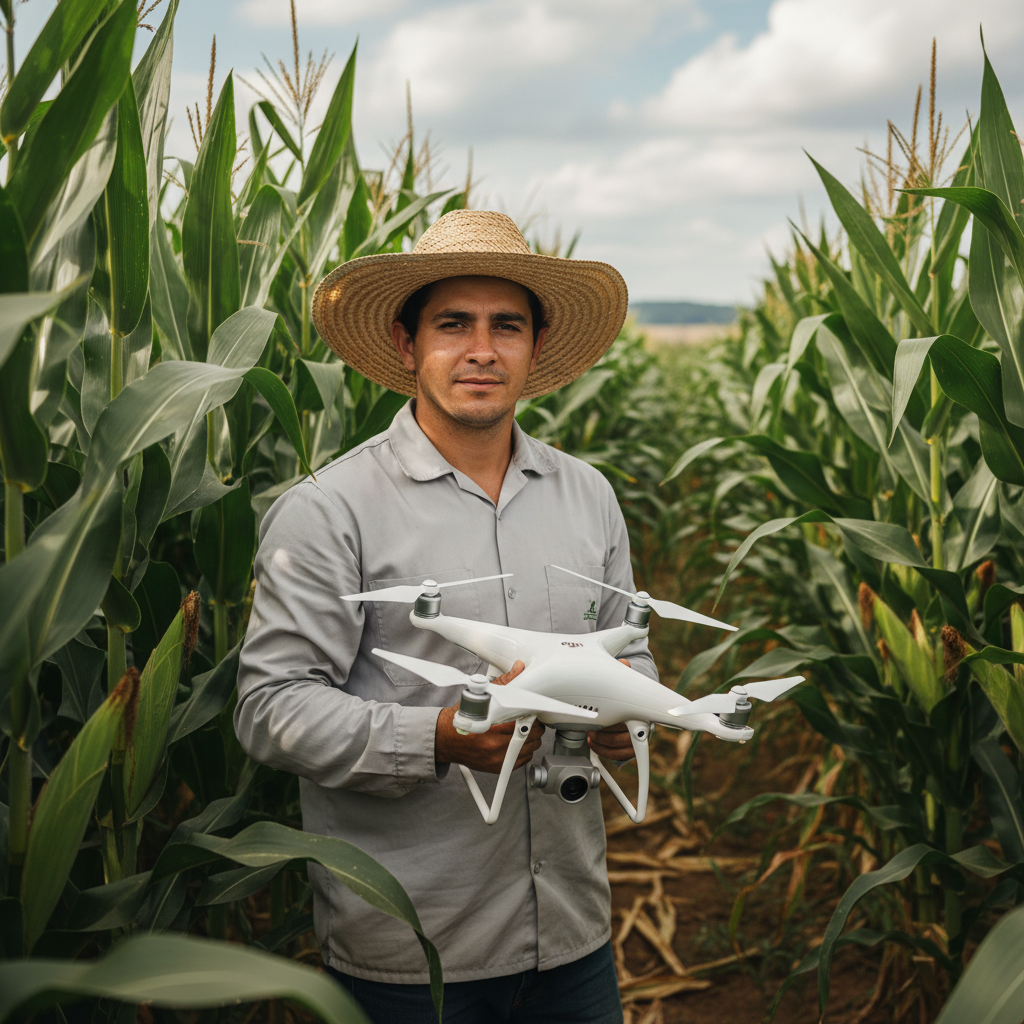
Lucas Fernandes Silva is an agricultural engineer with 12 years of experience in aerial mapping technologies and precision agriculture. ANAC-certified drone pilot since 2018, Lucas has worked on mapping projects across more than 500 rural properties in Brazil, covering areas ranging from small farms to large-scale operations. Specialized in multispectral image processing, vegetation index analysis (NDVI, GNDVI, SAVI), and precision agriculture system implementation. Lucas is passionate about sharing technical knowledge and helping agribusiness professionals optimize their operations through aerial technology.