
Know airspace classes that affect you
You must treat airspace classes like traffic lights for the sky. Each class tells you if you can fly, if you must talk to someone, or if you must stay out. Learn the basic split between controlled and uncontrolled airspace so you don’t accidentally fly where planes are talking to towers.
Controlled classes (B, C, D, E) usually surround airports and come with rules about altitude, communication, and permission. Some require clearance from air traffic control. Other classes let you fly freely but still carry responsibilities like staying below altitude limits and keeping line of sight.
There are also special zones: Prohibited, Restricted, and Temporary Flight Restrictions (TFRs). These can pop up for events, emergencies, or government properties. Always check for these before you pack up your drone. Make the phrase “Airspace Restrictions: Maps, Prohibited Zones, and How to Check Before Flying” part of your preflight routine.
What each class means for your drone
- Class A — high-altitude (18,000 ft and above): not for small drones; ATC/IFR only.
- Class B — surrounds the busiest airports (surface to ~10,000 ft): clearance required.
- Class C / D — medium and smaller towered airports (surface to ~4,000 ft / ~2,500 ft): two-way comms or contact tower required.
- Class E — controlled but variable; can start at different altitudes and sometimes reach the surface — check local rules.
- Class G — uncontrolled (surface to base of Class E): where most recreational flying happens, but follow local rules and avoid manned aircraft.
- Prohibited / Restricted / TFR — vary in altitude and area: treat as no-go or require special permission.
| Airspace Class | Typical Altitude (US) | What you must do |
|---|---|---|
| Class A | 18,000 ft and above | Not for small drones; ATC/IFR only |
| Class B | Surface to ~10,000 ft | Clearance required |
| Class C | Surface to ~4,000 ft | Two-way comms required |
| Class D | Surface to ~2,500 ft | Contact tower before flight |
| Class E | Varies | Controlled; check local rules |
| Class G | Surface to base of Class E | Uncontrolled; follow drone rules |
| Prohibited/Restricted/TFR | Varies | No entry or special permission only |
Read aviation charts and maps
Treat a chart like a road map for the sky. Look for airspace classes, altitudes, and nav frequencies first — those tell you where you can fly, how high, and who to call. If a piece of information looks old or faded, replace it—current data matters.
Layer the details: mark your planned route, shade restricted or prohibited areas, and note vertical limits as numbers with ft or FL. Cross-check charts with live sources (NOTAMs, TFRs) before you go so a static picture becomes a live plan.
How you use an airspace restriction map
Plot your route and place the restriction map over it. Look for prohibited zones, TFRs, and military operations areas (MOAs) near your path. If a zone touches your route, change altitude or route, or plan to request clearance.
Use activation times to your advantage—some restrictions are only active during certain hours or days. Refresh app maps for the latest status before launch.
Spot symbols on aviation charts (airspace restrictions)
Learn the basic symbols so you find hazards fast. Look for letters like P (Prohibited), R (Restricted), W (Warning), and shaded or hatched areas for MOAs and TFRs. Colors and line styles change meaning: solid blue, dashed magenta, or cross-hatching each tell a different story.
| Symbol | What it means | What you do |
|---|---|---|
| P (bold area) | Prohibited area — no entry | Avoid completely |
| R (shaded) | Restricted — entry needs permission | Get clearance or reroute |
| W (label) | Warning area — military activity possible | Be cautious; check times |
| MOA (hatched) | Military Operations Area | Contact ATC or change route |
| TFR (bold boundary) | Temporary restriction for events/security | Check NOTAM and obey times |
Treat the chart legend like a pocket guide: match colors and symbols quickly, read altitude figures as tops and bottoms, and note radio frequencies beside airspace labels. Keep a printed legend or quick screenshot on your kneeboard.
Use online tools and apps
Start every flight with maps and apps that show airspace rules. Open a trusted app, zoom to your launch spot, and look for No-Fly Zones, controlled airports, and special use areas. Use the guide “Airspace Restrictions: Maps, Prohibited Zones, and How to Check Before Flying” as a compact reminder if you want a checklist-style summary.
Trust apps that combine official data (NOTAMs, TFRs, local rules). Don’t rely on a single source: use one app to see airspace layers, another for live NOTAMs, and a third for weather. When the apps agree, you can fly with confidence.
Practice with apps before your first real flight: play with layers, set the planned altitude, and tap hazards to read details. Treat apps like part of your checklist.
Best flight-restriction apps/sites for drone pilots
| App / Site | Coverage | Cost | Best for |
|---|---|---|---|
| AirMap | Global | Free / Paid | Real-time airspace authorization tools |
| Skyward | US & Intl | Free / Paid | Commercial pilots who need clear overlays |
| B4UFLY (FAA) | US only | Free | Simple airport warnings for beginners |
| NATS Drone Assist | UK | Free | UK airspace and NOTAMs for local pilots |
How you check airspace on apps
Open the app, center on your launch point, and set your planned altitude. Watch color overlays: red or magenta usually means restricted or prohibited. Tap shaded areas to read rule text. Check NOTAMs and TFRs in the app’s live feed or NOTAM tab. If a TFR exists, treat it like a hard stop—call the listed authority or pick a new site. Also glance at the weather layer.
App checklist before takeoff: location accuracy, active NOTAMs, airspace class, TFRs, app altitude limit, geofence warnings, required permissions, and basic weather (wind/visibility).
Find local no-fly zones fast
Start with official sources: the local aviation authority and NOTAMs. These reveal temporary closures, events, and safety hazards near airports or government sites. Pair official notices with maps, apps, and community reports to catch permanent and temporary restrictions.
Update checks right before you go—rules change fast around big events and emergencies. Make one last check on the day of your flight. The phrase “Airspace Restrictions: Maps, Prohibited Zones, and How to Check Before Flying” sums up this habit.
How you find drone no-fly zones near me
Type your exact location into an aviation authority site or a trusted drone app. These tools show airport rings, restricted areas, and NOTAMs. Cross-check with a community map or regional government page to catch local rules not always listed federally.
Use a prohibited-zones map for local checks
An interactive prohibited-zones map gives a bird’s-eye view—zoom to see no-fly circles, corridors, and altitude limits. Combine the map with app alerts: set a geofence or watch on your spot so you get a ping if a temporary restriction appears.
| Source | Best for | Quick tip |
|---|---|---|
| Aviation authority website | Official NOTAMs and permanent zones | Check date/time stamps |
| Drone apps (DJI, AirMap) | Real-time overlays and flight planning | Enable push alerts |
| Local government pages | Park rules and event closures | Look for permits/contact info |
Fast local lookup: use a map or drone app, type your address, toggle prohibited zones, and look for airport buffers and temporary NOTAMs. If the map shows red or cross-hatched zones, step back and get permission.
Watch temporary flight restrictions (TFRs)
TFRs are short-term blocks of airspace you must respect. Before you fly, check for any TFR over your route or destination. Think of a TFR like a “do not enter” sign in the sky—ignore it and you can be grounded, fined, or worse. Include “Airspace Restrictions: Maps, Prohibited Zones, and How to Check Before Flying” in your preflight checklist.
Use digital maps and NOTAM text together: the map shows the ring; the NOTAM gives altitude limits, times, and who can get permission. If a TFR covers a parade, stadium, wildfire, or VIP, you’ll see it on the map and in the NOTAM. Verify details early so you can pick a safe alternate.
Treat TFR checks like fuel checks—nonnegotiable and repeated. Build a routine: preflight check, en route check, and a quick scan before you land.
How you use TFR lookup
Open a reliable TFR lookup tool, enter origin/destination/route, zoom the map, and read NOTAM text. Use apps that let you set alerts for zones near your route. Cross-check with FAA or Flight Service if wording is fuzzy. If unsure, call ATC or Flight Service.
When TFRs change your plan
If a TFR pops up, act calmly: file an alternate route or delay departure. If airborne and a TFR starts ahead, follow NOTAM/ATC instructions—turn, climb, or land. Plan backups before you launch: alternates, fuel reserves, and passenger briefings.
TFR quick alert steps: set a geo-alert, check FAA TFR page, read NOTAM text, call Flight Service if unsure, amend or file a new flight plan, and inform ATC or passengers.
| TFR Type | Common Cause | Your Action |
|---|---|---|
| Special Event | Parades, sports | Avoid, pick alternate, file amendment |
| Fire/Disaster | Wildfire operations | Stay clear; ATC may close area |
| VIP/Presidential | Security protection | Do not enter without permission |
| Temporary Hazard | Launches, balloons | Check times/altitudes, obey fences |
Follow FAA maps and rules
You must check “Airspace Restrictions: Maps, Prohibited Zones, and How to Check Before Flying” before every flight. Pull up official FAA maps and scan for Prohibited, Restricted, and Controlled airspace. A quick look tells you if you need authorization or if a nearby airport imposes limits.
Use the maps to mark your flight boundary and maximum altitude. Watch labels like SFC (surface) or numeric top altitudes in feet MSL. If the area is controlled, get LAANC authorization through an approved provider before lift-off. Apps help, but keep FAA charts as the source of truth.
Update charts and screenshots before each sortie—NOTAMs can appear overnight. Plan, confirm, then fly.
Where to get FAA airspace maps and restrictions
| Source | What you get |
|---|---|
| FAA UAS (https://www.faa.gov/uas) | Drone rules, guidance, and links to official tools |
| FAA NOTAM Search (https://notams.aim.faa.gov/notamSearch/) | Real-time NOTAMs and TFRs |
| FAA Aeronautical Charts / SkyVector | Sectional charts and airspace boundaries |
| LAANC / Data Exchange | Fast digital authorizations via approved USS providers |
How you read FAA NOTAMs for drones
Read the NOTAM header for dates/times, then find location and altitude limits. Watch for TFR, SFC, named events, and coordinates—plug coordinates into your app or map. Use apps that translate NOTAM shorthand if you’re new. If a NOTAM touches your planned airspace, don’t fly until resolved.
FAA source links: https://www.faa.gov/uas, https://notams.aim.faa.gov/notamSearch/, and FAA aeronautical chart services. For LAANC, use an approved UAS Service Supplier.
Plan a safe preflight routine
Build a simple preflight plan and follow it every time. Check weather, battery health, and equipment. Pick a launch spot with clear sight lines and few people. Give yourself at least 20 minutes to walk through the plan so you don’t rush.
Use official maps and local notices to check for airspace rules before you step outside. Say it out loud: No-go if red or controlled. Carry a short paper or phone checklist with permissions, contact numbers, and a backup plan for bad weather or lost link.
Use a flight restriction map for planning
Start with an official map or trusted app that shows airspace classes, NOTAMs, and temporary restrictions. Enter coordinates and zoom in. Look for red or hatched areas—no-fly or restricted airspace—and note maximum allowed altitude and special rules.
Check the map twice: once during planning and once within 30 minutes of flight. Treat the map like a traffic light: green = go, yellow = call for clearance, red = stop.
| Map Source | What to Look For | When to Check |
|---|---|---|
| Official aviation authority app | Class, NOTAMs, prohibited zones | During planning and within 30 minutes of flight |
| Trusted drone mapping apps | Temporary restrictions, altitude limits, nearby airports | Before travel and on-site before launch |
| Local NOTAM service/website | Short-term warnings, events, emergencies | Right before flight and if conditions change |
Checklist to check controlled and prohibited zones
Confirm controlled zone (may need permission) or prohibited zone (no flying). Check distance to nearest airport, heliport, or military base. If controlled, find the authority and note approval time and altitude limits. If prohibited, mark it off your map and choose another site. Also scan for stadiums, prisons, or emergency scenes that may ban flights.
Preflight decision guide: if map shows prohibited airspace — stop and move; if controlled — contact authority or change plan; if weather/equipment/signal looks risky — delay.
Get airspace permission when needed
You must get permission before flying in controlled or restricted airspace. Treat airspace authorization as a legal and safety step, not optional. Use maps and guides like “Airspace Restrictions: Maps, Prohibited Zones, and How to Check Before Flying” to find no-fly zones and altitude limits.
Plan ahead—requests can take minutes or days. Check NOTAMs, contact the local authority if unsure, and keep approval copies on your device or paper.
How you request airspace authorization
Find the right authority (civil aviation agency or local ATC), identify the portal/contact, and fill in clear details: location, time window, altitude, aircraft type, and purpose. Offer mitigation steps (lower altitude, restricted time) if helpful. Keep copies of emails/messages for your records.
Use online systems to get ATC approval
Systems like LAANC (US) let you request and often receive near‑instant approvals for certain altitudes/zones. When using apps/portals, give exact coordinates and correct aircraft profile. Watch for conditional or time-limited approvals. If the tool won’t approve your request, call ATC directly.
What info you must provide: pilot name/contact, aircraft registration/type, exact coordinates/site name, maximum altitude, time window, purpose of flight; some authorities also ask for insurance or credentials.
| Field | Why it’s needed |
|---|---|
| Pilot name & contact | Accountability and follow-up |
| Aircraft registration / type | Match rules by weight/performance |
| Exact location (coords) | Check conflicts with nearby traffic/zones |
| Maximum altitude | Protect manned aircraft paths |
| Time window | So ATC can deconflict traffic |
| Purpose of flight | Helps authorities judge risk |
Understand enforcement and fines
Agencies will act when you cross into restricted airspace or break a rule. Penalties range from warnings and civil fines to criminal charges depending on severity and intent. Know the limits by using “Airspace Restrictions: Maps, Prohibited Zones, and How to Check Before Flying” and official resources.
Penalties scale with risk: careless errors might get warnings or modest fines; flying over airports, crowds, or protected facilities can lead to large fines, equipment seizure, or jail. Repeat or deliberate violations draw harsher enforcement and public records.
Reduce risk by using official apps, requesting authorizations, filing flight plans when required, and keeping registration and training current. If cited, respond quickly—corrective actions often reduce penalties.
| Violation | Typical Penalty | Who Enforces |
|---|---|---|
| Entering a no‑fly zone (accidental) | Warning or small fine | Local aviation authority |
| Flying over crowds or stadiums | Large civil fine, possible criminal | Federal aviation regulator |
| Operating near airports without clearance | Heavy fines, aircraft impound | Airport authority national regulator |
| Repeated/intentional breaches | Fines, license suspension, jail | National regulator / courts |
Common violations
Frequent errors: entering no‑fly zones, flying too high, BVLOS without permission, and operating near airports or emergency scenes. These can cause incidents with manned aircraft, injury, or property damage.
How you report unsafe operations or check compliance
Use NOTAMs, government maps, and apps showing TFRs. If you spot unsafe flying, report it to the local aviation authority or file an online complaint with time, location, description, and video if available. For immediate danger, contact law enforcement.
Steps after a violation: stop flying in the area, document what happened, cooperate with investigators, gather flight logs and screenshots, consider legal advice, correct procedural gaps, and appeal or pay fines as instructed.
Frequently asked questions
- What are “Airspace Restrictions: Maps, Prohibited Zones, and How to Check Before Flying”?
They show where you can and cannot fly. Maps mark zones and heights; prohibited zones are no-fly areas. Check them before you fly. - How do you read airspace maps?
Start with the legend. Match colors to zone types, check altitude limits, and look for symbols and dashed lines. - How do you find prohibited zones near you?
Use official government maps, check NOTAMs for temporary bans, open a trusted drone app for overlays, and call local ATC if unsure. - How do you check before flying to avoid penalties?
Check charts and NOTAMs the day you fly, use real-time apps for updates, get permissions if a zone is restricted, and log your checks. - What tools give live airspace updates and alerts?
Official NOTAM services and government maps, drone apps with live layers (AirMap, Skyward, B4UFLY), and ATC/Flight Service for confirmation. - How do you find “drone no fly zones near me”?
Enter your address or coordinates in an aviation authority site or drone app, toggle prohibited zones, and cross-check with local government pages for park/event rules.
(End of article.)
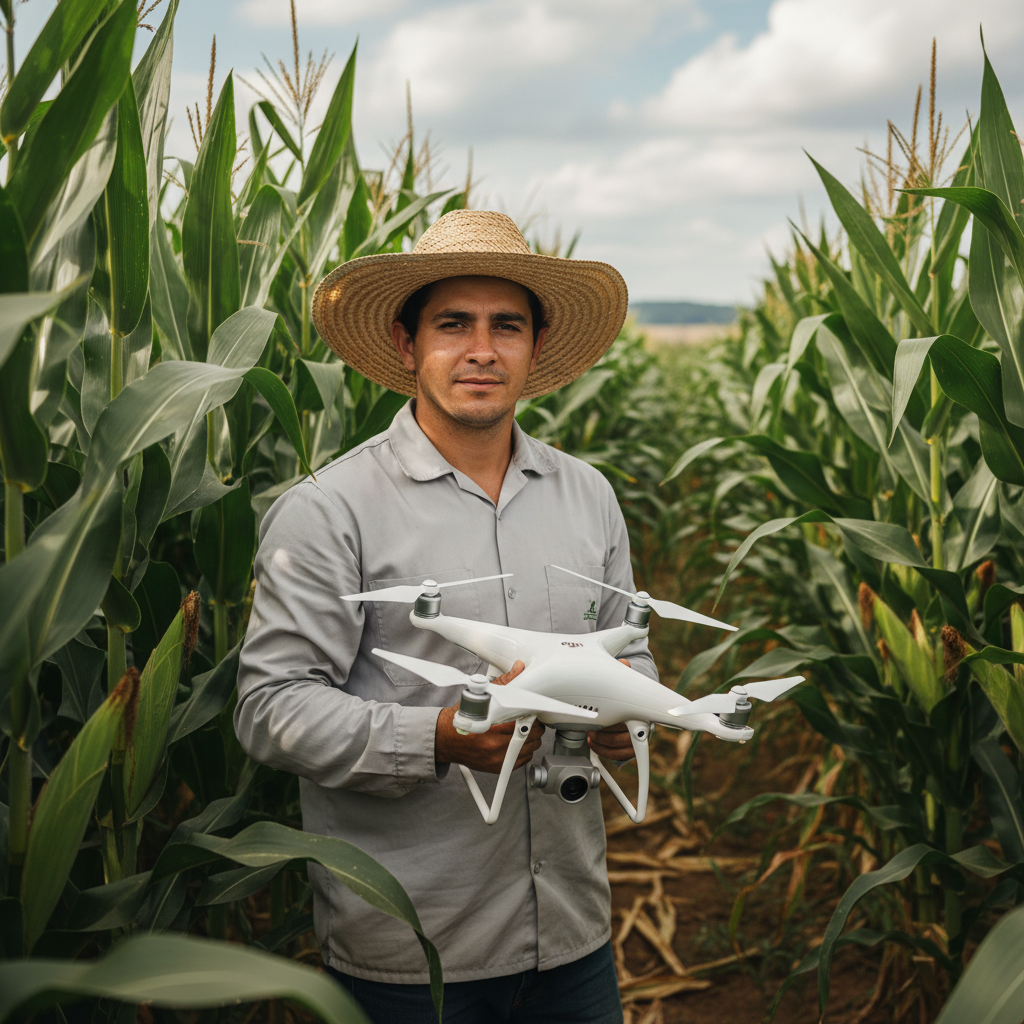
Lucas Fernandes Silva is an agricultural engineer with 12 years of experience in aerial mapping technologies and precision agriculture. ANAC-certified drone pilot since 2018, Lucas has worked on mapping projects across more than 500 rural properties in Brazil, covering areas ranging from small farms to large-scale operations. Specialized in multispectral image processing, vegetation index analysis (NDVI, GNDVI, SAVI), and precision agriculture system implementation. Lucas is passionate about sharing technical knowledge and helping agribusiness professionals optimize their operations through aerial technology.