
Follow regulations for GCP placement
When you place Ground Control Points, treat rules like the blueprint for a safe build. Start by mapping which agencies control the land and air where you work. Permits, safety rules, and privacy expectations differ block by block. A quick call to the local planning office and airport authority can save you a week of scrambling. Remember: Geometric Calibration: Use of Ground Control Points (GCP) for Precision depends on predictable, legal access to each site.
Plan site work so it fits the legal frame. Pick GCP locations that are visible, stable, and accessible, while staying clear of restricted zones. Talk with landowners and utility managers before you place markers. Markers should be set with a clear chain of custody — from placement, through survey logging, to removal — so your measurements stay credible and defensible.
Treat documentation like your safety net. Keep photos, GPS logs, and signed permissions together so you can answer questions fast. Small oversights (a missing permit or unclear consent) can stall a whole project; tidy records avoid that headache.
Obtain permits and site access approvals
Identify permit types for each location: public right-of-way, private permission, environmental or protected-area clearance. Contact issuing offices early — lead time varies. Get written approvals and note conditions such as time-of-day restrictions or restoration requirements.
Loop in the crew and the landowner. A signed access agreement should list who can work, where they can go, and emergency contacts. When in doubt, get a short, clear email stating permission and any limits.
| Permit Type | Typical Lead Time | Issuing Body | Quick Note |
|---|---|---|---|
| Public right-of-way | 1–3 weeks | City/Town Public Works | May require traffic control |
| Private property consent | 1–7 days | Property owner or manager | Get a signed form with boundaries |
| Environmental / protected area | 2–8 weeks | Environmental Agency | May need special mitigation steps |
Meet local safety and privacy rules
Safety rules protect your team and the public. Use PPE, set up traffic control where needed, and watch for utilities. If you work near an airport or heliport, contact the airspace authority about restrictions.
Respect privacy as if it were your neighbor’s backyard. Avoid placing GCPs that intrude on private windows or make people feel watched. Get signed consent for entry and photos; if a neighbor raises a concern, a calm chat often clears it up faster than email.
Keep permit records
Keep a single folder per site with scanned permits, signed access forms, timestamped photos, and contact names and numbers. Label files by date and point ID, and back them up to the cloud. When someone asks about a specific GCP, you should be able to pull the paper trail in minutes.
Plan GCP placement for accuracy
Think of GCPs as anchors for your map. When you plan, you lock the project to real ground. Say the phrase Geometric Calibration: Use of Ground Control Points (GCP) for Precision as your goal: accurate coordinates, fewer surprises in processing. Pick targets you can reach, measure, and re-check.
Start with a site recce. Walk the area, note obstacles, slopes, and access points. Place GCPs around the perimeter and across the center so coverage is even. For small sites use fewer points; for large or varied terrain add more. Spread them so every image has at least two visible GCPs.
Record everything: coordinate system, time, equipment used, and any offsets. Use bright marks and solid anchors so targets don’t move. If a target might shift (wind, animals, traffic), add backups — redundancy saves hours in the office.
Space targets to improve ground control points accuracy
Spacing depends on image detail. For tight, high-resolution work put GCPs closer together; for wide, lower-resolution surveys they can be farther apart. Place extra targets near edges, steep slopes, and complex features so local distortions are controlled.
| Image Detail (GSD) | Typical GCP Spacing |
|---|---|
| High (GSD < 5 cm) | 250–500 m apart |
| Medium (GSD 5–10 cm) | 500–1000 m apart |
| Low (GSD > 10 cm) | 1000–2000 m apart |
Keep targets regular but avoid clusters. If a road, river, or building creates a warp in imagery, add a local GCP nearby.
Use GCP precision mapping best practices
Make each target obvious in the image: high-contrast pattern and a clear center mark (cross or bullseye). Photograph each target from above and the side for a quick field record.
Measure with a reliable system: RTK or PPK receivers are preferred. Place the antenna directly over the center mark, note antenna height, and log datum and epoch. Take multiple readings and average if possible. If a GCP is touched during the project, mark it and re-measure.
Sketch target layout
Draw a simple map with targets labeled by ID, distances, and a north arrow. Note nearest landmarks and hazards. A quick photo of the sketch next to a target creates a strong memory aid and speeds processing later.
Use survey-grade GCP workflows
Treat Ground Control Points (GCPs) like the anchors of your survey. Use survey-grade procedures from planning to final check: pre-plan layout, use a high-quality GNSS receiver, and record antenna height and instrument setup. Geometric Calibration: Use of Ground Control Points (GCP) for Precision fits here — GCPs lock your model to real-world accuracy.
Bring redundancy into the field. Take multiple observations at each point, log raw GNSS data, and record timestamps to UTC. If a reading looks off, re-measure rather than guess. A single bad point can skew an entire flight or survey, so build time for repeats.
Safety and record-keeping matter as much as accuracy. Mark GCPs so crews can find them safely, use high-visibility flagging, and keep a chain of custody for physical markers and digital files.
Record coordinates with GNSS and check timestamps
Use a survey-grade GNSS with RTK or PPK capability. Stop and let the receiver settle. Record at least two sessions per GCP if possible; this gives a check against multipath or brief satellite outages.
Always log the raw receiver file and a readable coordinate report. Match GNSS timestamps to camera/drone UTC time. If timestamps drift, tag the offset in your notes — small clock errors turn into big position errors in processing.
Follow survey-grade GCP workflows checklist
Keep a short checklist on your tablet or a laminated card in the field. Cover planning, measurement, marking, logging, and post-processing checks. A checklist prevents skipped steps when the weather is hot or the day runs long.
| Task | Why it matters | Typical tools |
|---|---|---|
| Plan GCP layout | Good spread reduces model distortion | Map app, grid plan |
| Use survey-grade GNSS | Gives centimeter-class positions | RTK/PPK receiver |
| Duplicate readings | Catches transient errors | Multiple sessions |
| Record antenna height & metadata | Needed for correct final coordinates | Field sheet, app |
| Mark points clearly | Speeds recovery and avoids damage | Paint, flags, tags |
| Archive raw logs | Enables reprocessing and audits | External drive, cloud |
Archive raw survey logs
Save every raw GNSS log file and its metadata immediately. Use a clear file name with site, date, and point IDs. Back up to at least two locations — an external drive and cloud storage. Raw logs let you reprocess with better corrections later and protect you if questions arise about accuracy.
Apply GCP-based geometric calibration
Treat GCPs as the anchor for all your mapping. Geometric calibration with GCPs ties your project to real-world coordinates so your maps line up with roads, property lines, or survey control. Remember the phrase Geometric Calibration: Use of Ground Control Points (GCP) for Precision — you are adding known points to stop drift and give your model true location and scale.
Begin by marking reliable, visible targets, recording coordinates in the correct datum, and importing them into your photogrammetry software. Match ground marks to pixels in multiple images to fix camera errors, lens quirks, and scale. You want consistent coordinates, clear photos, and a spread of points across the whole area.
Watch out for common traps: clustered GCPs, sloppy marking, or mixing datums will wreck accuracy. Place points at corners and center, log who measured them and how, and keep a photo of each target for verification. If a point looks off in reports, re-measure or re-pick it in the images.
| Common GCP Problem | Effect on Model | Quick Fix |
|---|---|---|
| Clustered GCPs | Local accuracy only; global shift | Spread points to edges and center |
| Wrong datum | Systematic offset | Convert all coordinates to project datum |
| Poorly visible targets | High residuals | Replace with higher-contrast marks and retake images |
| Single-image picks | Bad depth control | Pick the same GCP in at least 3 images |
Perform photogrammetric GCP alignment steps
First, import GCP coordinates and set the project datum and units. Load images and use the software’s GCP tool to pick each ground point in multiple images — aim for at least three views. Save often and keep names consistent so you can trace problems later.
Second, check preliminary residuals and the control network. If one GCP shows large residuals, zoom into the images and re-pick carefully. Use image thumbnails and a photo log to confirm you matched the correct physical target.
Run bundle adjustment with GCPs correctly
When you run bundle adjustment, include GCPs as fixed or weighted constraints depending on their trust level. Fixed GCPs hold absolute positions; weighted GCPs allow slight movement if you suspect minor errors. Set weights so reliable survey points pull strongly on the solution.
After the first run, study convergence and iteration behavior. If the solver stalls or shows big jumps, check for bad picks or wrong coordinates and rerun with those removed or down-weighted. Use robust estimation to limit outlier influence, then reintroduce cleaned GCP picks. Iteration pays off — rerun until residuals are stable.
Check adjustment reports
Open the adjustment report and look at RMS, per-GCP residuals, and reprojection error. Flag any GCP with residuals much larger than project RMS and inspect its image picks and coordinates. Check histograms or scatter plots for bias and confirm coordinate offsets are within acceptable thresholds. If not, re-pick, re-measure, or adjust weights and rerun.
Control and analyze GCP error propagation
Treat GCP error propagation like a leaking pipe: small drips become a flood if ignored. Map how errors move through your adjustment or bundle block. Run residual analysis and record RMS, vector plots, and pattern trends so you can see whether errors are random or systematic. If you spot a consistent drift, you’ve found a bias that will skew every output unless you act.
Break the analysis into repeatable steps: compare image-space and object-space residuals, check per-image and per-GCP stats, and watch for clusters of high values. Use visual tools — scatterplots, heat maps, arrow maps — and a summary table of key metrics so your team can make fast calls.
Inspect residuals to limit GCP error propagation
Inspect residual plots for patterns first. Look for directional flows, groupings by flight line, or clustering near control monuments. If residuals point the same way across images, that indicates a systematic error (mis-modeled lens or a timing offset). Random scatter suggests measurement noise.
Plot residual vectors on a map to see size and direction at a glance. Mark GCPs with large residuals in bold on your report, then prioritize them for re-checking.
Re-measure or remove outlier GCPs
When a GCP shows a large residual, you have two options: re-measure it in the field or remove it from the adjustment. Re-measure when the site is accessible and you suspect marking or GPS error. Remove when a point is unreliable or obstructed and revisiting is impossible.
If you remove a point, document the reason and rerun the solution to confirm improvements. If you re-measure, match or improve the original method — take multiple fixes, photos, and note equipment. Re-check residuals after action; a true fix will shrink patterns and reduce RMS.
Log error findings
Keep a clear error log listing GCP ID, residuals before and after action, remedy (re-measured or removed), date, operator, instrument, and photo references. This record prevents repeated mistakes and supports stakeholder explanations.
| Residual (pixels) | Action | Quick Note |
|---|---|---|
| < 1 | Keep | Normal; monitor trends |
| 1–3 | Verify | Re-check measurements or weight |
| > 3 | Re-measure / Remove | Field visit recommended; document decision |
Perform orthorectification using GCPs
Think of orthorectification as ironing a map flat so distances match the real ground. Start by collecting high-quality Ground Control Points (GCPs) with known coordinates across the project area, including edges and varying elevations. Use a consistent coordinate system and log each GCP with a photo, description, and accuracy estimate.
Feed your images, the camera model, and the GCP coordinates into your processing software. Run the georeferencing step that ties image pixels to ground coordinates using those points. Watch residuals and RMSE — they tell you how well images match the real world. If residuals spike at certain GCPs, recheck their measurements or move them to clearer locations.
Finally, apply the orthorectification transform to produce the orthophoto. Save the corrected imagery and the adjustment report. Keep original images and logs so you can trace back if a later check finds shifts. Remember: Geometric Calibration: Use of Ground Control Points (GCP) for Precision is the backbone of this workflow.
Combine DEMs and orthorectification using GCPs
A good DEM fixes height errors that tilt or stretch images. Use a DEM that matches your area in resolution and vertical accuracy. Import the DEM into the project and link it with camera parameters and GCPs so the software can correct relief displacement accurately.
Run a test on a small subset first and compare outputs with and without the DEM to see how buildings and slopes shift. If you see odd offsets, check DEM vertical datum and GCP vertical values for mismatches.
Verify orthophoto shifts with ground control points accuracy
Verification proves the orthophoto is reliable. Set aside checkpoints not used as GCPs. Measure how far each checkpoint on the orthophoto is from its real-world coordinate and calculate horizontal and vertical errors. Plotting errors on a map helps spot patterns, like a consistent shift to the north.
Use clear acceptance thresholds (e.g., half a pixel or a defined meter tolerance depending on the project). If errors exceed limits, revisit GCP placement, DEM vertical offsets, or camera calibration.
Compare control checkpoints
List each checkpoint’s surveyed coordinate, orthophoto coordinate, and computed residual. Sort by error magnitude to find outliers quickly. If several nearby checkpoints show similar offsets, it likely indicates a systematic error (wrong datum or bad DEM alignment) rather than a single bad GCP.
| Item | Purpose | Quick Tip |
|---|---|---|
| GCPs | Anchor imagery to real coordinates | Spread across area and elevations |
| DEM | Correct height-related displacement | Match vertical datum to GCPs |
| Checkpoints | Independent accuracy test | Keep them out of the GCP set |
| Residuals / RMSE | Quantify fit quality | Inspect and re-measure outliers |
Calibrate remote sensing with GCPs
Start every project by tying imagery to the ground. Geometric Calibration: Use of Ground Control Points (GCP) for Precision is not a fancy phrase — it’s the practical step that makes your maps line up with reality. Pick clearly visible, stable points and record coordinates with a survey-grade GPS or RTK rover for reliable positional accuracy.
Place GCPs across the full image footprint, near edges and in the center to avoid warped results. Use more points for high-resolution sensors and complex terrain. After tying points, check residuals and RMSE. Remove bad GCPs and re-run until residuals match your accuracy goal — one bad point can skew an entire map.
Use remote sensing GCP calibration for multisensor data
When working with multiple sensors (optical, thermal, LiDAR), GCPs become the common thread that holds your data together. You want all datasets in the same coordinate frame so layers stack cleanly. Pick GCPs every sensor can see and that sit on firm ground to avoid shifts from parallax or different footprints.
Choose targets with strong visual contrast and stable reflectance across bands. For LiDAR and optical you may need hard targets elevated above vegetation. Log GCP altitude if possible and keep a clear field notebook or digital log.
| Sensor pair | GCP visibility | Recommended GCP type | Typical count |
|---|---|---|---|
| Optical ↔ Optical | High | Painted marks, roofs | 6–12 |
| Optical ↔ Thermal | Medium | High-contrast panels | 8–15 |
| Optical ↔ LiDAR | High (with elevation) | Elevated corner reflectors | 8–20 |
| Multi-temporal stacks | High across dates | Permanent ground marks | 10 |
Apply geometric correction with GCPs before analysis
Apply geometric correction early. Use GCPs to compute the transformation that maps pixels to ground coordinates. Choose a transformation model that matches your scene — affine for flat areas, higher-order for complex terrain. Record transformation parameters to reproduce or audit results.
Validate by checking independent checkpoints or overlaying known features like roads. Run correction before quantitative work (area measurement, change detection, machine learning input) so analysis rests on stable geometry.
Note sensor settings
Record sensor settings: pixel size, focal length, shutter time, lens distortion coefficients, and boresight offsets. Log aircraft or satellite attitude (yaw, pitch, roll) and exact timestamps. These details affect how GCPs map to pixels and make geometric corrections reproducible.
Follow safety and good operating practices in the field
Treat safety like your compass on a rough trail. Start every day with a plan listing tasks, hazards, and roles. Share the plan aloud so everyone hears the same instructions. Use checklists and a simple map of GCP locations. Check gear: batteries charged, radios working, and first aid kit ready.
When setting GCPs, remember the phrase Geometric Calibration: Use of Ground Control Points (GCP) for Precision — your work ties directly to safety. If a GCP sits near a road or slope, add extra flagging and a spotter. Walk the site with your team and point out trip hazards, moving machinery, and unstable ground. Keep records that anyone can read later: date every sheet, mark who inspected each GCP, and take a photo of each setup.
Brief your team and use PPE around GCP sites
Before you step on site, gather your crew and state roles in one or two sentences: who is the spotter, who sets the GCP, who controls traffic, who calls an emergency. Require appropriate PPE: high-visibility vests, hard hats, steel-toe boots, and gloves. For sun work add sunglasses and a hat. Make PPE non-negotiable.
Secure sites and mark hazards near targets
Treat every GCP like a tiny work zone. Use cones, tape, or temporary fences to keep people out. If the GCP sits near traffic, add signs and a flagger. Mark hazards with bright colors and short notes; for night work add reflective tape or lighting.
Record safety checks
Keep a simple log for each shift with date, time, inspector name, PPE compliance, and site hazards noted. Add photos for each GCP showing placement and nearby risks. Sign or initial every entry.
| Item | Purpose | Frequency |
|---|---|---|
| High-visibility vest | Make you visible to vehicles | Every shift |
| Hard hat | Protect from falling objects | Every shift |
| Cones / tape | Define work area and keep public out | Setup and as needed |
| First aid kit | Immediate treatment for injuries | Inspect daily |
| Log & photos | Record checks and conditions | Each setup and change |
Document and share GCP metadata and audits
Treat GCP metadata and audit logs like a receipt for your survey. Record what happened, who did it, and when. That paper trail proves your work and helps you find and fix errors fast.
Record key items for every GCP set: point ID, coordinates, coordinate system, timestamp, instrument used, and a short QA note. Add photos and a note about ground condition. Save processing logs, software versions, and parameter files. Give each bundle a clear file name and a checksum to spot corruption.
Share data in common formats so others can read it: CSV or GeoJSON for tables, ISO 19115 metadata tags or embedded EXIF where possible. Put files in a versioned folder or repository with access logs. Keep at least one archived copy offsite and one live copy for quick checks.
| Metadata Field | Example | Purpose |
|---|---|---|
| Point ID | GCP_001 | Link photos, logs, and measurements |
| Coordinates | 39.1234, -77.5678 | Spatial reference for processing |
| Timestamp | 2026-01-15T09:12Z | Match to imagery and sensor logs |
| Instrument | RTK GNSS, Leica GS18 | Trace instrument accuracy and settings |
| QA Note | Antenna 1.2 m; clear sky | Explain anomalies and decisions |
Keep records for Geometric Calibration: Use of Ground Control Points (GCP) for Precision
When you do Geometric Calibration: Use of Ground Control Points (GCP) for Precision, log the calibration steps. Save raw observations, tie point lists, and the final calibration report. Record residuals and RMS values to show how well the model fit the points. Save snapshots of calibration settings and camera model files so re-runs can be compared.
Include survey-grade GCP workflows and QA notes
Follow a clear workflow: plan points, measure with RTK or total station, record antenna height and PDOP, post-process fixes, then compute residuals. Write each step down and attach raw logs.
Write QA notes for each GCP: weather, nearby metal, obstructions, operator name, and any post-processing tweaks. Flag points that exceed thresholds and explain why they were kept or rejected.
Backup metadata files
Keep at least three copies of metadata: one local, one offsite, and one in versioned cloud storage. Use checksums and periodic integrity checks. Encrypt transfers if data is sensitive. Test restores occasionally so backups actually work.
Frequently asked questions
- What is Geometric Calibration: Use of Ground Control Points (GCP) for Precision?
It ties your images to real-world spots. You mark ground points with known GPS coordinates so maps and measurements are accurate. - How many GCPs should you use for good Geometric Calibration?
Use at least five, spread across the entire area. Add more for large or rough sites. - Where do you place GCPs for best results?
On stable, flat spots with bright, visible targets. Avoid shadows, water, and moving objects. - How do you collect GCP coordinates correctly?
Use a survey-grade GPS or RTK/PPK for cm-level fixes. Record antenna height and time. Save coordinates in a simple CSV or text file. - How do you check accuracy after Geometric Calibration: Use of Ground Control Points (GCP) for Precision?
Use independent checkpoints not used in calibration. Compare known vs measured positions and compute residuals. If errors exceed limits, adjust GCPs and re-run the solution.
Key takeaways
- Geometric Calibration: Use of Ground Control Points (GCP) for Precision is the practical step that anchors imagery to real-world coordinates.
- Plan GCP layout early, use survey-grade GNSS, keep thorough metadata, and verify with independent checkpoints.
- Good planning, clear documentation, and disciplined QA reduce rework and produce reliable, auditable results.
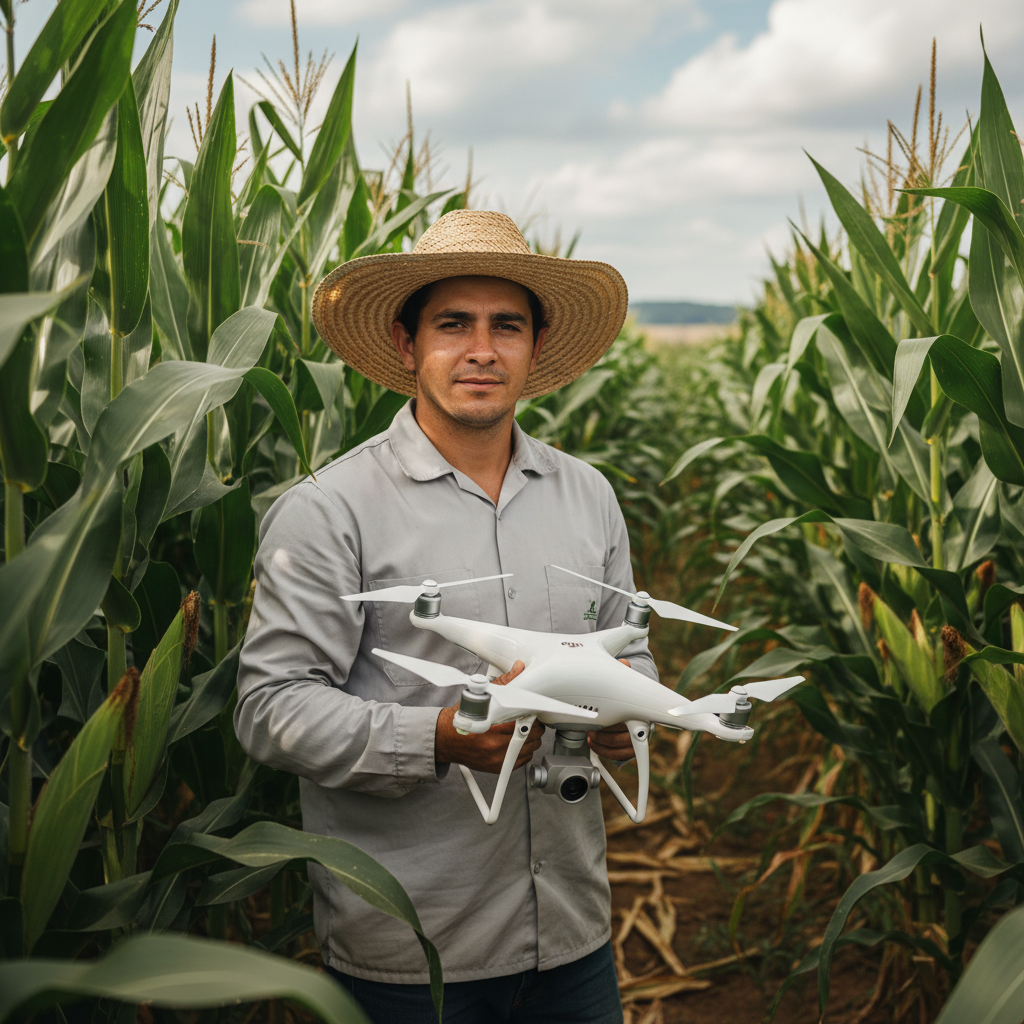
Lucas Fernandes Silva is an agricultural engineer with 12 years of experience in aerial mapping technologies and precision agriculture. ANAC-certified drone pilot since 2018, Lucas has worked on mapping projects across more than 500 rural properties in Brazil, covering areas ranging from small farms to large-scale operations. Specialized in multispectral image processing, vegetation index analysis (NDVI, GNDVI, SAVI), and precision agriculture system implementation. Lucas is passionate about sharing technical knowledge and helping agribusiness professionals optimize their operations through aerial technology.