
Your point cloud generation options
You have two main paths to create point clouds: LiDAR and photogrammetry. Each gives you a cloud of XYZ points, but they behave like different tools in your kit. LiDAR shoots laser pulses and records precise ranges; photogrammetry stitches many photos into a 3D model using matching features. Think: LiDAR = precision, photogrammetry = color and texture. For big projects, combine both — a win-win for your workflow and for 3D Point Cloud: Generation, Visualization, and Extraction of Topographic Data.
Choose based on the job. Use LiDAR when you need to cut through vegetation, measure under canopy, or map slopes with high vertical accuracy. Pick photogrammetry for high-resolution color, lower cost, or when you already have lots of images. Budget, timeline, and final use — survey deliverables, VR models, or maps — will steer your choice. Don’t forget processing time: dense photogrammetry can be slow, while LiDAR needs robust classification and filtering.
Plan your capture with purpose. For both methods, set ground control points (GCPs) or a good GNSS/IMU setup to tie data to real coordinates. Good prep — correct altitude, overlap, and sensor settings — saves hours later. Keep a simple capture log (location, time, sensor settings); that habit cuts debugging time dramatically.
LiDAR point cloud generation
LiDAR sends laser pulses and measures return time. Mount a scanner on a drone, car, tripod, or plane; each return becomes an XYZ point. Multiple returns per pulse can show layers (ground, shrubs, canopy), giving strong vertical accuracy and easy ground/non-ground classification — essential for surveying and flood modeling.
Typical processing steps: georeference with GNSS/IMU, align overlapping strips, filter noise, and classify points (ground, vegetation, buildings). Use software to create DEMs or extract breaklines. Expect large files and powerful hardware. Proper flight lines and calibration reduce cleanup time.
Photogrammetry point cloud reconstruction
Photogrammetry builds a point cloud by matching features across many photos. Capture overlapping images (60–80% overlap), then run Structure-from-Motion (SfM) followed by Multi-View Stereo (MVS). The result is a dense, colored point cloud with excellent texture — ideal for roofs, facades, and pavements.
This method depends on light and texture. Smooth, reflective, or dark surfaces give weak matches. Add GCPs or use high-quality drone GNSS for georeferencing. Processing can be slow but affordable on a decent PC or cloud service. For tight budgets photogrammetry often wins; for vegetation or low-light scenes, LiDAR may be better.
Sensor basics
Sensors are your eyes and measuring stick: cameras capture color and fine detail; LiDAR units capture range and multi-return structure; GNSS/IMU records position and orientation. Pay attention to point density, range, resolution, and frequency. Higher specs buy detail but increase file size and cost. Match sensor type to task: cameras for appearance, LiDAR for geometry and penetration.
| Aspect | LiDAR | Photogrammetry |
|---|---|---|
| Data type | Range returns (XYZ), multi-return | Image-based points with color (RGB) |
| Strengths | Penetrates vegetation; high vertical accuracy | High color detail; lower equipment cost |
| Weaknesses | Higher sensor cost; heavy files | Needs texture and light; struggles in canopy |
| Typical use | Topographic surveys, forestry, flood models | Architecture, 3D models, orthophotos |
| Weather/Lighting | Works in low light; less sun effect | Requires good lighting; less effective at night |
| Point density | Controlled by pulse rate & flight plan | Controlled by image overlap & resolution |
| Vegetation penetration | Good (multiple returns) | Limited (only visible surfaces) |
Your 3D point cloud processing steps
Begin with data capture: pick the right sensor, plan flight or scan paths, and use GCPs. Next, registration and alignment: merge scans or stitch photos, georeference, tie seams, and remove obvious mismatches — a good fit saves hours later. Finally, move to classification and deliverables: classify ground, buildings, and vegetation, then produce DEMs, contours, meshes, or volume reports. Always keep a copy of the raw cloud.
3D Point Cloud: Generation, Visualization, and Extraction of Topographic Data
For generation, use LiDAR or photogrammetry: LiDAR for accurate returns through vegetation gaps; photogrammetry for textured surfaces. Set sensor parameters, overlap, and scale carefully — small tweaks change the whole result.
Visualization and extraction turn the cloud into insight. Colorize by elevation or intensity to spot features, then extract DTMs, DSMs, contours, and volume measurements. For example, measure an excavation in minutes once the ground is classified.
Data cleaning and filtering
Start by removing noise and outliers. Apply statistical filters to cut isolated points and spatial filters to remove stray returns. Use ground-class filters first so you don’t erase real slopes or edges.
Balance aggressive cleaning with feature preservation. Decimate to speed display, but keep dense data where detail matters. Do a quick manual pass to fix holes and verify automated rules.
File formats
Choose formats that match your workflow. LAS/LAZ are standard for geospatial work; LAZ is compressed. PLY and OBJ suit meshes and visualization. XYZ is simple and universal. E57 handles multi-sensor projects and metadata.
| Format | Extension | Best use | Notes |
|---|---|---|---|
| LAS / LAZ | .las / .laz | Surveying, GIS | LAZ = compressed LAS. Preserves point attributes. |
| PLY / OBJ | .ply / .obj | Meshes, Visualization | Good for 3D viewers and CAD imports. |
| XYZ / TXT | .xyz / .txt | Simple exchange | Plain text. Easy but bulky. |
| E57 | .e57 | Multi-sensor projects | Stores scans, images, and metadata. |
Your registration and alignment workflow
Plan your workflow before loading data. Decide target coordinate system, number of GCPs, and which scans will be references. Keep the plan short and practical: pick a primary dataset, list secondary datasets, and mark areas with low overlap or poor coverage.
Run a coarse alignment (GNSS tags or known GCPs) to place scans in the right zone and correct scale. Then apply a fine registration (ICP or feature matching) to tighten fits. Work in stages: coarse then fine. Validate output as you go — check overlap, inspect tie areas, and run a residual check. If errors pop up, roll back to the last good step.
Point cloud registration and alignment
Begin with coarse matching using external references (GNSS positions or survey points). With a good coarse fit, automatic fine methods like ICP will converge faster and more accurately.
For fine alignment choose the right algorithm. ICP is fast for dense, high-overlap clouds. Feature-based methods suit low-overlap scenes with distinct shapes. A good approach: use features to find initial correspondences, then refine with ICP.
| Method | Best use | Typical result |
|---|---|---|
| ICP | High-overlap, dense scans | Tight local fit, fast |
| Feature matching | Low overlap, distinct features | Robust initial alignment |
| GNSS/GCP tie-in | Georeferencing to map datum | Correct scale and global position |
Control points and tie features
Place GCPs in stable, visible spots across the site. Spread them out and include edges and corners to reduce distortion. Use painted targets, survey markers, or repeatable man-made features.
Tie features are repeatable points used inside overlapping areas (roofs, junctions, corners). Choose features easy to spot in every pass to make automatic matching less fiddly.
Check residuals
After alignment, calculate residuals (differences between measured and fitted GCPs) and report RMSE. Look for hotspots where residuals spike. A small, uniform RMSE means a good fit. If one point has a large residual, drop or re-measure it and rerun alignment until residuals are acceptable.
Your segmentation and classification tools
Pick tools that handle both segmentation and classification in one flow. If you work with airborne or mobile scans, state the project goal (for example: 3D Point Cloud: Generation, Visualization, and Extraction of Topographic Data) so your tool settings match desired outcomes.
Pick methods that match data: region growing, clustering, or deep learning for dense scans; simple filters and rule-based classifiers for sparse data. Mix techniques: geometry for shapes, color for surfaces, and machine learning for patterns.
Treat labels like a living file. Keep a clear naming convention, export training sets, and version-control them. Start with examples, correct mistakes, and iterate until the model performs reliably.
Point cloud segmentation and classification
Segmentation splits the cloud into groups. Use voxel grids, plane fitting, or Euclidean clustering. After segments form, apply classification using normals, height, and reflectance.
Choose features that fit your use case. For roads, favor flatness and continuity; for trees, use vertical structure and point density. Test a small area first to save time and refine settings.
Automated vs manual labeling
Automated labeling is fast and handles millions of points, spotting broad classes like ground, vegetation, and buildings, but it can miss subtle edges.
Manual labeling is slow but precise — use it to fix tough spots and to create training data. Hybrid workflows (automated passes followed by human cleanup) are often best.
Class codes
Use class codes to keep labels consistent across tools and teams. Adopt a simple legend and stick to it. Map internal labels to standard export codes before delivery.
| Code | Common label |
|---|---|
| 1 | Unclassified |
| 2 | Ground |
| 3 | Low vegetation |
| 4 | Medium vegetation |
| 5 | High vegetation |
| 6 | Building |
| 7 | Noise / Low point |
| 9 | Water |
Your topographic data extraction steps
Start by planning scope: pick the area, resolution, and sensors. Keep goals sharp — mapping, flood modeling, or site design — because they change how you collect and process data. This workflow is central to 3D Point Cloud: Generation, Visualization, and Extraction of Topographic Data.
Acquire data: use LiDAR for dense ground returns or UAV photogrammetry for visual detail. Set flight lines, overlap, and GCPs. More overlap and a few well-placed control points beat guesswork.
Process and deliver: merge point clouds, run noise filtering, classify ground points, and create a DEM, contours, and slope products. Export to LAS/LAZ or GeoTIFF depending on the client. Check accuracy, add metadata, and package files so reviewers can reproduce your steps.
Topographic data extraction
Import and clean your point cloud. Remove stray points and run ground classification to separate ground from vegetation and structures. The cleaner the ground layer, the truer your map.
Derive needed features: extract breaklines and build a TIN for sharp edges; create slope rasters and sample cross-sections to check models. Log steps taken so you can repeat or explain them.
| Input | Common Tools | Typical Output |
|---|---|---|
| LiDAR point cloud | PDAL, LAStools | Classified LAS/LAZ |
| UAV imagery | Metashape, PIX4D | Dense point cloud |
| Processed cloud | CloudCompare, QGIS | DEM, contours, slope |
Digital elevation model extraction
Choose interpolation based on data and use: TIN for sharp features, grid methods (IDW, kriging) for smooth surfaces. Pick a cell size that matches point spacing; too coarse loses detail, too fine invents noise. A good rule: set cell size near the median point spacing.
After gridding, polish the DEM: fill voids, remove spikes, and smooth artifacts carefully so you don’t erase real features. Generate hillshade and check spot elevations against survey points. Export in the right projection and as a GeoTIFF.
Contours and slopes
Generate contours from the DEM with an appropriate interval — small for detailed sites, larger for regional maps. Create a slope raster and classify slopes into practical bands for design or hazard work. Snap contours to breaklines where you need high accuracy.
Your terrain modeling techniques
Pick methods based on project goals and data. Ask: do you need high-detail features like cliffs and buildings, or a smooth ground surface for analysis? For sharp edges and exact breaklines use vector approaches; for uniform grids and fast processing use raster.
Work in stages: clean, classify, model. Clean noisy returns and remove outliers first, classify points, then build surfaces using TIN or raster DEM, depending on precision and downstream needs.
Use the phrase 3D Point Cloud: Generation, Visualization, and Extraction of Topographic Data as a guide: generate robust data, visualize to check errors, and extract surfaces and features for maps.
Terrain modeling from point clouds
Filter the cloud (remove isolated points, spikes). Classify ground points (progressive TIN densification, cloth simulation). Interpolate ground points into a TIN for vector detail or a raster DEM for uniform analyses. Patch or flag holes and steep slopes.
TIN versus raster DEM
A TIN stores the surface as connected triangles and preserves breaklines and sharp features — ideal for engineering and contours.
A raster DEM stores elevation in a regular grid. It’s fast to compute and simple to overlay with imagery — better for hydrology and large-area smoothing.
| Feature | TIN | Raster DEM |
|---|---|---|
| Structure | Triangles following points | Uniform cells with one value each |
| Detail | Preserves breaklines and sharp features | Smooths detail; resolution depends on cell size |
| File size | Smaller for complex detail | Can be large at high resolution |
| Best use | Engineering, contours, 3D models | Hydrology, analyses, imagery overlays |
Hydrology prep
Remove sinks and fix flow paths before hydrologic modeling. Fill small pits, enforce stream channels where vector data exists, and compute flow direction and flow accumulation to produce reliable catchments and stream networks.
Your point cloud visualization methods
Select the visualization method according to your intended purpose: expedited inspection, precise measurement, or final publication. During rapid verification scenarios, employ unprocessed point cloud representations with adjustable point dimensions and color ramp palettes. When detailed analysis is the priority, deploy classification-based color schemes and utilize elevation or intensity-based filtering mechanisms. For professional deliverables and presentation materials, integrate polygonal mesh structures or textured surface models.
Move between levels of detail: start with a low-density view to pan smoothly, then load high-density tiles for accuracy. Use scales and legends so colleagues know what colors mean. Keep an eye on point attributes — RGB, intensity, return number, and classification — to tailor views without altering source data.
When preparing deliverables, think about the audience: surveyors need coordinates, elevation, and classification; architects want cleaned meshes and textures; web viewers need tiled datasets and LOD for smooth zoom. This is how 3D Point Cloud: Generation, Visualization, and Extraction of Topographic Data becomes useful to everyone involved.
Point cloud visualization techniques
Rely on tried-and-true techniques: adjust point size and opacity, map elevation or intensity with color ramps, and use classification coloring to separate features. Use statistical filters and voxel downsampling to speed rendering without losing shape. Mix techniques: overlay intensity shading on RGB or use elevation hillshade to show subtle slopes.
| Technique | Best for | Common formats / output |
|---|---|---|
| Raw points (size/opacity) | Quick QA and gap detection | LAS/LAZ, PLY, XYZ |
| Classification coloring | Feature separation (ground/veg/buildings) | LAS/LAZ (with class codes) |
| Meshing / Poisson | Presentation, area measurement, textures | PLY, OBJ, STL |
| Intensity / elevation ramps | Material contrast, slope visualization | LAS/LAZ, exported imagery |
| Tiling / LOD | Web delivery and smooth zoom | Potree, Cesium 3D Tiles |
3D rendering and colorization
Apply lighting, shading, and color maps. Use directional light for depth cues and ambient light to soften shadows. Apply RGB where available for natural scenes; otherwise use intensity or elevation ramps. Pick palettes that match your story (thermal-like for elevation, discrete for classes, grayscale hillshade for subtle relief) and consider color-blind accessibility. Add normals or ambient occlusion when converting points to meshes to increase realism and trust in surface shape.
Viewer and export options
Choose viewers and export formats by audience and file size. For desktop QC use CloudCompare or MeshLab; for web delivery use Potree or Cesium with 3D Tiles; for survey data share LAS/LAZ or E57. Export with decimation, LOD, or compression so viewers stay snappy.
Your large-scale point cloud workflows
When dealing with terabytes, plan the flow: capture, ingest, process, QA, deliver. Break jobs into repeatable steps and use a naming system that shows what data is at a glance.
Run a pilot to tune parameters such as tile size, compression, and parallel jobs. Track success metrics: processing time, storage cost, and classification accuracy. Use logs and dashboards to diagnose problems quickly. Follow a consistent guide covering 3D Point Cloud: Generation, Visualization, and Extraction of Topographic Data to hit checkpoints early.
Large-scale point cloud workflows
Split work into chunks that match compute limits — tile by area or elevation so you can retry single tiles rather than reprocessing everything. Automate routine steps with scripts and templates for common jobs to gain speed and repeatability.
Cloud processing and batching
Run heavy jobs in the cloud to scale. Use spot/preemptible instances for non-urgent tasks to cut costs, but plan for restarts. Balance job size and overhead: medium-size batches are easiest to rerun if something fails.
Storage and speed planning
Choose storage by access and cost. Use object storage for cold archives and NVMe/SSD block storage for active processing. Cache hot tiles on fast disks and move old data to cheaper tiers. Match tile size to IO: too big chokes throughput; too small spikes metadata overhead.
| Storage Type | Best Use | Typical Read Speed | When to choose |
|---|---|---|---|
| NVMe SSD | Active processing, caching | High (GB/s) | Heavy IO and working tiles |
| SSD (block) | Processing nodes | Medium (100s MB/s) | Parallel jobs and temp storage |
| Object storage | Long-term archive | Low (MB/s) | Cheap, durable backup and delivery |
Your quality control and validation checks
Treat QC like a gatekeeper: set clear pass/fail rules for point density, noise, and alignment. Run automated scans to flag low point density, high outlier counts, or large gaps, then do a short visual pass to catch issues code might miss.
Use layered checks from simple to deep: fast metrics (RMSE, point spacing, return-rate), then surface continuity, classification consistency, and change detection against past surveys. Log every test with timestamps and software versions for traceability.
Produce a short validation report for stakeholders: pass/fail items, a map of error hotspots, and recommended fixes. Keep it readable with a one-page summary. If your project involves 3D Point Cloud: Generation, Visualization, and Extraction of Topographic Data, include that report as part of delivery.
Accuracy tests with ground truth
Verify accuracy by comparing outputs to references. Use GCPs or survey-grade GNSS to sample the point cloud. Compute bias, RMSE, and completeness per GCP. If RMSE is high, inspect sensor alignment, georeferencing, or processing parameters.
Create cross-sections and compare profiles to surveyed lines. Run repeatability tests (process the same data with slight parameter changes) to see if errors are random or systematic.
Error reporting and metadata
Record every error and environment detail: error metrics, issue description, processing step where it appeared, and recommended actions. Store machine-readable logs and a one-page human summary.
Embed rich metadata: coordinate system, sensor model, capture time, processing software and versions, and filter thresholds. When a client opens the file, they should see the story of how the data was made.
Standards and best practices
Follow standards like ASPRS and ISO 19115, use common file formats, and keep a checklist for naming, versioning, and CRS. Use automated pipelines where possible, archive raw data untouched, and include a final human review.
| Check Type | What to check | Action if it fails |
|---|---|---|
| Point density | Points per m² vs target | Reprocess or retake survey |
| Positional accuracy | RMSE vs GCPs | Adjust georeference, inspect sensors |
| Noise / outliers | % outliers, spikes | Filter or manual clean |
| Classification | Class consistency, errors | Reclassify samples, tweak models |
| Metadata | CRS, software, timestamps | Add missing fields, update logs |
Frequently asked questions
Q: What is 3D Point Cloud: Generation, Visualization, and Extraction of Topographic Data?
A: A collection of XYZ points that map the land. You use it to see shapes, heights, and features and to make maps and models.
Q: How do you generate a 3D point cloud?
A: Fly a drone with LiDAR or take many overlapping photos. Run photogrammetry or LiDAR software and save the point cloud file.
Q: How do you visualize the point cloud on your PC?
A: Use tools like CloudCompare, Potree, or QGIS. Load the file, set point size and color, then pan, zoom, and slice to inspect details.
Q: How do you extract topographic data from the point cloud?
A: Classify ground points first, then build a DTM or DSM. From there create contours, profiles, or volume measurements.
Q: What mistakes should you avoid when working with point clouds?
A: Don’t skip ground control points. Avoid low overlap and noisy scans. Always clean outliers and verify results.
Summary — 3D Point Cloud: Generation, Visualization, and Extraction of Topographic Data
This guide covers how to generate point clouds (LiDAR vs photogrammetry), process and align them, classify and extract topographic surfaces, visualize results, scale workflows, and validate outcomes. Keep procedures repeatable: plan capture, use GCPs, validate with ground truth, embed rich metadata, and follow standards. With consistent pipelines and clear QA, 3D Point Cloud: Generation, Visualization, and Extraction of Topographic Data becomes a reliable path from raw captures to actionable maps and models.
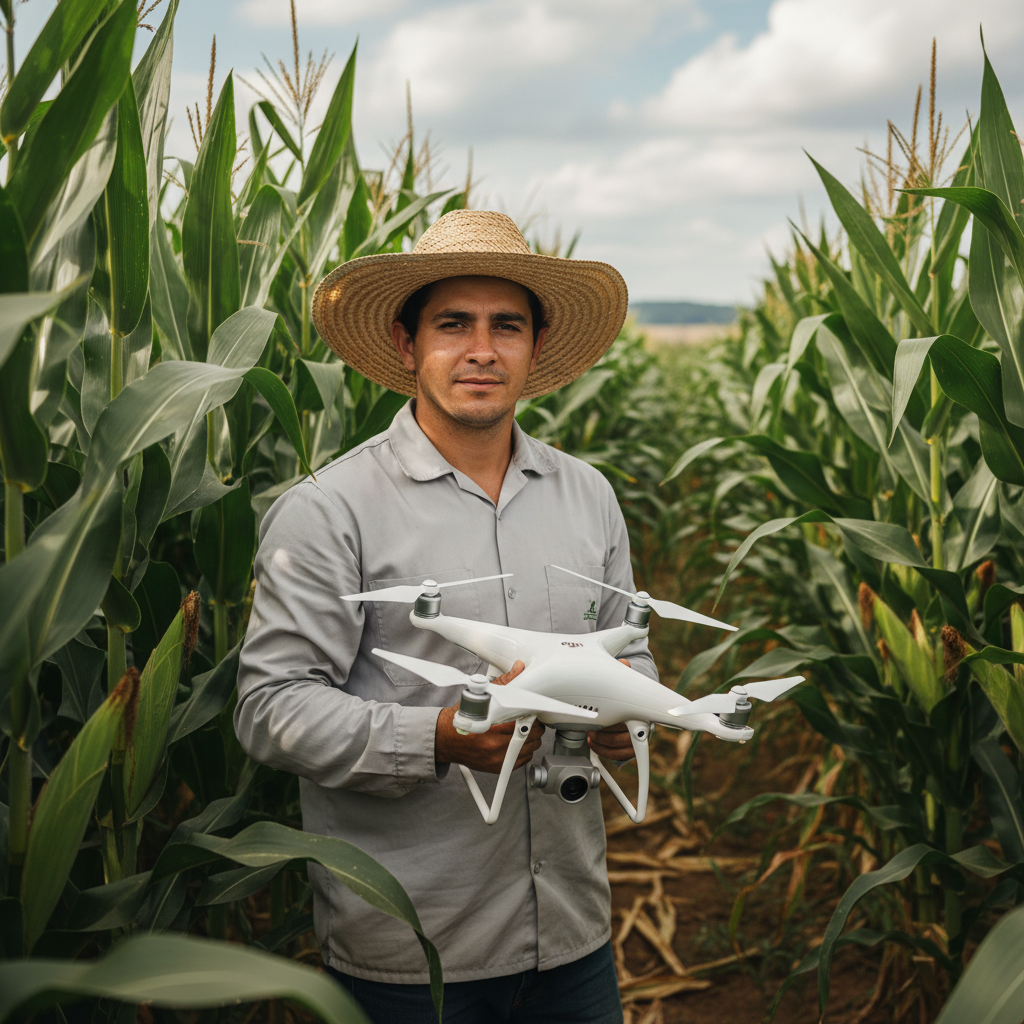
Lucas Fernandes Silva is an agricultural engineer with 12 years of experience in aerial mapping technologies and precision agriculture. ANAC-certified drone pilot since 2018, Lucas has worked on mapping projects across more than 500 rural properties in Brazil, covering areas ranging from small farms to large-scale operations. Specialized in multispectral image processing, vegetation index analysis (NDVI, GNDVI, SAVI), and precision agriculture system implementation. Lucas is passionate about sharing technical knowledge and helping agribusiness professionals optimize their operations through aerial technology.