Flight to map workflow
You start with a clear flight plan. Pick the area, set altitude, and choose overlap percentages. For most surveys, use 70–80% frontlap and 60–70% sidelap so your images stitch well. If you need high accuracy, add ground control points (GCPs) or use an RTK/PPK drone. Think of this step as laying the rails before the train runs.
Next, capture images with steady speed and constant light. Fly when the sun is steady — early morning or late afternoon often works. Keep your camera settings fixed: manual exposure, locked white balance, and the right shutter speed for sharp shots. If wind picks up, slow the drone or raise altitude slightly to keep images crisp.
After the flight, check data quality on-site. Look for motion blur, missing overlap, or gaps in coverage. A quick review saves headaches later. If something looks off, re-fly the affected strip while you still have battery and daylight.
Flight planning and capture
Before takeoff, pick the mission type: orthomosaic, 3D model, or inspection. Each needs different altitude and image overlap. For a field, you might fly higher for coverage. For a roof, fly lower for detail. The right settings cut processing time and boost accuracy.
During capture, follow a consistent pattern: grid for maps, circular for towers. Keep the drone level and avoid sudden yaw or pitch. Use camera trigger intervals tied to speed and overlap. Think of it like taking steps on a straight path — steady and even.
Uploading and project setup
Once you land, transfer images and metadata to your laptop or the cloud. Create a new project and label it clearly with date, site name, and mission type. Good names prevent mix-ups when you have many sites.
Choose processing settings based on your deliverable. For a quick orthomosaic use fast processing, but pick highest quality for final deliverables. Add GCP coordinates if you used them. Set coordinate system and check camera model metadata before you hit process.
Pix4D vs DroneDeploy workflow comparison
Pix4D and DroneDeploy follow similar steps, but they differ in control and options. Pix4D gives deep control over processing parameters and GCP workflows, while DroneDeploy focuses on speed and simplicity with guided uploads and automated processing. Your choice depends on whether you want power and tweakability (Pix4D) or speed and ease (DroneDeploy). Remember the phrase “DroneDeploy vs Pix4D: Complete Comparison of Features and Workflow” when you weigh speed against control — pick the tool that fits how you work.
| Step / Feature | Pix4D (Power) | DroneDeploy (Simplicity) |
|---|---|---|
| Flight planning | Integrates advanced camera and GCP settings | Simple grid and vertical plans |
| Upload & processing | Local and cloud, many adjustable parameters | Fast cloud-first processing |
| Outputs | Detailed point clouds, dense models, many export options | Fast orthomosaics, easy sharing |
| Learning curve | Higher — more options to learn | Lower — gets you flying faster |
| Best for | Surveyors and photogrammetry pros | Field teams and quick site checks |
Core mapping features
You need maps that match your mission. Core mapping features focus on orthomosaics, DTMs/DSMs, and dense point clouds so you can measure and inspect with confidence. Look for tools that give you GeoTIFF exports, LAS point files, and easy coordinate settings. If you’re running a site, that means you can overlay drone maps on your CAD or GIS with no drama.
Pick the processing style that fits your pace. If you want speed and team access, choose cloud processing so you upload, wait, and share. If you need full control and offline work, pick a desktop option with fine settings. Also check for batch processing, file compression, and how the app handles large projects so your laptop doesn’t freeze mid-job.
Accuracy is where your map becomes useful. Use GCPs, RTK/PPK, and the right GSD (ground sample distance) for surveys. You can raise accuracy by flying lower, increasing image overlap, and adding control points. Look for clear quality reports and tools that flag low-coverage areas so you don’t get surprised at delivery time.
Drone mapping software features comparison
DroneDeploy favors simple workflows, mobile flight planning, and quick cloud delivery. Pix4D gives you deep settings, desktop processing, and more control over photogrammetry steps. If you value speed and team access, lean DroneDeploy; if you need survey-grade control, Pix4D is often the better fit.
Price and support matter too. DroneDeploy tends to be easier for crews who need maps fast and want real-time sharing. Pix4D often costs more for advanced modules but gives more export options and fine-tuned outputs for engineers. Think about who will use your maps every day and pick the platform that matches that work style.
Measurement and annotation tools
You will mark up maps and take measurements often. Look for area, distance, and volume tools that let you draw polygons, place points, and get instant numbers. Good apps let you export CSVs or DXF so your measurements plug into reports or CAD. Use annotations to point out hazards, tag features, and store notes for your team.
Collaboration features speed up decisions. Choose software with layered annotations, shared projects, and simple comment threads so your crew can weigh in. If you work in construction or land management, a tool that tracks measurements by timestamp helps when you need to show progress or change orders.
DroneDeploy features vs Pix4D
For a straight head-to-head, think: DroneDeploy vs Pix4D: Complete Comparison of Features and Workflow — DroneDeploy wins on ease, speed, and team sharing; Pix4D wins on control, advanced processing, and survey accuracy. Pick DroneDeploy for fast site checks and team access. Pick Pix4D for detailed surveys, calibration options, and tight accuracy demands.
| Feature | DroneDeploy | Pix4D |
|---|---|---|
| Best for | Fast site maps, team sharing | Survey-grade maps, deep control |
| Processing | Cloud-first, quick turnaround | Desktop cloud, more control |
| Outputs | Orthomosaic, DSM, basic point cloud | Orthomosaic, DSM, dense point cloud, advanced exports |
| GCP / RTK | Supports GCPs, simpler RTK workflows | Strong RTK/PPK and GCP integration |
| Collaboration | Real-time sharing, mobile app | Project sharing, more desktop tooling |
| Learning curve | Lower | Higher, but more options |
Accuracy and survey quality
When you plan a survey, accuracy is the name of the game. Your final map or model depends on flight setup, camera calibration, and how you tie images together. If you want reliable results, pay attention to GCPs, image overlap, and the platform’s processing options.
You’ll trade time for detail. Higher overlap, oblique angles, and slower flights give you more tie points and a denser point cloud, but they cost battery life and processing time. Choose settings that match the job: quick site check or high-precision measurement. Use RTK/PPK where you can, but add GCPs for final control if absolute positions matter.
Finally, validate your work with check points. Run a small control survey or compare known landmarks to test accuracy. That quick habit saves hours of rework. When you read comparisons like DroneDeploy vs Pix4D: Complete Comparison of Features and Workflow, look for how each handles control, dense cloud options, and export formats so you pick the right tool for your accuracy target.
Role of ground control points
Ground control points (GCPs) give your project real-world anchors. You place targets on the ground, measure their coordinates with survey gear, and feed them into the processing. That ties the model to real coordinates and reduces drift. If you need centimeter-level absolute accuracy, GCPs are often the most reliable route.
Place GCPs well. Spread them across the site: corners, edges, and center. Make them large, high-contrast, and visible from the air. Use clear measurement practices and store coordinates with notes. Even with RTK/PPK, a few well-placed GCPs are a cheap insurance policy that can catch errors early.
Tie points and dense cloud detail
Tie points are the common features the software matches across images. The more distinct textures and overlap you give the camera, the richer the tie point network. That network is what lets the software solve camera positions and build a dense cloud, so plan flights with strong overlap and varied angles where possible.
A better dense cloud means a stronger mesh, cleaner contours, and sharper orthomosaics. You can improve density by flying lower, increasing overlap, or adding oblique imagery. Expect longer processing times with higher settings, but also expect more useful detail for measurements, volume calculations, and inspections.
Photogrammetry accuracy: DroneDeploy vs Pix4D
When comparing DroneDeploy and Pix4D, you’ll see different strengths: DroneDeploy favors simplicity and fast workflows with solid defaults for many users, while Pix4D gives deeper control over calibration, tie point filtering, and dense cloud settings for power users who want to tweak results. Both support GCPs and RTK/PPK, but Pix4D often exposes more advanced options that experienced surveyors use to push accuracy further.
| Aspect | DroneDeploy | Pix4D | Notes |
|---|---|---|---|
| GCP support | Good, user-friendly | Advanced, flexible | Both accept GCPs; Pix4D gives more control over use |
| Ease of use | High | Moderate | DroneDeploy is simpler for quick jobs |
| Dense cloud control | Basic to good | High | Pix4D offers finer tuning for detail |
| Processing options | Fast presets | Advanced settings | Trade speed vs detail |
| Export & formats | Common formats | Wide professional formats | Pick based on downstream tools |
Processing speed and methods
Processing speed comes down to two big choices: where you process and how you process. If you run jobs on a laptop, your CPU and GPU limits shape the time. If you use cloud services, you trade local control for scalable power. Match method to project size: small orthomosaics can be quick on desktop; large survey areas often finish faster in the cloud.
Methods vary by algorithm and settings. Lowering image resolution or using faster alignment modes cuts time, but it also lowers accuracy. You can think of this like cooking: crank the heat and you save time, but you risk burning the edges. Pick settings that keep the right balance for your deliverable—survey, inspection, or 3D model.
Look at your workflow like a factory line. Break big jobs into chunks, pick the right processing engine, and plan for queue times or local hardware limits. Use GPU acceleration, incremental processing, or cloud parallelism based on the task and your deadline. Small changes to inputs often shave large minutes off processing.
Cloud processing vs desktop
Cloud processing gives you scalability and less setup. You upload images, click a button, and the provider spins up servers to process in parallel. That means you avoid buying expensive GPUs and you get predictable outcomes across teams. If a fast turnaround matters, cloud can be the shortcut you need.
Desktop processing gives you control and offline work. You run everything on your machine, tweak advanced settings, and protect sensitive data. For repeatable, high-detail photogrammetry or when you must keep data local, desktop wins. If you want a head-to-head guide, check resources titled “DroneDeploy vs Pix4D: Complete Comparison of Features and Workflow” for a clear view of where each approach shines.
| Method | Pros | Cons | Best for |
|---|---|---|---|
| Cloud processing | Fast scale-up, low hardware cost, simple UI | Upload time, recurring fees, data transfer | Large projects, quick turnarounds, teams |
| Desktop processing | Full control, offline, tweak settings | Hardware cost, maintenance, longer for big jobs | Sensitive data, high-detail models, custom workflows |
Batch jobs and turnaround time
Batch jobs let you process many datasets without babysitting. Queue several flights overnight and wake up to results. But queues and limits matter: cloud vendors may throttle jobs, and desktop batches depend on your machine staying on and cool. Plan schedules around business hours, cost windows, or GPU availability.
Reduce turnaround by splitting large areas into tiles, using lower resolution for previews, and running final high-res merges only when needed. Also, automate post-processing steps so you don’t sit and click. Little automation and smart splitting add up — you’ll save hours and keep clients happy.
DroneDeploy vs Pix4D processing speed
DroneDeploy leans on cloud scaling for predictable, often faster full-site jobs, while Pix4D offers strong desktop GPU acceleration for detailed models and local control. Choose DroneDeploy when you need speed across many projects; pick Pix4D when you need fine control, local data handling, or maximum detail from a single flight.
Export formats and APIs
When you export maps and models, pick formats that match the next step in your workflow. Raster exports like GeoTIFF give you pixel-perfect orthomosaics and DEMs. Point cloud formats such as LAS are what you want for volume checks and 3D analysis. For visualization or 3D printing, OBJ or other mesh files are the ticket. Think of exports like packing a suitcase: pack for the trip you’re taking, not for every possible journey.
APIs let you automate exports and stitch them into your systems. Most platforms offer a REST API and webhooks so you can trigger processing, pull assets, and download results with scripts. Use APIs to schedule nightly exports, fetch metadata, or automatically push orthomosaics into your project folder. If you run repeat surveys, automating with an API saves time and reduces mistakes.
Keep an eye on projection and precision when you export. Choose the correct Coordinate Reference System (CRS) and the right resolution or point density for your task. Small mistakes here mean big headaches later: a misaligned CRS can shift your map by meters. Always run a quick check in your GIS or CAD tool after export to confirm alignment and attribute integrity.
Common file types: GeoTIFF, LAS, OBJ
GeoTIFF is the go-to for georeferenced imagery. When you export an orthomosaic or DSM as a GeoTIFF, you get an image with embedded spatial reference that opens directly in ArcGIS, QGIS, and most mapping software. Use GeoTIFFs for base maps, change detection, and any work that relies on accurate geolocation.
Point clouds in LAS format store X, Y, Z and often intensity or classification data. LAS is ideal for volume calculations, surface classification, and terrain modeling. Mesh or surface exports like OBJ turn point clouds into textured 3D models you can view in common 3D tools or web viewers. OBJ files are great for presentations and lightweight visualization, but they don’t carry georeference the same way GeoTIFF or LAS do.
| Format | Type | Best for | Common software |
|---|---|---|---|
| GeoTIFF | Raster (georeferenced image) | Orthomosaics, DEM/DSM, mapping | ArcGIS, QGIS, web maps |
| LAS | Point cloud | Volumes, terrain, classification | CloudCompare, PDAL, GIS |
| OBJ | Mesh (textured) | Visualization, 3D models, presentations | Blender, Sketchfab, web viewers |
GIS and CAD integrations
You’ll move data between mapping platforms, GIS, and CAD a lot. For GIS, import GeoTIFFs and LAS directly, keeping an eye on CRS and metadata so layers line up. For CAD workflows, export vector-ready assets like contours, breaklines, or shapefiles and convert them to DWG/DXF for direct use in AutoCAD or Civil 3D. When you prepare exports, choose formats that preserve scale and attributes so your drawings remain accurate.
When linking into CAD, simplify data where possible. CAD tools prefer clean vectors; too many points or overly dense meshes will slow performance. Use your processing software to generate labeled contours, survey points, and centerlines before export. If you need survey-grade accuracy, include control points and report the horizontal and vertical accuracy in your deliverables so the CAD team can trust the model.
DroneDeploy vs Pix4D output formats and integrations
Both DroneDeploy and Pix4D export GeoTIFF, LAS, OBJ, shapefiles, and CAD formats like DWG/DXF, and both connect to ArcGIS and QGIS workflows. Pix4D tends to give more control over processing parameters and dense point exports, while DroneDeploy focuses on streamlined cloud exports and quick integrations. Pick the tool that matches how you work: deep control or fast, repeatable outputs.
Ease of use and UI
You want a platform that gets out of your way so you can focus on the mission. A clear UI helps you spot flight controls, map layers, and processing settings fast. Look for a clean map view, big icons for flight actions, and a dashboard that shows mission status at a glance. If buttons are buried under menus, you lose time and patience in the field.
The visual flow should match how you think. When the app groups camera settings, flight paths, and output options where you expect them, you waste less time guessing. Color-coded layers, thumbnail previews, and simple toggles make a big difference. Even small touches like an undo button or quick access to recent projects add polish that you feel every day.
Performance matters as much as looks. A slick interface that lags or freezes costs you flights. Fast map redraws, responsive touch gestures, and clear error messages keep you moving. If you’re comparing options, remember the phrase fast and friendly — you want both a responsive UI and straightforward controls.
Mobile app and field testing
You’ll spend time on mobile devices while in the field, so the app must be solid. Look for offline maps, clear telemetry readouts, and easy photo capture controls. Good apps let you preview images and confirm overlap before takeoff. That saves you from repeating flights when you get back to the office.
On a dusty site or windy day, you want fast actions. The best mobile apps give large touch targets, quick mission edits, and clear warnings about wind, battery, or GPS. Try a short test flight and check how the app recovers from lost connection or low battery. Real-world testing reveals whether the app is just pretty or actually reliable.
Learning curve and customization
You’ll pick up basic tasks quickly if the software uses familiar terms and offers presets. Templates for common surveys, construction sites, or agriculture flights let you run missions right away. Clear tooltips and step-by-step guides reduce guesswork and help you move from novice to confident operator.
At the same time, customization matters when jobs demand it. Advanced users want to tweak processing parameters, add control points, or use APIs to automate workflows. Look for a balance: simple presets for speed and deep settings for fine control. Community plugins and solid documentation shorten the learning curve when you need to dive deeper.
Ease of use: DroneDeploy vs Pix4D
If you want something that’s quick to learn and operate, DroneDeploy generally wins for beginners with a more polished mobile flow and simple presets; Pix4D rewards time spent learning with deeper processing options and fine-grain controls that pros appreciate.
| Feature | DroneDeploy | Pix4D |
|---|---|---|
| Beginner friendly | High | Medium |
| Advanced controls | Medium | High |
| Mobile app usability | Strong | Good |
| Customization & settings | Good | Strong |
| Typical processing speed | Fast | Variable (more options) |
Pricing tiers and value
You need to match the plan to how you work. Look at what you fly, how many maps you process each month, and how many users need access. A cheap plan can feel great until you hit limits on processing time, map size, or support. Think of picking software like buying a pickup truck: do you want a city runabout or a heavy hauler for weekly loads?
Compare what each tier gives you beyond price. Some tiers bundle cloud processing credits, high-accuracy RTK support, and extra storage. Other tiers lock advanced analytics and integrations behind higher levels. If you plan to scale, prioritize plans with clear overage rules and a solid enterprise option so costs don’t surprise you later.
Use the line-item view when you budget. Add expected flight hours, storage needs, and any add-ons like orthomosaic exports, volume tools, or API access. That lets you see if a mid-tier plan delivers more value than a cheaper plan plus add-ons.
Subscription options and add-ons
Most providers offer monthly and annual billing. Monthly gives flexibility if your project is short. Annual often drops the per-month cost and may include bonus credits. Choose annual only if you’re confident about consistent use for a year.
Add-ons can change the game. Look for processing credits, extra user seats, premium support, and specialized modules (e.g., vegetation indices, thermal tools). Some vendors sell one-off processing at a set price. If you run irregular projects, pay-as-you-go credits might save you money. If you run steady jobs, a subscription with included credits often wins.
Cost factors for projects
Your biggest variables will be data size, desired accuracy, and turnaround time. A high-res photogrammetry job with many GCPs and RTK correction eats more processing power. Faster delivery options usually cost extra. If you need daily maps for a construction site, the frequent processing will drive budget more than the software license itself.
Team size and integrations matter too. More users means higher license costs. Integrations with GIS, BIM, or asset management platforms may require higher plans or separate connectors. Factor in training, storage, and backup. A cheap plan that keeps you stuck will cost more in time and frustration than a plan that fits your workflow.
| Plan focus | DroneDeploy (typical) | Pix4D (typical) | Best for |
|---|---|---|---|
| Entry / trial | Cloud starter, monthly/annual, limited processing | Free trials or time-limited desktop demos | Try both with a small job |
| Team / business | Tiered seats, cloud credits, integrations | Cloud desktop combos, subscription options | Teams sharing projects and permissions |
| Heavy processing / accuracy | Cloud processing, add-on credits, enterprise SLAs | Desktop licenses (one-time or subscription) cloud | High-control, high-accuracy desktop work |
| Pricing shape | Subscription with per-user pricing | Mix of subscription and perpetual license, pay-per-project options | Pick by workflow and frequency |
Best industries and workflows
Know where drone mapping pays off. You’ll get the biggest wins in construction, mining, agriculture, inspection, and surveying. Each industry uses the same core outputs — orthomosaics, DEMs, point clouds, and thermal maps — but you’ll apply them differently: progress tracking and cut/fill in construction, stockpile volumes in mining, plant health in agriculture, and condition checks in inspections.
Match outputs to decisions. Pick workflows that deliver the files your team actually opens: CAD-ready exports for engineers, GIS layers for planners, and simple annotated reports for site supervisors. Favor software that gives you fast processing, easy collaboration, and the right export formats (LAS, OBJ, GeoTIFF, DXF). Short processing times help you act on data while the site still looks the same.
Make the workflow repeatable. Set a flight plan, GCP routine, and quality check that you run every time. Train one or two people to own data capture and one person to own processing. That way your models are consistent, your reports are reliable, and your team trusts the numbers.
Construction, mining, agriculture
Construction: progress, reality checks, and handoff. Use drone maps to measure progress, validate schedules, and resolve disputes. Create weekly orthomosaics and regular 3D models so you can compare as planned versus as built. Use volume tools, cut/fill analysis, and easy annotations so project managers and contractors can act fast.
Mining and agriculture: big numbers, different goals. In mining focus on pit volumes, bench monitoring, and slope safety — run frequent scans and compare volumes over time. In agriculture you want NDVI, prescription maps, and canopy height; fly multispectral sensors and process vegetation indices. Pick cadence and sensors based on whether you need trend detection or one-off assessments.
Inspection and surveying tasks
Inspections: speed and detail win. For towers, roofs, pipelines, and bridges you’ll need high-resolution imagery, thermal imaging for hot spots, and clear annotation tools. Fly conservative exposures, tight overlap, and include close-up shots for defects. Use software with easy markups, mobile viewing, and exportable reports so inspectors sign off quickly.
Surveying: accuracy over everything. If you deliver surveys, focus on GCPs, RTK/PPK workflows, and proper georeferencing. Produce point clouds, contours, and CAD-friendly exports. Choose software that supports precise control points and outputs in formats your surveyors use every day.
Best software for drone mapping workflows
Pick software by workflow needs. For fast cloud processing and team collaboration go with DroneDeploy; for deep photogrammetry controls and desktop processing pick Pix4D. If you need advanced post-processing or offline work, consider Agisoft Metashape or Pix4D; for turnkey field-to-report solutions try DroneDeploy or DJI Terra. Match the tool to your priorities: speed, accuracy, or control.
| Industry / Task | Key features to prioritize | Typical software fit |
|---|---|---|
| Construction | Volume tools, weekly orthomosaics, collaboration | DroneDeploy, Pix4D |
| Mining | Volume reports, slope analysis, repeatability | Pix4D, Propeller |
| Agriculture | NDVI, multispectral processing, prescription maps | DroneDeploy, Pix4D |
| Inspections | Thermal, high-res imagery, annotation & reports | DroneDeploy, DJI Terra |
| Surveying | RTK/PPK support, precise georeferencing, CAD exports | Pix4D, Agisoft Metashape |
Support, training, and resources
You want fast answers and clear paths to learn. Start by checking each vendor’s support channels: email, chat, phone, and ticket systems. Note the response time for your plan level and whether live support is included. If you run into processing errors or project delays, a short wait can cost you hours.
Next, look at training formats. Some platforms offer step-by-step tutorials, recorded webinars, and hands-on labs that walk you through a full mapping job from upload to output. Other vendors add deep technical papers and API guides for automations. Match your team’s skill level: choose quick-start videos if you need speed, or detailed docs if you plan to tweak algorithms and build integrations.
Finally, consider cost and scope for resources. Free plans often give you basic docs and community access. Paid tiers add priority support, custom onboarding, and dedicated account managers. Before you commit, run a trial, ask for a demo that covers your workflow, and track how long it takes you to get your first usable map. That time-to-first-map tells you more than any brochure.
Docs, webinars, and tutorials
Good documentation is a map you can follow. Look for clear quick-start guides, screenshot-heavy workflows, sample projects, and an API reference if you automate tasks. When docs show real datasets and expected outputs, you’ll diagnose problems faster.
Webinars and tutorials are where you learn by doing. Attend live sessions and ask questions. If you can’t make them, watch the recordings and follow along with a test dataset. Short tutorial videos that show the interface and a full run from import to export will shave hours off your learning curve.
User community and forums
A lively community is your backup team. Forums, Slack groups, and user meetups let you tap into real-world fixes and clever tricks. Search threads before posting; many common issues—camera settings, flight overlap, or export formats—already have answers that save you time.
When you post, give clear details: software version, drone model, flight altitude, and a short log or sample images if possible. Good posts get fast replies. Also watch for user-contributed plugins and templates, but test them in a sandbox first—community tools can speed you up, but verify they match your data safety rules.
DroneDeploy vs Pix4D comparison (support & learning)
The title “DroneDeploy vs Pix4D: Complete Comparison of Features and Workflow” captures the trade-offs: DroneDeploy focuses on cloud-first simplicity, polished tutorials, and fast turnarounds, while Pix4D gives deeper photogrammetry controls, desktop processing options, and more technical docs for advanced tuning; choose DroneDeploy if you want speed and ease, pick Pix4D if you need control and detailed outputs.
| Area | DroneDeploy | Pix4D |
|---|---|---|
| Documentation clarity | High, guided quick-starts | Very detailed, technical depth |
| Webinars & tutorials | Frequent, polished videos | Regular webinars technical workshops |
| Community & forums | Active, user-friendly forum | Active, strong technical user base |
| Enterprise support | Priority plans, account managers | Enterprise SLAs, advanced onboarding |
| Learning curve | Gentle, faster to map | Steeper, more control over results |
Frequently asked questions
- DroneDeploy vs. Pix4D: Complete Comparison of Features and Workflow — what’s the main difference?
You choose ease and cloud speed with DroneDeploy. You get deep control and desktop power with Pix4D. - Which tool processes maps faster for your projects?
Faster cloud processing generally with DroneDeploy. Pix4D can be faster if you use a strong PC or GPU. - Which is easier to learn and use?
DroneDeploy is quicker to learn. Pix4D has more steps and a steeper curve but more options. - Which gives better accuracy and data control?
Pix4D offers finer control and advanced tuning. DroneDeploy is accurate for most site work and easier to operate. - Which one saves you money and fits your workflow?
DroneDeploy often saves time and reduces operational friction for routine jobs. Pix4D can deliver long-term value when you need detailed control or desktop licensing.
Summary — DroneDeploy vs Pix4D: Complete Comparison of Features and Workflow
DroneDeploy excels at speed, cloud scaling, and mobile-first field workflows that get teams producing maps quickly. Pix4D excels at deep photogrammetry control, desktop processing, and advanced exports for survey-grade work. Use DroneDeploy for fast site checks, team collaboration, and cloud-first pipelines. Use Pix4D when you need maximum control, advanced dense-cloud tuning, or offline desktop processing.
Choose the platform that aligns with your priorities: speed and simplicity (DroneDeploy) or control and precision (Pix4D).
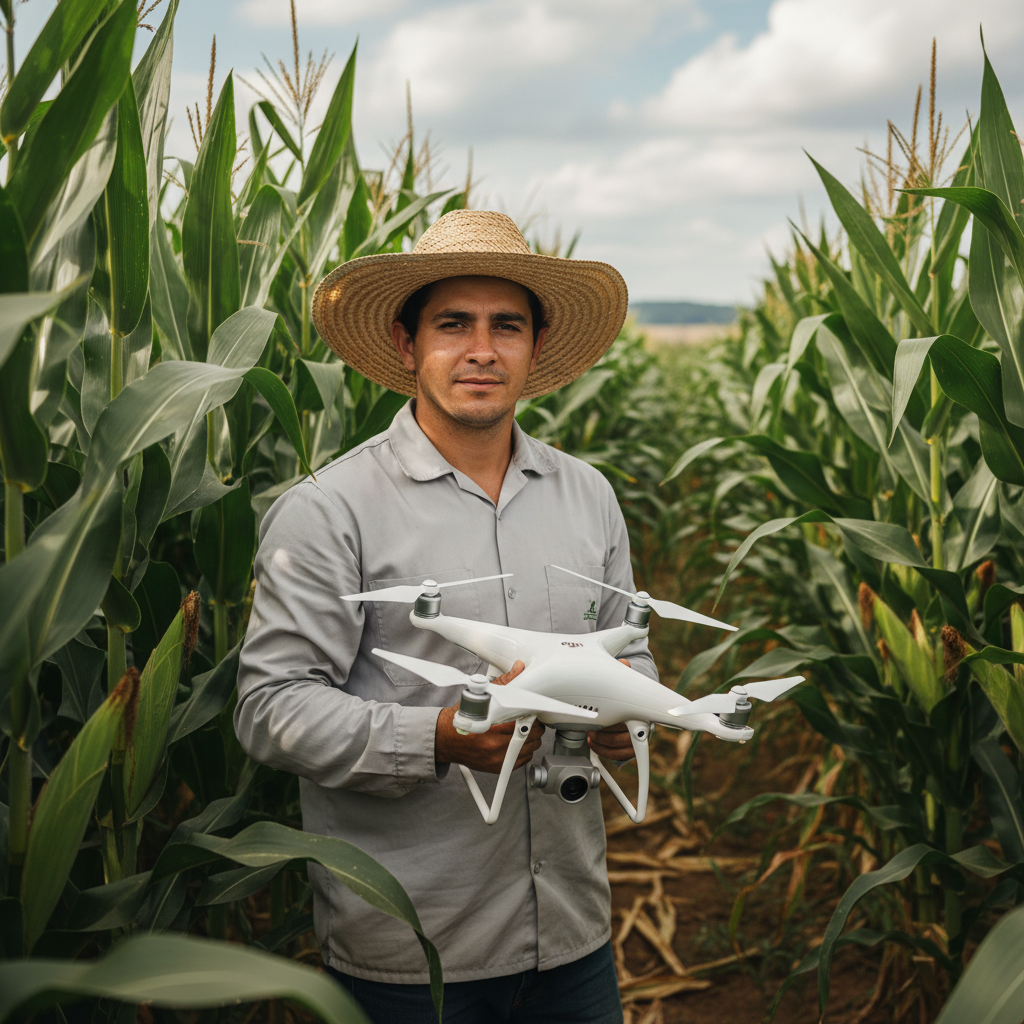
Lucas Fernandes Silva is an agricultural engineer with 12 years of experience in aerial mapping technologies and precision agriculture. ANAC-certified drone pilot since 2018, Lucas has worked on mapping projects across more than 500 rural properties in Brazil, covering areas ranging from small farms to large-scale operations. Specialized in multispectral image processing, vegetation index analysis (NDVI, GNDVI, SAVI), and precision agriculture system implementation. Lucas is passionate about sharing technical knowledge and helping agribusiness professionals optimize their operations through aerial technology.