
Camera calibration separates into two clear parts: Internal Orientation and External Orientation. Think of it like fitting glasses and pointing your head. Internal fixes how the camera sees — the lens, focal length, and distortion. External fixes where the camera is and how it’s aimed in space. For drone work, you need both right to make maps and 3D models that line up with real distances and shapes.
You use internal settings when you correct the image itself: focal length, principal point, and lens distortion that bend straight lines or change scale across the frame. If you ignore these, your orthomosaic will show warped roads and buildings. Calibrating intrinsics gives you a camera model you feed to photogrammetry tools so pixels map to true geometry.
External settings tell you where each camera shot sits in the world: X, Y, Z position and the camera’s rotation (roll, pitch, yaw). On drones this comes from GNSS/IMU and can be refined with ground control points (GCPs). If your external data is off, your map will be shifted, tilted, or scaled incorrectly even if the images themselves are distortion-free.
Define internal orientation and intrinsic parameters
Internal orientation, or intrinsic parameters, describe how the camera projects 3D scene points onto its 2D sensor. The main pieces are focal length, principal point (where the optical center hits the sensor), pixel scale, and lens distortion coefficients (radial and tangential). These values form the camera matrix that photogrammetry software uses to undistort and scale images correctly.
You get intrinsics from a calibration routine: checkerboard photos, controlled rigs, or bundle adjustment during processing. For drone cameras with fixed lenses, you often calibrate once, but if you swap lenses, change zoom, or damage the lens, recalibrate. Keep the calibration file with your project so your images stay geometrically accurate.
Define external orientation and extrinsic parameters
External orientation, or extrinsic parameters, gives the camera’s position and rotation in the survey coordinate system: a 3D location (X, Y, Z) and three rotation angles (commonly roll, pitch, yaw). These parameters align each photo to the ground and to other photos.
On drones you collect external data from GNSS/IMU and improve it with GCPs or RTK/PPK. During processing, bundle adjustment refines these extrinsics across all images. If your drone tilts during flight or GNSS has a bias, extrinsic errors show up as misaligned features or poor vertical accuracy.
Quick contrast for drone imaging
In short: internal fixes how the camera forms the image; external fixes where the camera was when the image was taken. Both must be right for accurate maps. If the lens bends lines, fix intrinsics. If the whole map is shifted or tilted, fix extrinsics. A simple pre-flight check: confirm your camera calibration file is loaded and your GNSS/IMU are healthy.
| Parameter | Internal (Intrinsic) | External (Extrinsic) |
|---|---|---|
| What it is | How the camera projects light (lens, sensor) | Camera position and orientation in space |
| Units / Type | mm, pixels, distortion coefficients | meters, degrees (X/Y/Z, roll/pitch/yaw) |
| How you get it | Checkerboard, lab calibration, SfM bundle | GNSS/IMU logs, GCPs, RTK/PPK |
| When to recalibrate | Lens change, zoom, damage | After sensor replacement, GNSS drift, new flight system |
| Example effect | Curved building edges, scale shifts across frame | Entire map shifted, tilt or height errors |
Internal orientation camera calibration basics
Calibration of your camera’s internal orientation puts the lens and sensor into one neat package on paper. Think of it like fitting a pair of glasses: the focal length and principal point tell you how the glass bends light onto the sensor. That matters for every map, ortho, or 3D model you build from drone images. When you study Internal Orientation vs External: Fundamental Concepts of Camera Calibration, you learn why the camera’s inside geometry must be right before you worry about aircraft position.
You will learn a few core numbers during internal calibration: focal length, principal point, pixel scale, and skew. These go into the camera matrix that software uses to turn image points into rays. If these numbers are off, your stitching and point clouds will wobble. Fix the inside first, and the outside (where the drone was) behaves much better in processing.
Practical work means taking a series of images and feeding them to a solver that estimates those numbers and the lens distortion terms. You’ll see immediate gains: straighter lines, reduced reprojection errors, and cleaner georeferencing.
Intrinsic parameters: focal length and principal point
The focal length in calibration is often expressed in pixels. It links the physical lens to the digital sensor and sets the scale of projection. Short focal length makes a wide view. Long focal length zooms in. For drones, knowing the focal length in pixels helps you predict ground sampling distance and how many images you need.
The principal point is the image point where the optical axis hits the sensor. It is rarely exactly at the sensor center. A shifted principal point tilts every projected ray slightly. You should measure the principal point, not assume it’s centered. Small offsets can cause visible shifts in orthomosaics and 3D shapes.
Lens distortion coefficients and small sensors
Lenses bend light. Radial and tangential distortion coefficients model that bending. Radial terms (k1, k2, k3) make straight lines bow out or in. Tangential terms (p1, p2) account for lens assembly misalignment. Your calibration solver will estimate these coefficients so you can undistort images.
Small sensors and wide lenses common on drones amplify distortion effects in the final image. A tiny sensor with a short focal length means a lot of angle per pixel. That can make distortion and sampling errors louder. When your camera has a small sensor, collect more calibration views and cover many angles so the solver captures the true distortion shape.
Capture calibration images correctly
Capture a checkerboard or well-printed pattern at many angles and distances. Fill the frame, rotate the camera, move the board around the image, and shoot 15–30 sharp frames under even light. Avoid blur, glare, and rolling shutter motion. The wider the range of angles and positions, the better the solver can pin down focal length, principal point, and distortion.
| Parameter | What it is | Why it matters |
|---|---|---|
| Focal length | Scale of projection (often px) | Controls field of view and GSD |
| Principal point | Where optical axis hits sensor | Small shifts affect image alignment |
| Radial distortion | Lines bowing inward/outward | Causes curved straight lines |
| Tangential distortion | Shift from lens decentering | Produces asymmetric warps |
| Small sensor effect | More angle per pixel | Makes distortion and quantization more visible |
External orientation camera calibration explained
External orientation ties your camera’s position and aim to the real world. Think of it as the camera’s address and compass. When you calibrate external orientation, you solve for the camera’s pose so every pixel maps to a real location.
You get two main numbers: rotation and translation. The rotation shows how the camera is turned. The translation tells where the camera sits in space. Combine them and you have the extrinsic matrix that moves points from ground coordinates into the camera frame.
In aerial work, good external orientation is what makes maps and 3D models line up. Bad poses give you shifted mosaics and warped models. Pay attention to time stamps, sensor offsets, and reference frames so your images stitch cleanly and your measurements stay accurate.
Rotation and translation vectors for camera pose
You record a rotation vector to describe camera pointing. It can be shown as Euler angles, a rotation matrix, or a compact Rodrigues vector. In practice, pick the format your software accepts and keep the axis order clear—mixing orders will flip your results.
The translation vector gives the camera’s location in meters relative to your map origin. Combine the rotation and translation into a 3×4 extrinsic matrix. Watch units and axis directions.
Extrinsic parameters from GPS and IMU
Your GPS gives the rough position. The IMU gives the camera heading, pitch, and roll. Fuse the two with timestamps to build extrinsics for each image. If your IMU and GPS are not time aligned, the fused pose will wobble—so make sure you log synchronized times.
You will still need corrections. PPK/RTK cleans up GPS positions. Boresight calibration aligns the IMU frame to the camera frame. Use GCPs or tie points to check and reduce residual error.
| Parameter | Source | Units | Typical accuracy | Main use |
|---|---|---|---|---|
| Rotation | IMU | degrees | 0.01°–1° | camera pointing / orientation |
| Translation | GPS/PPK | meters | 0.02–2 m | camera position / georeference |
| Extrinsic matrix | Combined | mixed | depends on fusion | image to ground transform |
Record poses per flightline
Log a full pose (rotation translation) for every image and tag it with a timestamp and flight line ID. Store the pose in EXIF or a separate pose log, and interpolate poses between timestamps rather than guessing. That keeps your image ordering and geometry clean when you stitch or process.
Compare intrinsic vs extrinsic orientation
You can think of intrinsic and extrinsic orientation like a camera’s ID and its address. Intrinsic parameters are the camera’s internal settings: focal length, principal point, and lens distortion. Extrinsic parameters tell you where the camera sits in the world: its position and angle. Internal Orientation vs External: Fundamental Concepts of Camera Calibration is the principle that both sets matter for accurate maps and measurements.
In practice, you need both sets to turn raw images into real-world points. Intrinsic errors warp how pixels map to rays. Extrinsic errors shift those rays in space. If either is off, your orthomosaic will wobble or your 3D model will have steps.
| Parameter | Intrinsic | Extrinsic |
|---|---|---|
| What it defines | Internal lens and sensor geometry | Camera position and orientation in space |
| Main items | Focal length, principal point, distortion | Translation (X,Y,Z), Rotation (roll, pitch, yaw) |
| Units | mm, pixels, distortion coefficients | meters, degrees |
| Typical effect if wrong | Pixel mapping errors, scale shifts, curved lines | Misplaced features, tilt in models, poor tie points |
| When to check | After lens change, temperature shifts, big reprojection error | After crash, hard landing, IMU/GPS drift, visible misalignment |
How intrinsic affects pixel mapping and scale
Your intrinsic parameters tell each pixel where its light ray came from inside the camera. Focal length controls the field of view and how big objects appear. The principal point sets the image center. Distortion bends straight lines near the edges. All three change how you convert pixel coordinates into rays that hit the ground.
Wrong focal length changes scale. Wrong distortion moves points away from where they should be. That means your ground sample distance (GSD) and measurements will be off.
How extrinsic sets camera location and angle
Your extrinsic parameters place the camera in the world. They tell you the camera’s X, Y, Z position and its roll, pitch, yaw. Those numbers decide where the camera points and what ground patch each pixel covers.
If extrinsic values are wrong, images line up poorly. Overlap becomes inconsistent and tie points may not match. For surveys, that yields tilted ortho maps or shifted measured points.
Decide when to recalibrate
Recalibrate when you change lenses, notice image warping, suffer a hard landing, or see reprojection errors above about 0.5 pixels; also recalibrate before major surveys or after big temperature swings. If maps shift by more than a few pixels between flights, or GSD measurements drift, stop and run a new calibration.
Estimate your camera matrix
Think of the camera matrix as the map from 3D scene points to pixels. That map packs the focal length, principal point, and pixel scale/skew into one 3×3 matrix. Get a good estimate and your photos will line up with geometry; a poor one makes measurements wobble.
Split the problem into two parts: the intrinsic parameters (inside the camera) and the extrinsic pose (where the camera sits). Internal Orientation vs External: Fundamental Concepts of Camera Calibration is exactly this separation — treat the intrinsic matrix as your core and solve extrinsics per image after you have that core.
Pick a workflow: compute an initial matrix, then refine it with nonlinear optimization. Use many images, varied poses, and good lighting.
Linear and nonlinear camera matrix estimation
Start with linear methods to get a quick, robust initial guess (e.g., Direct Linear Transform — DLT). Then run a nonlinear refinement (bundle adjustment / Levenberg–Marquardt) to minimize reprojection error and include lens distortion in the model.
| Method | Strengths | Weaknesses | When to use |
|---|---|---|---|
| Linear (DLT) | Fast, stable initial solution | Ignores distortion, less accurate | First pass |
| Nonlinear (bundle adjust) | Models distortion, minimizes reprojection error | Needs good initial guess, slower | Final calibration |
Use checkerboards and calibration targets
A checkerboard gives sharp corner points detectors find reliably. Print a square grid, flat and stable. Move the board so corners appear near all image edges and at different tilts; capture about 10–30 sharp frames with varied perspectives. Circle grids or asymmetric targets can help in blur-prone setups.
Verify matrix with test images
Check by reprojecting known grid points or a test object and measuring reprojection error. Overlay detected corners with projected points and look for systematic shifts. Use GCPs or an object of known size to spot scale or bias issues.
Fix lens distortion in your drone photos
Treat lens distortion like smudges on your glasses: if you don’t clean them, everything looks off. Start by getting a camera calibration that gives you the lens model and the distortion coefficients. Calibrate once for a camera-lens combo and save the results with your images.
Apply undistortion using the saved coefficients before you stitch or map. If you wait until after stitching, your measurements and alignment will drift. Load the camera model in your photogrammetry or image-processing tool and run undistortion in batch.
Keep a copy of the original files and the corrected ones. Label them clearly so you don’t mix raw and corrected images.
Radial and tangential lens distortion coefficients
Radial distortion bends straight lines into barrel or pincushion shapes (k1, k2, k3). Tangential distortion (p1, p2) corrects lens-sensor misalignment. Feed both radial and tangential values to your undistortion routine.
| Coefficient | Type | Visual effect |
|---|---|---|
| k1, k2, k3 | Radial | Curve lines outward (barrel) or inward (pincushion) |
| p1, p2 | Tangential | Shifted or skewed corners from lens-sensor misalignment |
Apply undistortion before mapping
Undistortion moves pixel locations back to where they belong. Export undistorted images or set the camera model inside your mapping software so it corrects on import. If you change lenses or zoom, redo calibration.
Inspect corrected images for artifacts
After undistortion, check for stretching, missing pixels at borders, or interpolation artifacts. Zoom into corners and edges; run a grid overlay to verify straight lines.
Use bundle adjustment (photogrammetry) in your workflow
Bundle adjustment is the math engine that ties your images into a single, accurate 3D model. It tweaks camera poses and 3D points so everything lines up. Add it after image matching and tie point extraction; inspect reprojection error and residuals, then fix bad images or outliers.
Make it routine: save a copy before and after the run so you can compare. With regular use, you’ll spot problems fast — bad GPS reads, wrong camera settings, or poor overlap.
What bundle adjustment optimizes
Bundle adjustment optimizes camera positions (translation and rotation), 3D tie point coordinates, and often camera intrinsics like focal length and distortion. It minimizes reprojection error — the distance between observed image points and where the adjusted 3D points project back into each image. You can weight measurements: give GCPs more pull, or downweight noisy points.
Tie points, ground control, and global solve
Tie points are common features matched across images. Ground Control Points (GCPs) anchor the solution to real coordinates. More good tie points across different viewing angles gives the solver more to work with.
| Element | Role | Quick tip |
|---|---|---|
| Tie points | Build geometry between images | Aim for cross-track and along-track matches |
| GCPs | Fix scale and position | Use well-surveyed, spread-out points |
| Camera intrinsics | Shape image projection | Lock them if you have a trusted calibration |
Run global adjustment for accuracy
Run a full global adjustment after tie point extraction and GCP entry. Inspect residuals, remove outliers, and rerun until residuals are acceptable. If you know camera intrinsics from lab calibration, lock them; otherwise let BA refine them but verify changes.
Set up your drone for calibration
Start on level ground with the drone powered off and props removed. Put the battery at 50–100% so systems run stable during the process. Update firmware and the camera app first. Keep metal tools and phones away during compass checks.
Turn on the drone and let the IMU warm up. Wait for a steady GPS lock if you are outside. If indoors, use indoor mode and a safe test area. Calibrate the compass away from ferrous objects. If temperature changed a lot since last flight, let electronics reach normal operating temperature.
Set the camera to a fixed mode before calibration. Use manual exposure and lock focus so frames are consistent. Remember that Internal Orientation vs External: Fundamental Concepts of Camera Calibration covers both the camera internals (focal length, distortion, principal point) and the external pose (how the camera sits on the drone).
Mount alignment and camera stability tips
Check mount screws and gimbal clamps. Tighten to the maker’s torque spec. Align the camera so the sensor plane is parallel to the airframe where possible. Dampen vibration with soft mounts or foam pads if needed. Run a short hover and review video for wobble.
| Check | Why it matters | Quick action |
|---|---|---|
| Mount bolts | Keeps camera fixed | Tighten to spec; use loctite if allowed |
| Gimbal center | Prevents tilt drift | Re-center and run auto-gimbal setup |
| Vibration tests | Shows high-frequency shake | Add dampers or change props |
| Cable strain | Stops jostle and cuts | Route ties; add slack loops |
Calibrate after lens, sensor, or mount changes
Any time you swap lenses or change focus, treat the camera as a new unit. Run a lens distortion calibration with a checkerboard or professional target. If you replace the sensor, move the camera, or repair the mount, redo camera calibration and the drone’s IMU/compass routine.
Keep a calibration log for each drone
Keep a simple log file for each aircraft with date, what changed, calibration type (IMU, compass, camera), firmware, and a short result note. Add a sample photo or file name.
Check calibration quality and errors
Quickly check the reprojection error and the pattern of residuals across the image. If errors cluster at the edges, suspect lens distortion or bad corner detections. If errors are scattered, suspect bad image matches or moving objects in calibration shots.
Visually inspect undistorted images versus originals; straight lines that remain bent mean distortion correction failed. Review focal length and principal point values for wild jumps between sessions. Test the calibration in a real processing step: run a short bundle adjustment or sample orthomosaic and watch for skewed scaling or drifting tie points.
Reprojection error, RMSE and thresholds
The reprojection error is the average distance, in pixels, between observed image points and model-predicted points (often reported as RMSE). Typical thresholds:
| RMSE (pixels) | Interpretation | Action |
|---|---|---|
| < 0.5 | Excellent for survey-grade work | Proceed, but log details |
| 0.5 – 1.0 | Good for general mapping | Acceptable for most projects |
| 1.0 – 2.0 | Marginal | Re-check images and retake if possible |
| > 2.0 | Poor | Recalibrate: improve images, focus, or pattern coverage |
Use RMSE alongside visual checks — a low RMSE with clear residual patterns can still hide systematic issues.
Validate internal vs external orientation with test flights
Confirm both internal orientation (camera intrinsics) and external orientation (camera position and attitude) in the air. Fly a short, controlled mission with lots of overlap and known GCPs or checkpoints. Do nadir passes, a few obliques, and hover shots. Run a small bundle adjustment and check for shifts in principal point or focal length that appear only in-flight. If external orientation errors appear, check gimbal calibration, IMU timestamps, and GPS time sync.
Store calibration results and dates
Keep a log for every calibration: date, camera serial, lens or zoom setting, RMSE, calibration image filenames, and notes on temperature or focus. Save the calibration file with a clear name and link it to the mission folder.
Frequently asked questions
- What is Internal Orientation vs External: Fundamental Concepts of Camera Calibration?
You learn the camera’s inner settings (lens center, focal length, distortion) and its pose in space. Use this to map 3D to 2D. - How do you find your camera’s internal orientation?
Use a calibration pattern like a checkerboard. Take several photos and run a calibration tool. - How do you determine your camera’s external orientation?
Place known 3D points in the scene or use GNSS/IMU GCPs, match them to image points and solve for pose. - Why must you do both internal and external calibration?
Internal fixes lens and sensor errors. External fixes camera position and angle. Do both for accurate measurements. - What quick steps can you follow to calibrate your camera now?
Print a checkerboard, capture many angled shots with locked focus and exposure, run a calibration app, save the intrinsic file and a pose log for the platform.
Key takeaways
- Internal Orientation vs External: Fundamental Concepts of Camera Calibration is the practical split between the camera’s internal geometry (intrinsics) and its position/attitude (extrinsics).
- Calibrate intrinsics carefully (checkerboards, many angles) and verify RMSE < 1 px for general mapping.
- Record synchronized GNSS/IMU poses, use GCPs or RTK/PPK for georeference, and run bundle adjustment to refine both intrinsics and extrinsics.
- Keep calibration logs and retest after any hardware change — small biases in either internal or external orientation can produce large mapping errors.
Internal Orientation vs External: Fundamental Concepts of Camera Calibration remains the guiding phrase: get the camera’s inside right, then lock down where it sits in space, and your maps and models will be reliable.
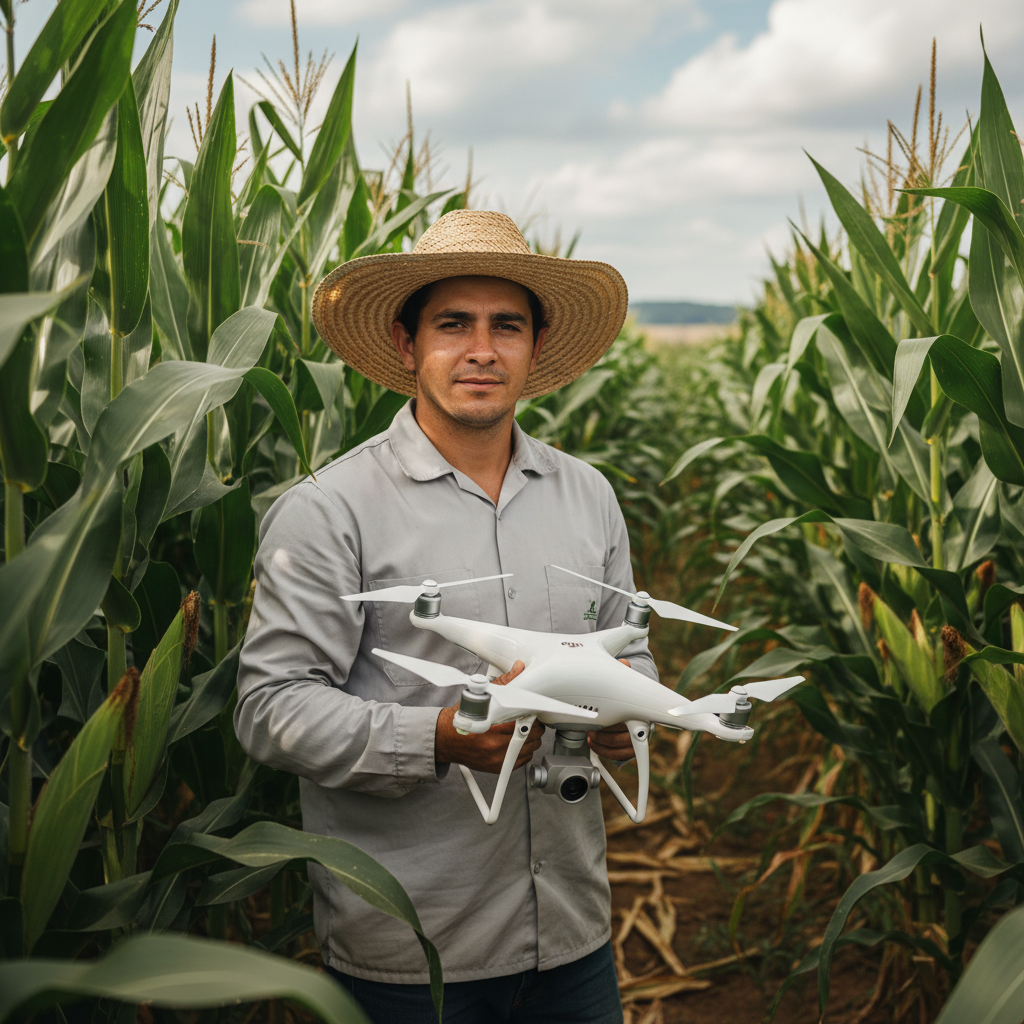
Lucas Fernandes Silva is an agricultural engineer with 12 years of experience in aerial mapping technologies and precision agriculture. ANAC-certified drone pilot since 2018, Lucas has worked on mapping projects across more than 500 rural properties in Brazil, covering areas ranging from small farms to large-scale operations. Specialized in multispectral image processing, vegetation index analysis (NDVI, GNDVI, SAVI), and precision agriculture system implementation. Lucas is passionate about sharing technical knowledge and helping agribusiness professionals optimize their operations through aerial technology.