
Mission Planning: Defining Waypoints, Altitude, and Flight Speed
Airspace Rules and Permissions
You must treat airspace like private property with signs you can’t ignore. Know which zones are open, which are restricted, and which are outright no-fly. Before you plan a flight, check the local map and look for controlled airspace, temporary flight restrictions, and NO-FLY zones such as near airports, prisons, or public events. Pull up the official app or website for your country’s aviation authority and confirm the status for your exact launch point and route.
When you’re setting waypoints, altitude, and flight speed, factor in the rules that apply to each slice of sky. Some areas limit altitude to protect manned aircraft. Others require a special permit for commercial work or operations over people. Treat legal limits like speed limits on a road: you can plan to go faster, but that’s not smart or legal. Plan a conservative mission profile that keeps you inside published limits.
If your mission needs special permission, start early—authorizations can take days or weeks. Make a checklist: map, pilot ID, aircraft registration, insurance, and the Mission Planning: Defining Waypoints, Altitude, and Flight Speed details. Keep copies of any approvals with your ground station and on your phone so you can show them to officials if asked.
Check local regulations
Local rules vary. Cities, states, and aviation authorities each have their own limits on where and how you can fly. Search the official rules for your region and read the short bullet points about altitude, line-of-sight, and operations over people. Don’t rely on hearsay; one pilot’s fine does not equal legal permission.
Talk to local pilots or clubs for practical tips like what times of day are best and which spots attract complaints, but confirm anything important with the regulator and note who you spoke with.
Apply for authorizations
When an operation needs permission, apply through the official channel and attach the Mission Planning: Defining Waypoints, Altitude, and Flight Speed plan plus pilot certifications and insurance. Be precise: state exact coordinates, heights, number of people on the ground, and risk mitigation steps (e.g., a safety observer, geo-fencing software, contingency landing spot). If you need faster turnaround, state an operational reason clearly and respectfully. Keep copies of submissions and confirmations.
| Operation Type | Typical Authority | Typical Processing Time |
|---|---|---|
| VLOS (day, no crowds) | Local aviation authority | 1–3 days |
| BVLOS or night ops | National regulator | 1–4 weeks |
| Flights over people or events | Special event permit office | 2 days–4 weeks |
Keep approval records
Store approvals where you can reach them fast: digital copies on your phone and printed paper in your kit. Mark the expiration date clearly and note any special conditions, like altitude caps or required observers.
Waypoint Definition Basics
When you set a waypoint, start with clear coordinates—use latitude and longitude in the format your system accepts. A small typo can drop you hundreds of meters off course.
Link each waypoint to mission goals such as photo points, inspection lines, or transit legs. Add the planned altitude and flight speed beside the coordinate so the plan is quick to read. Record notes for restrictions or hazards at each waypoint (e.g., high-tower or GPS-challenged) to cut down surprises.
Set precise coordinates
Always use a consistent format: decimal degrees (e.g., 37.7749, -122.4194) or degrees-minutes-seconds. Don’t mix formats in one mission and keep the format visible in your mission file header. Double-check numbers by plotting them on a map before you fly; if a point lands in a lake or on a roof, fix it. Remember to include Mission Planning: Defining Waypoints, Altitude, and Flight Speed in your brief so everyone knows the plan.
Use correct geodetic datum
Pick the right geodetic datum for your region and stick with it. Most GPS devices use WGS84, which works globally. Some local maps use NAD83 or ED50, and offsets can shift positions by meters or tens of meters. If your map and GPS use different datums, your waypoint will be off. Change datum in both your planning software and your controller.
| Datum | Where used | Typical offset vs WGS84 |
|---|---|---|
| WGS84 | Global GPS | 0 m (reference) |
| NAD83 | North America maps | ~0–2 m |
| ED50 | Parts of Europe | up to ~100 m |
Verify GPS accuracy
Before launch, check your GPS fix and reported HDOP/VDOP. Wait for a stable 3D fix and low DOP numbers. If accuracy is poor, move to a clearer sky or delay until signals improve.
Optimal Waypoint Spacing
Set waypoint spacing to match your mission goals. For mapping you want consistent overlap so images stitch cleanly; for tower inspection you may need tighter spacing for detail. Think of spacing like rungs on a ladder: too far and you miss steps; too close and you waste time and battery.
Start with a rule: aim for 60–80% forward overlap for mapping with standard cameras, and 30–50% for visual inspection. Higher overlap helps with low light, motion blur, or wind; lower overlap saves battery but raises the risk of data gaps.
Balance safety, laws, and efficiency. Wind, obstacles, and flight time change what works in the field. Run a quick preflight and adjust spacing if you see long transit legs, fading battery, or unstable images. Good Mission Planning: Defining Waypoints, Altitude, and Flight Speed makes these calls easy.
Match spacing to sensor footprint
Measure your sensor footprint. At a given altitude, your camera covers a fixed ground width—multiply that by your target overlap to get spacing. If you change altitude, recompute spacing; a small altitude change can double or halve your footprint.
Consider turn radius and speed
Faster speed or heavier craft increases the turn radius. If waypoints are too tight, the vehicle will cut corners and miss views. Slow your speed near turns or increase spacing so the craft can follow the line. Also watch for image blur at higher speeds—reduce flight speed or increase overlap if needed.
Test spacing on map
Run a map simulation: drop waypoints, draw sensor footprints, and eyeball overlaps. A quick map test saves a long redo in the field.
| Scenario | Typical Forward Overlap | Quick Rule for Spacing |
|---|---|---|
| Mapping, clear light | 70% | Spacing ≈ footprint × (1 – 0.7) |
| Inspection, detail shots | 40% | Spacing ≈ footprint × (1 – 0.4) |
| Low light or high wind | 80% | Reduce spacing further; slow speed |
Terrain-Aware Altitude Profiling
Pick flight altitudes to match the ground. Terrain-Aware Altitude Profiling maps ground height along each leg and sets waypoint heights to keep the aircraft clear of terrain and obstacles. Use the profile to tie waypoints to real ground heights: sample the ground at fine intervals, note peaks and valleys, and set waypoint altitudes that clear the highest nearby points with a margin. Factor in flight speed and sensor needs: faster runs need smoother climbs and larger margins.
Treat the profile as a safety document: make clear minimum safe altitude, planned altitude, and obstacle clearance for each leg. Share this with the team and ATC if needed, and revise the profile if weather, mission goals, or airspace rules change.
Use digital elevation models
Start with a reliable digital elevation model (DEM) such as SRTM, local LiDAR, or government topo data. Pay attention to vertical accuracy and resolution—coarse data can hide ridges or small hills. Extract cross-sections for each leg and mark the highest points near your path.
Add obstacle clearance margins
Apply a written clearance margin above the highest ground or obstacle. The margin depends on terrain, mission risk, and aircraft performance—higher margins in mountainous or built-up areas, smaller margins in flat fields. Document the chosen margin and include it in your checklist.
| Terrain / Area Type | Suggested Clearance Margin (meters) | When to Increase |
|---|---|---|
| Flat rural | 30 m | gusty winds or low visibility |
| Rolling hills | 50 m | high ground variance or higher speeds |
| Urban / built-up | 75 m | antennas, cranes, unknown obstacles |
| Mountainous | 150 m | steep slopes, turbulence, reduced sensor range |
Update profiles before flight
Before arming systems, update the profile with the latest NOTAMs, temporary construction, and obstacle reports. Upload the final profile to your controller and verify displayed altitudes match your paperwork.
Altitude Optimization for Safety
Pick an altitude that keeps you legal and gives a safety buffer. Start with published minima for your area, then add operational buffer—e.g., 50–150 ft over minima in built-up areas, more in poor light or tricky terrain. Consider temperature, pressure, and payload: hot, high days reduce lift and call for extra altitude.
State altitude choices during briefings so the team knows the safety margin and can act fast if conditions shift.
Balance legal minima and safety
Use published minima as the floor, not the finish line. Add an operational buffer tailored to terrain and conditions and include it in the plan.
Plan for wind and performance
Wind changes ground track and energy. Look at forecast winds and pick an altitude that gives room to handle gusts or shear. Match altitude to performance: heavy payloads and high density altitude reduce climb—add larger buffers as needed.
| Condition | Effect on performance | Recommended extra altitude buffer |
|---|---|---|
| Light wind, cool day | Normal climb and control | 0–50 ft |
| Moderate wind, warm day | Reduced climb, gusts | 50–150 ft |
| Strong wind or turbulence | Possible shear, unstable | 150–300 ft |
| High density altitude or heavy load | Poor climb, slower response | 150–300 ft |
Log altitude rationale
In your mission log, include the chosen altitude, the reason (legal minima, wind, weight), and the timestamp—for example: “Altitude 500 ft AGL — 150 ft buffer for 20 kt gusts; recorded during Mission Planning: Defining Waypoints, Altitude, and Flight Speed.”
Flight Speed Planning and Tradeoffs
Plan flight speed for three priorities: sensor quality, battery life, and mission goals. Slow down for high-detail mapping to improve overlap and reduce motion blur; go faster for corridor surveys to save battery. Remember legal limits—areas often cap maximum speed or require lower speeds near people and structures.
Test speeds on-site with a short pass and inspect data. Log what worked and what failed—this habit saves re-flights.
Set speed for sensor quality
Match speed to sensor needs. For photogrammetry with 70% front overlap, slow to meet that overlap at your altitude. Use camera settings—higher shutter speed, higher frame rate, narrower FOV—to allow more speed, but always verify sample images in the field.
Balance speed-altitude tradeoff
Altitude and speed trade off directly: higher altitude covers more ground per image so you can fly faster but lose resolution; lower altitude gives detail but forces slower speeds. Factor in wind and battery, and run a short test flight to confirm actual ground speed.
Record chosen speeds
Write your chosen speed next to each waypoint in the flight log along with altitude, camera settings, expected overlap, wind, and a short rationale. That makes repeat missions reliable and defensible.
| Mission Type | Typical Altitude | Typical Speed | Why it fits |
|---|---|---|---|
| High-detail mapping | 30–80 m | 2–5 m/s | Slow for high resolution and overlap |
| Infrastructure inspection | 20–50 m | 1–4 m/s | Low altitude for detail; slow for safety |
| Corridor/Survey | 80–150 m | 6–12 m/s | Higher altitude for coverage; faster saves battery |
Waypoint Sequencing and Automation
Arrange waypoints in an order that matches mission goals and safety rules. Use Mission Planning: Defining Waypoints, Altitude, and Flight Speed as your checklist: mark each waypoint, pick an altitude, and set a flight speed that fits the task and the rules.
Group tasks by area to cut time and battery use. Mark special points where you must slow, hover, or take pictures—these “action” waypoints change the flight profile.
Automation can handle repetitive work, but build guardrails: geofences, altitude limits, speed caps, and programmed failsafes for GPS loss, low battery, and comms failure. Keep manual override ready and watch telemetry.
Order waypoints for efficiency
Cluster nearby waypoints and follow a path that minimizes turns and backtracking. Prioritize legal and safety constraints and label points that need special permission.
Enable autonomous waypoint navigation
Program autopilot parameters: max altitude, max speed, and a tolerance for cross-track error. Tell the system to slow before actions, hold at photo points, and climb or descend on fixed legs. Use geofences and automatic safe-landing triggers, and validate manual override procedures.
Validate sequence in simulator
Run the full mission in a simulator: check altitude changes, speed limits, action triggers, and failsafes. Simulate comms loss and off-track events so your responses are proven on the ground.
Mission Route Optimization
Plan each flight like a short road trip: write your goals and constraints—Mission Planning: Defining Waypoints, Altitude, and Flight Speed, battery, time, and regulations. Include expected flight time and a safety margin in the mission title.
Balance trade-offs: faster speeds cut time but may burn battery faster; higher altitude may avoid obstacles but change wind loads. Use the craft’s published range as a baseline and add a conservative battery reserve (typically 20–30%). Make the plan repeatable: record exact waypoints, altitude bands, speeds, and contingency points, and tag the plan with date, operator, and approval status.
Optimize for battery and time
Pick a cruise speed that the aircraft is efficient at—manufacturers often list an efficient speed. Slow, steady flight often uses less energy than frequent stopping and climbing. Run quick simulations or short test flights to confirm numbers and add a safety margin for the hardest leg.
| Speed (m/s) | Time to 1 km (min) | Estimated Battery Use (%) |
|---|---|---|
| 5 | 3.3 | 8–12 |
| 10 | 1.7 | 12–20 |
| 15 | 1.1 | 20–30 |
Use your craft’s logs to build a real chart for your setup.
Avoid restricted zones and hazards
Always check NOTAMs, local airspace rules, and temporary flight restrictions. Use official maps and geofence layers to flag restricted zones and reroute with a clear buffer rather than skirting edges. Mark physical hazards—power lines, cranes, dense bird areas—and assign abort triggers like battery thresholds or unexpected traffic.
Save optimized route
After validation, save the optimized route with a clear name, version, and metadata: battery assumptions, expected winds, payload, and approval status. Export to KML or the platform’s native file, and store copies in operations and on the flight device.
Emergency Procedures and Reporting
Treat Emergency Procedures as a living playbook. Keep a short, clear checklist and train until steps are second nature. Use Mission Planning: Defining Waypoints, Altitude, and Flight Speed to set your primary route and at least two alternates. Load contingency waypoints and contact numbers into your controller before takeoff.
When an event happens, act, then report. Call the right agencies, secure the site, and record what you did and when. Timely reporting preserves evidence and helps safety reviews.
Define contingency waypoints
Define a few contingency waypoints for every mission: a nearby landing, a safe hover point, and an alternate route out of restricted airspace. Pick coordinates that keep you clear of hazards and give time to decide. Set simple triggers: battery state, signal strength, weather, or obstacles, and practice drills so you know timeframes and actions.
| Waypoint Type | Trigger | Action |
|---|---|---|
| Alternate Landing | Low battery or system fault | Land at the nearest approved site and notify command |
| Safe Hover | Loss of GPS or temporary link | Hold altitude, attempt reconnection, descend to alternate if needed |
| Return Home | Minor anomalies or minor signal loss | Execute RTB at planned altitude and speed, monitor telemetry |
Keep flight logs and reports
Keep a concise flight log for every sortie: takeoff/landing times, waypoint timestamps, battery levels, weather, and anomalies. Write factual notes; avoid opinions. Store logs digitally and back them up offsite, retaining originals per regulator requirements. Share logs with safety officers after unusual events.
Submit incident reports
When you file an incident report, include who, what, when, where, and how: pilot, aircraft, exact times, location, and a clear sequence. Attach photos, telemetry, and the flight log. Send reports to regulators and your internal safety team within timelines and follow up.
Frequently Asked Questions
- Q: How do you start Mission Planning: Defining Waypoints, Altitude, and Flight Speed?
A: Start with the map: pick the area, drop waypoints along the route, set altitude for sensor needs, pick a safe flight speed, save and review. - Q: How do you pick waypoint spacing for good coverage?
A: Match spacing to your camera and altitude. Closer spacing equals more overlap. Test one pass and adjust if gaps appear. - Q: What altitude should you choose for safe and legal flights?
A: Check local rules first. Fly above obstacles and below any restricted ceilings. Use lower altitude for detail and higher altitude for wider area, adding safety buffer for conditions. - Q: How do you set flight speed for clear images or stable data?
A: Slow down for photos and scans; speed up for surveys if overlap is preserved. Consider wind and shutter speed—stability over pace. - Q: How do you validate the mission before launch?
A: Run a simulation, check batteries and GPS, verify waypoints/altitudes/speeds, set fail-safes, and complete a final checklist.
Summary: Mission Planning: Defining Waypoints, Altitude, and Flight Speed
- Treat airspace and permissions as the first constraint—confirm approvals before you fly.
- Define precise waypoints with consistent coordinates and datum, and attach altitude and flight speed to each.
- Match waypoint spacing to sensor footprint and mission goals; consider turn radius and speed.
- Use DEMs and add obstacle clearance margins for terrain-aware altitude profiling.
- Balance legal minima with operational safety buffers and adjust for weather and payload.
- Choose speeds that meet sensor requirements while conserving battery; record everything.
- Sequence and automate with guardrails, validate in a simulator, save the optimized route, and include contingency waypoints.
- Keep detailed logs and report incidents promptly.
Following these principles of Mission Planning: Defining Waypoints, Altitude, and Flight Speed will make your missions safer, repeatable, and easier to defend to clients and regulators.
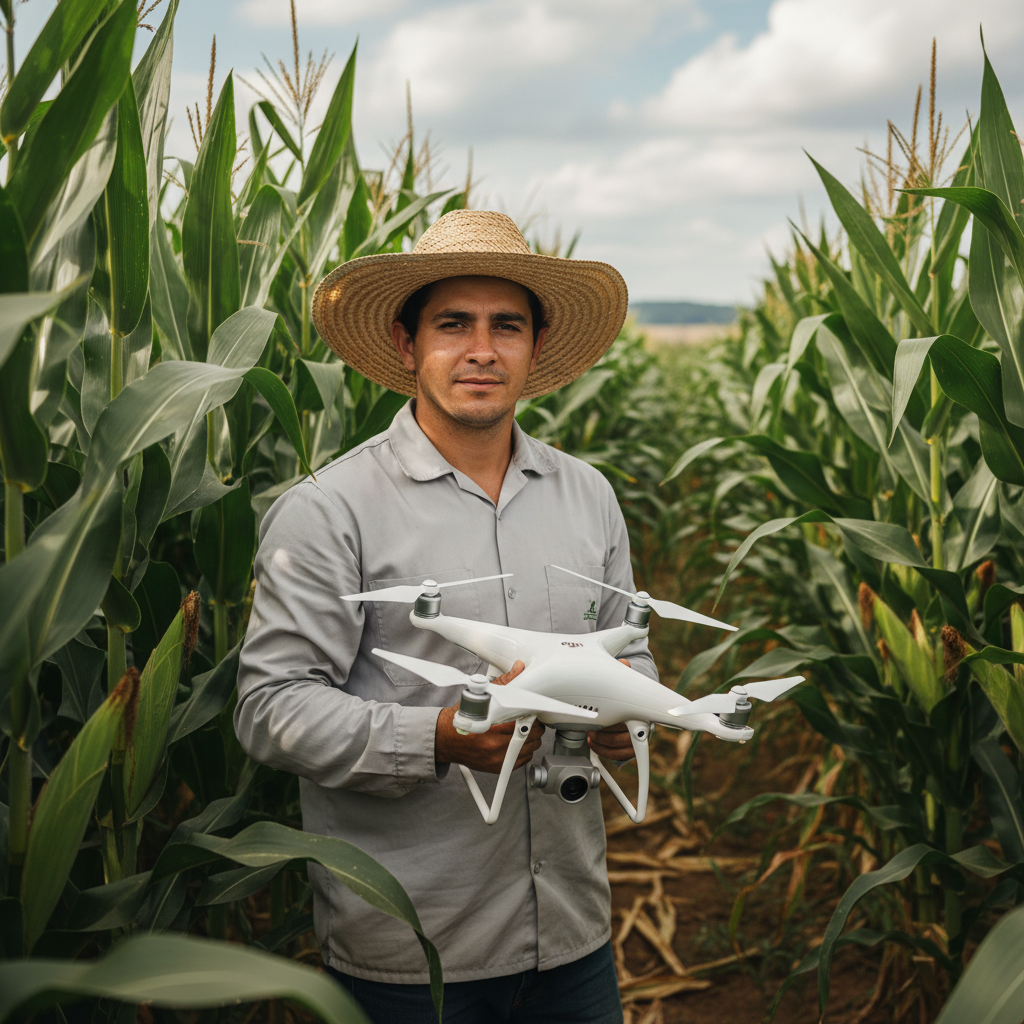
Lucas Fernandes Silva is an agricultural engineer with 12 years of experience in aerial mapping technologies and precision agriculture. ANAC-certified drone pilot since 2018, Lucas has worked on mapping projects across more than 500 rural properties in Brazil, covering areas ranging from small farms to large-scale operations. Specialized in multispectral image processing, vegetation index analysis (NDVI, GNDVI, SAVI), and precision agriculture system implementation. Lucas is passionate about sharing technical knowledge and helping agribusiness professionals optimize their operations through aerial technology.