
Boost your drone crop mapping with Pix4Dfields software
You want faster, clearer maps that show crop stress and yield potential. Pix4Dfields organizes your flight data and turns it into actionable maps. You’ll get NDVI, NDRE, and other indices quickly, so you can spot issues before they spread. Pix4Dfields: Software Optimization for Precision Agriculture is built to fit field workflows and help you move from images to usable maps in a few clicks.
Set your goals before you fly. Pick the map type you need—plant health, biomass, or prescription maps—and Pix4Dfields will process the right outputs. Focus on the area and Pix4Dfields sharpens the data: less guesswork, faster decisions, and maps you can trust in the field.
Prepare your drone and camera settings
You want clean images. Fly at a consistent altitude and use high overlap—front overlap around 75% and side overlap around 65–70% works well for crops. Lock exposure and white balance before the flight so colors stay steady. Use RAW if your camera supports it; RAW preserves more data for analysis.
Make sure your camera is calibrated or use a known sensor model in Pix4Dfields. Check GPS time sync and clear any dirt on the lens. If you use multispectral sensors, log the calibration panel reading. These small steps cut processing time and raise map quality.
| Setting | Recommended value | Why it matters |
|---|---|---|
| Flight altitude | 30–120 m (adjust by field size) | Balances detail and coverage; controls GSD |
| Front overlap | 75% | Keeps good stitching between rows |
| Side overlap | 65–70% | Reduces gaps and stabilizes radiometry across swaths |
| Image format | RAW or highest JPG | Preserves color and detail |
| White balance | Fixed | Prevents color shifts across images |
| Calibration | Use reflectance panel (multispectral) | Corrects for light differences and enables reflectance products |
Import images and start processing fast
Organize images into a clear folder per flight. When you import, check timestamps and GPS tags. Use the Area of Interest (AOI) tool to limit processing to where you need maps — that cuts time and keeps files small.
Choose a processing preset that matches your speed needs. Start with a quick processing run to get a preview. If the preview looks good, run full processing for final outputs and prescription maps. Save templates so you don’t repeat setup steps.
Quick processing tips for faster maps
Downsample images for previews, limit the AOI, and use your GPU when possible; these moves cut hours to minutes. Close other apps, keep drivers updated, and batch-process similar flights to save time.
Generate NDVI crop analysis with Pix4Dfields software
Generate crisp NDVI maps by feeding good images into Pix4Dfields and letting the software do the heavy lifting. Start with clear goals: spot stressed zones, plan sampling, or drive variable-rate applications. When you open the project, pick the right processing template, set reflectance correction if you have calibration panels, and run the NDVI step. The output will be a colored map showing plant vigor in simple green-to-red tones.
Read NDVI like a health report. High NDVI means dense, healthy canopy; low NDVI means thin or stressed plants. Use the tools in Pix4Dfields to draw zones, run statistics, and export shapefiles for your sprayer or agronomist. Save snapshots of problem spots and note dates so you can track change over time.
Pix4Dfields: Software Optimization for Precision Agriculture helps you turn images into action. Work in short cycles: capture, process, check, and act. That loop lets you catch issues early and spend money where it matters.
Capture multispectral images the right way
Fly when the sun is steady—mid-morning or mid-afternoon—and avoid clouds that cast moving shadows. Set a consistent altitude so your ground sample distance (GSD) is steady. Bring a reflectance panel and capture it before and after the flight to correct light differences later.
Keep overlap high and slow the drone slightly to avoid motion blur. Lock camera settings if you can: manual exposure keeps images uniform. Record metadata like time, altitude, and sensor filter used so you can trace any odd results.
Create and interpret NDVI layers
Load your corrected images into Pix4Dfields and run the NDVI calculation. The software combines the near-infrared and red bands to produce the index. Check the processing log for warnings about missing bands or poor calibration; that flags images you should skip or refly.
Once NDVI is generated, use the color ramp and thresholds to split the field into zones. Draw polygons over low, medium, and high NDVI areas and run area and mean NDVI stats. Translate those stats into action: low NDVI early in the season may mean seed issues or poor emergence; late-season low NDVI could mean disease or nutrient stress. Export maps to guide sampling or prescriptions.
Validate NDVI with simple ground checks
Walk a few flagged spots and do quick checks: count plants in a short row, check leaf color and turgor, or take a handful of leaves for a simple SPAD or handheld NDVI meter reading. Match your on-foot notes to the pixel values and record GPS points. A few well-chosen ground checks will tell you whether the map is honest or if you need to refly.
Create field prescription mapping for variable-rate application maps
When you build a prescription map, you turn data into action. Start with clean imagery and a clear goal: more even yield, lower input cost, or fixing a problem patch. Use crop indices and yield maps to spot stress and vigor. Tools like Pix4Dfields: Software Optimization for Precision Agriculture speed this step by letting you work with indices and layers in one place.
Translate that recipe into zones and rates. Group pixels or polygons into prescription zones, pick application rates for each zone, and apply simple agronomic rules so rates make sense at the boom. Keep transitions smooth so the machine can follow rates without jumping. Merge or filter out tiny odd patches so you don’t spray postage-stamp areas.
Validate before you send it to the field. Preview the map at the controller scale, check units, and do a short field trial. Walk the boundary if you can. If a zone triggers a surprise in the cab, adjust the map—this saves time, fuel, and trouble.
Define prescription zones from crop indices
Choose the right index for the crop and problem. Use NDVI for general vigor, NDRE for canopy nitrogen, or other indices available from your imagery. Convert the index into classes using thresholds or clustering. Label outputs with clear rate attributes so your applicator knows what to apply.
Refine zones by size and shape. Merge tiny patches and smooth sharp edges so hardware can follow the map. Combine index layers with yield or soil maps if available, then ground-truth a few spots by scouting or sampling. If a zone fails the field check, tweak thresholds and reclassify.
Export VRA files for your applicator
Export in the file type your controller reads and set the coordinate system and units to match your machine. Common exports are GeoTIFF for raster prescriptions and shapefile for polygon zones. Include a clear attribute for rate (e.g., kg/ha or lb/ac) and keep a small buffer around field edges to avoid missing data at turns.
After export, load the file into your console and preview it there. Do a short test pass and watch rate changes on the monitor. Calibrate flow rates if needed and save a backup of the map and the original imagery. If your controller flags an error, re-export with a different format or check projection and attribute names.
Match map formats to your equipment
Check your controller manual for supported formats and projections, then export with those exact settings. If the console prefers raster files, use GeoTIFF. If it wants polygons with rate attributes, use shapefile. Always test a small area in the field before full application.
| File Format | Best Use | Quick Notes |
|---|---|---|
| GeoTIFF | Continuous rate maps (raster) | Good for smooth gradations; check resolution and units |
| Shapefile (SHP) | Zone-based prescriptions (vector) | Include a rate attribute column and the right projection |
| ISOXML / Task files | Machine-ready job transfer | Used for tasking and seeding on some consoles; match vendor specs |
Use multispectral image processing for crop health monitoring
You want clear, repeatable measures of plant health. Use multispectral imaging to capture light the eye misses. Combine visible and near-infrared bands to build indices like NDVI that show stress, vigor, and water issues in a single map.
Get a routine. Fly on similar days, at similar times, and keep your sensor settings constant. That cuts noise and makes maps comparable. When images are consistent, inspections go from guesswork to smart decisions. Use maps to mark zones for scouting, target fertilization, or vary irrigation. Export easy layers with clear legends and share them with your crew.
Calibrate bands and reflectance values
Start with radiometric calibration. Capture a reflectance panel before or after each flight. Use the panel images to convert raw sensor counts into reflectance values. That step removes sun angle and exposure differences so your indices mean the same thing from flight to flight.
Apply sensor corrections too. Subtract dark current, fix hot pixels, and align spectral bands if they shift. Run an empirical line or vicarious calibration when you can. That gives you a consistent baseline and prevents false alarms from raw camera quirks.
| Band | Typical Wavelength (nm) | Common Index / Use |
|---|---|---|
| Blue | 450 | Detects water and haze effects |
| Green | 550 | Crop vigor and canopy color |
| Red | 660 | Vegetation absorption, NDVI denominator |
| Red Edge | 730 | Early stress detection, NDRE |
| NIR | 840 | Biomass, NDVI numerator |
Compare crop health over time
Align and stack your maps by date. Geo-reference each mosaic to the same grid and resolution so pixel-to-pixel comparison is possible. Use normalized indices to remove seasonal brightness swings. Subtract baseline maps or compute percent change to flag true stress. Plot time series for chosen zones — a five-point drop in NDVI over two weeks is a red flag; act fast or yield pays the price. Mix in ground-check notes to increase confidence.
Store labeled multispectral datasets
Keep raw files, calibrated mosaics, and labels organized. Use clear folders like YYYY-MM-DD_flight and name files with band and index tags. Save georeferenced GeoTIFFs and a simple CSV with scan dates, labels, and scout notes. Store versions in cloud or a synced drive so you can roll back mistakes. Include acquisition metadata—sun angle, altitude, and sensor ID.
Apply agronomy data analytics to guide your decisions
You make better choices when you use data instead of guesswork. Bring together field measurements, maps, and images to see patterns. Platforms like Pix4Dfields: Software Optimization for Precision Agriculture let you load drone images, yield files, and soil tests into one place. From there you can flip between views, draw management areas, and export prescriptions for machines.
Treat the process as a cycle: collect, clean, analyze, and act. Collect reliable files. Clean geolocation and timestamps. Analyze with zone and trend methods. Act with targeted inputs. Repeat this cycle each season to cut waste and raise profit.
Merge yield, soil and drone data
Align every dataset to the same map grid and coordinate system. Match yield maps, soil test layers, and drone imagery so each pixel or point lines up. Clean out bad GPS points and fill small gaps so your combined map is trustworthy.
Combine layers into a single view. Use color overlays and transparency to see where low yields coincide with low organic matter or canopy stress. That lets you form simple rules: where yield and drone stress are low but soil fertility is normal, look for pests or compaction; where soil is the limiter, plan amendments.
| Data source | What it shows | Action you take |
|---|---|---|
| Yield maps | Harvest performance by location | Target replanting, hybrid choice, or variable-rate seeding |
| Soil tests | Nutrient and texture patterns | Apply variable fertilizer or lime |
| Drone imagery | Plant health, early stress | Scout hotspots, apply foliar treatment or irrigation |
Run zone and trend analysis
Create management zones by grouping areas with similar mixes of yield, soil, and plant health. Zones let you stop treating the whole field the same way. Track trends over time inside those zones to see if practices worked. If a zone’s yield keeps slipping, dig deeper—maybe drainage or root disease is at play. If a zone improves, scale that practice to similar areas.
Produce clear agronomy action reports
Turn findings into short, actionable reports with a map, numbered recommendations, and timing. Include one-line reasons for each action (for example: Apply 30 lb N here — low organic matter and yield drop in Zone B). Make the report easy to read in the tractor cab or on a phone.
Integrate Pix4Dfields software with agricultural GIS mapping
You want your drone maps to fit into the rest of your farm data. Open Pix4Dfields and export the map layers you need: GeoTIFF for images and shapefiles for field boundaries and zones. Set the coordinate reference system (CRS), pixel size, and export extent before export so your maps line up with other records.
Remember the phrase Pix4Dfields: Software Optimization for Precision Agriculture as a guide—export with the final use in mind. If your farm system uses meters and EPSG codes, export in meters and match the EPSG code. If your advisor wants shapefiles with field IDs, include attribute tables.
Export GeoTIFFs and shapefiles for GIS
Export GeoTIFFs for raster layers like orthomosaics, NDVI, or thermal maps. In Pix4Dfields pick the layer, choose GeoTIFF, set the CRS and resolution, then export. Name files with date and field ID so you can find them fast later.
Use shapefiles for boundaries, prescription zones, and scouting points. Export shapes with attributes such as fieldname, zonetype, and recommended_rate. GeoPackage is a modern alternative if your system accepts it.
| Format | Best for | Pix4Dfields export tip | Quick use case |
|---|---|---|---|
| GeoTIFF | Raster images (orthomosaic, NDVI) | Export with correct CRS and pixel size | Import into GIS for analysis and layering |
| Shapefile (.shp) | Field boundaries, zones | Include attribute fields for IDs and rates | Upload to farm management or guidance systems |
| GeoPackage | Modern vector raster combo | Use if your system supports it | Single-file transfer of layers |
Import maps into farm management systems
Most farm management systems accept GeoTIFF and shapefiles. Before you import, check the system’s supported CRS and file limits. If your files are large, tile the GeoTIFF or lower the resolution. Match field IDs and attribute names to what your farm system expects — test with one field first to save time.
Keep coordinate systems consistent
Always match the CRS and EPSG code between Pix4Dfields exports and your GIS or farm system. A mismatch will shift maps by meters or worse. Set the CRS once, document it, and use it every time.
Improve map accuracy with ground control and QA
You make better maps when you treat ground truth as your north star. Use ground control points and a clear QA routine to cut down on location drift and false features. Place a few high-quality GCPs with a good GNSS receiver and note conditions like satellite visibility or canopy cover.
Treat mapping as a cycle: collect, check, correct, repeat. Run quick visual checks after processing, then dig into error stats if things look off. A small correction now saves big headaches later.
Use GCPs or RTK for better geolocation
Place GCPs in clear spots that are easy to identify in images and spread them across the area. If you have access to RTK, you can get centimeter-level positions from the drone directly. RTK is fast and great for repeat flights, but check for base-station stability and signal coverage.
| Option | Typical horizontal accuracy | Best use case | Quick note |
|---|---|---|---|
| GCPs | ~2–10 cm (with good GNSS) | Irregular terrain, calibration | Requires field placement and targets |
| RTK | ~1–3 cm | Quick repeat flights, large areas | Needs stable base or network correction |
Check mosaic alignment and error stats
Look for obvious seams, stair-step edges, or doubled objects—these point to alignment issues. Compare features like road intersections or field corners against a known reference. Then pull the error stats from your processing report and focus on RMS values and residual distribution. If errors cluster, add more control points or reprocess with different tie-point settings.
Log quality checks and error metrics
Keep a simple log with the date, flight ID, GCP/RTK status, RMS errors, and corrective actions. A short record helps you spot trends and makes repeatable fixes faster.
Streamline your field workflows for faster farm-scale mapping
You want fast, repeatable maps that help you act the same day. Group your fields by crop, growth stage, or mission and process them in batches. Use software features that let you run the same settings across many flights: set camera models, reflectance corrections, and output formats once, then apply them to every job. Pix4Dfields: Software Optimization for Precision Agriculture helps by letting you reuse settings and run jobs in parallel when your machine or cloud supports it.
Make a routine: import, set a template, queue, and review. When steps are consistent, errors drop and maps become reliable.
Batch process fields and use templates
Pick all flights or fields that share the same sensor and settings, then batch process them at once. Create and save a template for each common job and apply it to future fields with one click.
Automate index generation and exports
Set your software to generate indices like NDVI or NDRE automatically during processing so maps are ready when the run finishes. Automate exports to formats your team uses—GeoTIFF, shapefiles, CSV—and schedule cloud uploads so agronomists and applicators can access maps right away.
Save workflow templates for repeat tasks
Save each workflow as a named template and version it when you tweak settings. Share templates with your team so everyone runs the same process.
| Task | Why it helps | Quick tip |
|---|---|---|
| Batch processing | Cuts setup time across many fields | Group by sensor and mission |
| Templates | Keeps outputs consistent | Name by crop and date |
| Automated indices | Delivers ready-to-use maps | Preselect common indices |
| Exports | Speeds delivery to teams | Choose team-ready formats |
Export and use maps for compliance and ROI tracking
When you export maps, pick formats that match the job. Use GeoTIFF for high-resolution layers, shapefiles for boundaries, and CSV for point data. Export a PDF summary for quick reports. Give each export a clear name with field, date, and layer type so a regulator or accountant can open files without guessing.
Tie exported maps to compliance by adding simple labels and an audit trail: who flew the drone, which sensor was used, and timestamps. If you use Pix4Dfields: Software Optimization for Precision Agriculture, export logs and geotags with each map so regulators see the full picture.
Use the same exported maps to track ROI. Overlay treatment zones with yield maps and export the result to show value. Send visuals to your accountant, lender, or tenant to prove the case—color maps plus numbers beat numbers alone.
| Export Format | Best Use | Quick Tip |
|---|---|---|
| GeoTIFF | High-res imagery and NDVI layers | Keep original CRS and add filename with date |
| Shapefile | Boundaries and prescription zones | Include .prj file for accurate geolocation |
| CSV | Sample points and sensor readings | Add headers: lat, lon, value, timestamp |
| Reports for regulators and contractors | Embed thumbnails and short notes |
Bundle maps and prescriptions for contractors
Bundle a georeferenced map, a prescription file, and a one-page instruction sheet. Zip them together and name the file clearly (e.g., FieldNameDatePrescription.zip). Use delivery methods your contractor prefers: cloud link, email, or USB. Add a small thumbnail image so they can preview before download.
Track treatment costs and yield changes
Record the cost of each treatment alongside the exported map. Log product price, application rate, and treated area to calculate cost per hectare and compare to yield changes shown on maps. A simple spreadsheet or CSV ties these numbers together and demonstrates ROI clearly.
Archive projects with metadata and dates
When you archive a project, include metadata: operator, drone ID, sensor type, flight plan, and dates. Store exported map files in folders named by season and field so files tell the story at a glance.
Frequently asked questions
How do you start using Pix4Dfields: Software Optimization for Precision Agriculture?
Install the app, import your drone images, choose a project template, run processing, and review the map.
How does Pix4Dfields: Software Optimization for Precision Agriculture improve your crop maps?
It stitches images quickly, creates NDVI and vigor maps, highlights stress zones, and provides tools to export actionable files.
What sensors work best with Pix4Dfields: Software Optimization for Precision Agriculture?
Multispectral or RGB cameras (MicaSense, Parrot SEQUOIA, etc.). Good GPS or RTK boosts accuracy. Calibrate your camera when possible.
How do you export maps for your sprayer or tractor with Pix4Dfields: Software Optimization for Precision Agriculture?
Choose Export → Prescription. Select ISOXML, GeoTIFF, or shapefile, clip to the field, set CRS and units, then save and load to your machine.
- ### How do you speed up processing in Pix4Dfields: Software Optimization for Precision Agriculture? Use an SSD and more RAM, enable GPU acceleration, close other apps, and process smaller areas or batch-process similar flights.
Conclusion
Pix4Dfields: Software Optimization for Precision Agriculture turns drone imagery into tools you can use in the cab, on the sprayer, or in planning meetings. Follow good flight practices, calibrate sensors, validate with ground checks, and keep exports and CRS consistent. Work in repeatable cycles and use templates to scale—doing so will speed decisions, reduce waste, and improve ROI season after season.
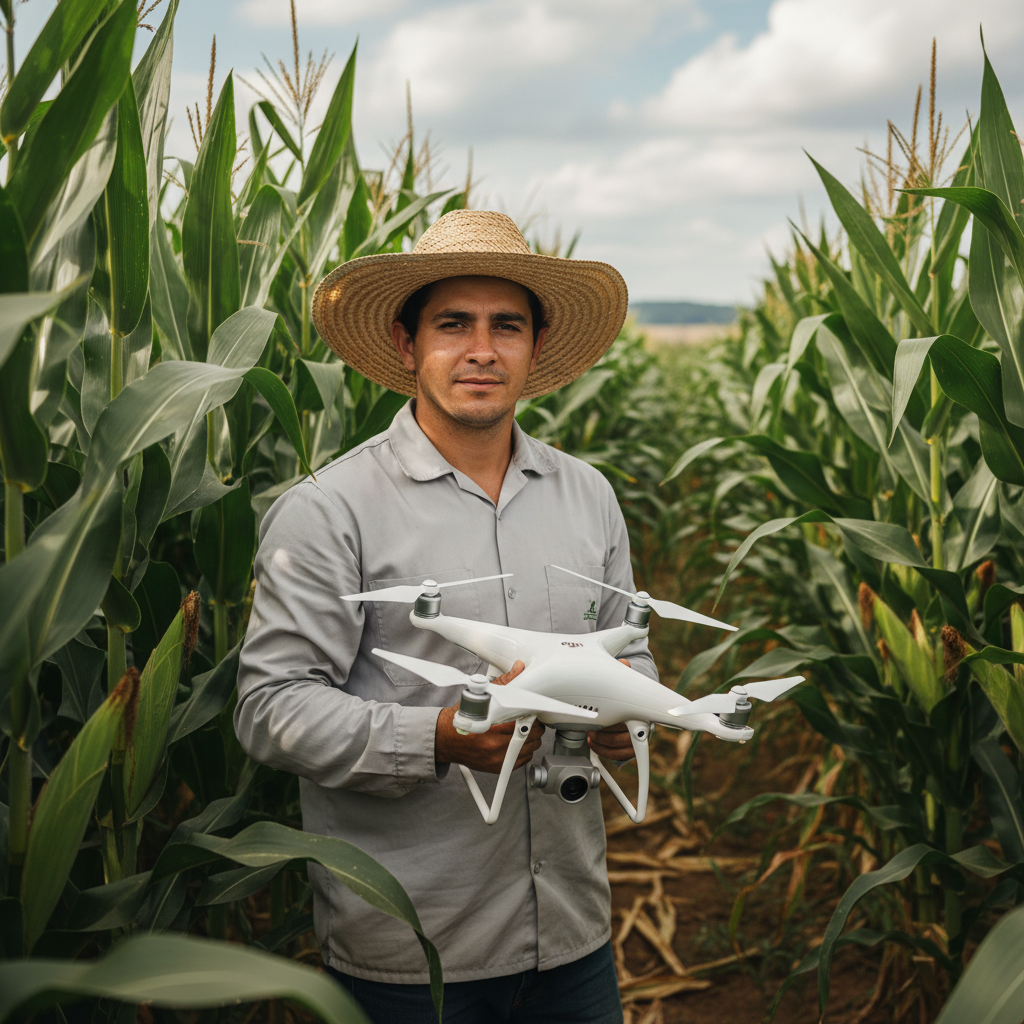
Lucas Fernandes Silva is an agricultural engineer with 12 years of experience in aerial mapping technologies and precision agriculture. ANAC-certified drone pilot since 2018, Lucas has worked on mapping projects across more than 500 rural properties in Brazil, covering areas ranging from small farms to large-scale operations. Specialized in multispectral image processing, vegetation index analysis (NDVI, GNDVI, SAVI), and precision agriculture system implementation. Lucas is passionate about sharing technical knowledge and helping agribusiness professionals optimize their operations through aerial technology.