
Check local drone regulations
You must check local laws before you fly. Rules can change by city, county, and country, so a flight that’s legal in one town may be illegal a few miles away. Use official government sites or apps to see airspace rules, airport boundaries, and temporary flight restrictions (TFRs). Ignoring this can cost you fines or worse.
Think like a traveler planning a trip: look up rules for the area, note any time or altitude limits, and confirm whether commercial use or filming needs extra steps. Carry a short list on your phone with links to the local aviation authority — that quick habit keeps you out of trouble and keeps people safe.
If you plan to fly at night, above 400 feet, beyond visual line of sight, or over crowds, expect extra rules. Some places require training or a license for certain operations. When in doubt, call the local authority or use their online help — a two-minute check can save you hours of paperwork later.
Use a pre-flight drone checklist
Start every flight with a clear Pre-Flight Checklist: Drone Inspection, Battery, Camera, and Sensors. Check the frame for cracks, propellers for chips, and mounts for looseness. If a part looks off, fix it or swap it out — don’t gamble on a quick patch.
Then check power and electronics: confirm battery charge and health, test camera gimbals, and run a sensor calibration if needed. Turn on your remote and confirm GPS lock and return-to-home settings. Use a printed or app checklist so you don’t skip steps when you’re excited to fly.
Permits, waivers, and no-fly zones
Know when you must get permission. If you fly for work, near an airport, over people, or at night, you may need a permit or waiver from the aviation authority. Apply early; approvals can take days or weeks. Keep copies of approvals with you while flying.
Watch for no-fly zones like airports, prisons, military bases, and stadiums. Use official maps or trusted apps that show these zones in real time. Temporary events, wildfires, or VIP movements can create fast restrictions. Plan your route around them and move your plan if a new restriction appears.
Carry required ID and documents
Bring your pilot ID, registration, proof of permissions, and any waivers. Keep digital and paper copies so you can show them to law enforcement or site managers. If you fly commercially, carry proof of insurance and any client contracts that explain the job scope.
| Document | Why it matters | Where to get it |
|---|---|---|
| Pilot ID / Certificate | Shows you’re qualified | Aviation authority website / test center |
| Drone registration | Legal identification of the drone | Government registration portal |
| Permits / Waivers | Needed for special operations | Apply to local aviation authority |
| Insurance proof | For commercial ops and liability | Your insurer / broker |
| Flight plan or client contract | Clarifies purpose and limits | Your files or client records |
Assess site and weather
Start by treating the site like a short safety briefing. Check local airspace rules, any NOTAMs, and whether crowds or sensitive property are nearby. Add this to your Pre-Flight Checklist: Drone Inspection, Battery, Camera, and Sensors so you don’t skip it.
Read the sky and the forecast. Look for gusty winds, incoming rain, or low clouds. Use local reports and compare them to the drone’s limits. If conditions are changeable, plan a quicker mission or postpone.
Walk the site and use your eyes and ears. Listen for radios, look for tall trees, wires, towers, and moving vehicles. Check ground firmness for takeoff and landing and note nearby reflective surfaces that can confuse sensors. Mark hazards in photos so you remember them during flight.
Check wind, rain, and visibility
Watch both steady wind and sudden gusts. If gusts are close to the drone’s max wind rating, opt out. Pay attention to changing wind direction near buildings or hills.
Rain and low visibility matter for safety and for your gear. Light drizzle can ruin camera lenses and clog motors. Fog and dust reduce visibility and will confuse obstacle sensors. If visibility drops or moisture appears in the forecast, cancel or move to a sheltered spot.
| Wind speed (mph) | Condition | Recommended action |
|---|---|---|
| 0–10 | Calm to light | Fly normally; stay alert |
| 10–20 | Moderate | Fly with caution; shorten mission |
| >20 | Strong | Do not fly; wait or postpone |
Scan area for hazards and obstacles
Walk the perimeter and look up and down. Scan for power lines, trees, antennae, chimneys, and rooftops. Don’t assume a line is visible from the launch point—move around. Note where people gather, where vehicles travel, and where birds might nest.
Also check for signal and magnetic interference. Metal roofs, radio towers, and dense Wi‑Fi networks can mess with GPS and control links. Try a short test hover while watching telemetry. If the drone drifts or loses GPS lock, move to a different spot or call it off.
Choose safe launch area
Pick a flat, clear space with good footing and no loose debris. Keep the launch area well away from people and fragile property—aim for at least 10–30 meters when possible. Face the drone into the wind for takeoff, clear the approach and landing path, and brief helpers on roles before you power up.
Drone inspection checklist basics
Start every flight like a pro with a short routine. Keep the phrase Pre-Flight Checklist: Drone Inspection, Battery, Camera, and Sensors visible (say it out loud or keep it on a sticky note). That covers your top priorities: battery, camera, sensors, and the airframe.
Work top to bottom: check the frame, then the arms, landing gear, and propellers. Check connectors, cables, and the camera mount next. Finally, open your controller app to confirm firmware and settings. Treat it like a mini health exam — fast, focused, and repeatable.
Keep a simple log: date, flight time, any odd noises, and battery discharge behavior. If anything is out of the ordinary, don’t fly until it’s fixed or replaced.
| Component | What to check | Action |
|---|---|---|
| Frame / Arms / Landing Gear | Cracks, bends, loose screws | Tighten bolts, replace cracked parts |
| Propellers | Chips, balance, secure fit | Swap or balance before flight |
| Battery | Swelling, connectors, voltage | Charge correctly, replace swollen packs |
| Camera / Sensors | Mount tightness, lens grime, calibration | Clean, re-seat, run calibration |
| Firmware / App | Latest versions, release notes | Update at home, backup settings |
Inspect frame, landing gear, and arms
Visually scan each arm and the main frame for hairline cracks or stress marks. Run your fingers along joints and motor mounts to feel for looseness. Tighten loose fasteners to the manufacturer torque spec and replace missing washers. If an arm is bent or the landing gear is damaged, replace the part — temporary fixes may fail mid-flight.
Verify firmware and app updates
Check for firmware updates before you head out, but don’t update at the field unless you have time and a full battery. Review release notes for bug fixes that affect flight stability or safety. Back up current settings so you can restore them if an update changes behavior.
Use the official app and a stable connection when updating. After updates, perform a short test flight in a safe area to confirm behavior. If performance feels off, roll back or contact support before flying in complex conditions.
Follow manufacturer checklist
Always follow the manufacturer checklist in the manual or app. Use approved parts, note service intervals, and keep warranty terms in mind. The maker’s steps are the fastest path to safe repairs and valid support.
Battery preflight check and health
Check the battery every time you fly. On your Pre-Flight Checklist: Drone Inspection, Battery, Camera, and Sensors, the battery is the life source — treat it like your fuel gauge. Look for swelling, cracks, and loose labels before anything else. If a pack looks odd, stop and don’t fly.
Do three quick tests before each flight: a visual scan, a connector wiggle, and a voltage read. Use a meter or the flight controller readout to check pack and per-cell voltages. If readings fall outside safe bands, pull the pack out of rotation and mark it for service.
Track battery age and cycle count. Even if a pack looks fine, older cells lose capacity. Keep a log or tag packs with cycle counts and last storage state. Retire packs that lose capacity or show inconsistent cell voltages.
Inspect cells, connectors, and case
Press the pack gently; if it’s soft, puffy, or uneven, that’s swelling — stop using it. Look for melted plastic, bulging seams, or punctures. These packs are unsafe and need disposal or professional service.
Check connectors and wiring for loose pins, bent contacts, or corrosion. Smell for burn or melted insulation. Replace damaged leads and use only secure, clean connectors.
Check charge, voltage, and temperature
Measure both pack voltage and per-cell voltage before launch. A healthy pack will show balanced cell voltages close to each other. If a cell sits low compared to others, charge or test the pack — an unbalanced pack can cause a crash.
Watch temperature: batteries should be cool before charging and not hot after a short run. Charge only in safe temperature ranges and never put a hot pack in storage. If a battery runs hot during flight or charging, ground it and have it checked.
| Parameter | Safe Range / Value | Action |
|---|---|---|
| Resting per-cell voltage | 3.7–4.2 V | Fly if balanced; charge if near 3.7 V |
| Low per-cell threshold | < 3.4 V | Do not use; service or recycle |
| Storage per-cell voltage | ~3.8–3.85 V | Set to storage if idle >1 week |
| Charge temperature | 0–45°C (32–113°F) | Wait to cool if outside range |
| Operating temp | -10–40°C (14–104°F) | Avoid extreme cold or heat |
Balance, storage, and charging rules
Always use a balance charger for multi-cell packs and store batteries at about 3.8–3.85 V per cell in a cool, dry place. Charge only with chargers rated for your battery chemistry and never leave charging packs unattended. Rotate storage packs so older ones are used first and keep records of charge cycles and storage dates.
Propeller and motor inspection
Check your propellers and motors every flight. Look closely at each blade under good light. Run your finger along edges to feel for nicks or rough spots. A hairline crack can turn into a broken prop in seconds. If you spot any damage, take that prop out of service.
Check motor housings and mounts. Wiggle each prop gently to feel for side play. If a motor wobbles or you hear scraping when you spin a prop, that points to bearing or shaft problems. Low vibration protects the camera and sensors and helps your autopilot do its job.
Make these checks part of your Pre-Flight Checklist: Drone Inspection, Battery, Camera, and Sensors. Keep a small kit with spare props, a screwdriver, and a marker in your bag.
Look for chips, cracks, and wear
Inspect each blade edge and the hub where it attaches. Tiny chips might not ground you, but deep cracks or gaps at the hub mean immediate replacement. Hold blades up to the light to spot hairline cracks. Look for warping by laying blades on a flat surface.
Avoid mixing old and new blades; match props in sets. If you fly in sandy or wet areas, clean and dry props before checking so grit doesn’t hide damage.
Spin motors and check smoothness
Spin each prop by hand and listen. A healthy motor turns freely with an even sound. If you feel bumps, rough patches, or hear grinding, inspect the motor bearings. Check for side-to-side play by holding the motor shaft gently; any noticeable movement is trouble.
If the motor feels sticky, remove the prop and spin the shaft directly. For persistent roughness, swap the motor or get it serviced.
Tighten or replace propellers
Tighten props to the manufacturer’s recommended torque and use the correct lock or nut. For quick-release systems, give each prop a firm twist until it clicks and then test by hand. Replace cracked or significantly chipped blades, and always install matching sets to keep balance right.
| Issue | What to look for | Immediate action |
|---|---|---|
| Cracks at hub or along blade | Hairline or open cracks | Replace prop immediately |
| Chips on edge | Small nicks, minor damage | Sand edge lightly or replace if deep |
| Motor roughness | Grinding, bumps, side play | Remove prop and test shaft; service or replace motor |
| Imbalance | Vibration, shaky camera | Swap props, balance new set, tighten mounts |
Camera and gimbal camera check
Power up the drone and watch the gimbal move through its startup routine. Listen for odd clicks or grinding sounds and look for visible wobble in the camera. Your goal is a smooth, quiet start; if the gimbal jitters, pause and troubleshoot before you fly.
Do a live test with the camera recording. Frame a subject and move the drone slowly or tilt the gimbal by hand to check for banding, blur, or focus hunting. Record at the resolution and frame rate you plan to use, then play the clip back to watch for drift, smear, or sudden jumps.
Inspect external hardware and software: firmware versions, camera module connection, and the SD card for free space and errors. Tighten any loose mounting screws and make sure connectors click into place.
Inspect lens, sensor, and mount
Check the lens surface for fingerprints, dust, or scratches. Use a blower first, then a microfiber cloth with a tiny amount of lens cleaner if needed. If persistent marks remain, replace the lens cover or get professional cleaning.
Open the camera to inspect the sensor only if you are trained; sensors are fragile. If you notice spots in images, shoot a flat white background to locate the mark. Small dust can be removed with a blower; larger contamination needs a proper sensor-cleaning kit or service. Ensure the mount seats correctly — any play will translate to shaky footage.
Test gimbal range and damping
Move the gimbal through its full range by hand and via the controller. It should travel smoothly without snapping back or binding. Look for restricted movement or sudden stops — these are signs of physical obstruction or motor stress.
Check damping and motor response by recording a slow pan or tilt. Watch for micro-vibrations and test different gimbal settings in your app. If lowering damping or motor power improves motion, fine-tune those values. Monitor motor temperature; excess heat hints at overload or worn bearings.
Run camera calibration (drone)
Place the drone on a level surface and run the camera/gimbal calibration routine from the app. Follow each prompt. If calibration fails, relocate to a calmer surface and retry; repeated failures suggest mechanical issues. Log results and any error codes before flight.
| Check | What to look for | Action |
|---|---|---|
| Lens | Smudges, scratches, haze | Blow, clean with microfiber, replace cover if damaged |
| Sensor | Spots in images | Test with flat background, blower or professional clean |
| Mount | Play or misalignment | Tighten screws, reseat mount |
| Gimbal range | Smooth travel without binding | Free obstructions, test motors |
| Damping | Micro-vibrations in footage | Adjust damping/motor settings |
| Firmware | Version mismatch | Update app and device firmware |
| SD card | Errors or low space | Format in camera, replace if faulty |
| Connections | Loose cables | Re-seat and secure connectors |
Sensor calibration and IMU preflight
Start every flight with calibration front and center. Run your IMU and compass checks in a calm spot away from metal and radio noise. Follow app prompts, move the drone through the moves it asks for, and watch status lights. If an app message or LED turns amber or red, stop and fix it before you lift off.
Recalibrate if you’ve bumped the airframe, added a payload, or traveled far since the last calibration. Keep the drone level on a clean surface and give the system time to settle.
Treat calibration like part of your Pre-Flight Checklist: Drone Inspection, Battery, Camera, and Sensors. Checklists make you repeat the right steps every time; habitual calibration catches problems before they become crashes.
Calibrate compass and IMU before flight
Start with the compass. Walk around the drone slowly while rotating it as the app instructs. Move away from cars, fences, or steel structures. When the app shows a full green bar or confirmation, the compass is good.
Next, do the IMU calibration on a level, vibration-free surface. Don’t pick up the craft until the process ends. If the IMU reports high offsets later, repeat at a different temperature or after the drone has cooled.
| Step | Action | Tip |
|---|---|---|
| Compass | Rotate per app prompts | Move away from metal and cars |
| IMU | Place level, follow sequence | Let drone sit if it’s hot or just moved |
| Verify | Watch app LEDs/status | Re-run if readings jump or error appears |
Check sensor calibration drone logs
After calibration, review the logs to confirm values settled in. Look for compass offsets, gyro bias, and accelerometer ranges. Big jumps or drifting numbers are red flags — recalibrate before you fly.
Use logs after test flights too. A short hover and a quick log check tell you if sensors behaved under load. If the compass shows interference only during certain headings, adjust gear or mounting points. Logs are your black box — they explain what happened and help you fix it fast.
Save calibration records
Always save the calibration file and note date, location, and payload details. Store copies on your device and in cloud backup. Those records let you spot trends and help if you need to report an incident or ask for support.
Obstacle sensor and flight aid checks
Before you take off, run the Pre-Flight Checklist: Drone Inspection, Battery, Camera, and Sensors and don’t skip the sensors. Check the app for sensor status, watch LED indicators, and confirm firmware is up to date.
Physically inspect each sensor. Wipe lenses and housings with a soft cloth. Run built-in self-tests in the control app. If the drone warns about calibration or blocked sensors, fix that first.
Run a short ground test: power up, hold the drone stationary, let systems finish startup, and observe obstacle detection in the live feed. Try basic avoidance at low altitude in a clear, open area and log any odd behavior.
| Sensor | What to check | Pass sign |
|---|---|---|
| Vision | Clean lens, live feed, no glare or artifacts | Live video shows clear view and obstacle indicators |
| Ultrasonic | Close-range response, no loose housing | Drone detects ground/walls at short range |
| LiDAR | No missing returns, consistent distance readouts | Stable distance readings in different lighting |
| GPS / RTH | Satellite count, home point set, RTH altitude | Green GPS icon, set RTH altitude above obstacles |
Test vision, ultrasonic, and LiDAR sensors
Clean the cameras and check the live feed for smudges or distortion. Stand behind the drone and wave your hand in front of the forward cameras: the app should show obstacle alerts or avoidance behavior. If the camera feed lags or shows ghosting, power cycle and retest.
For ultrasonic and LiDAR, approach a wall slowly and watch readings. If the drone hesitates or gives inconsistent distance numbers, note which sensor is acting up and avoid flights over complex terrain until repaired.
Verify GPS lock and return-to-home
Get a solid GPS lock in an open area before lifting off. Check the satellite count and wait until the icon turns green or shows the recommended minimum. If you’re near tall buildings or trees, move to a more open spot.
Test the Return-To-Home (RTH) setup before serious flights. Confirm the home point has locked and the RTH altitude clears nearby obstacles. If available, try a simulated RTH in a safe field to learn how it behaves. Adjust battery RTH thresholds to match your mission.
Confirm obstacle sensor status
Confirm obstacle sensors are active by checking the app’s sensor panel and LED indicators at startup. Run dedicated tests if offered, and perform slow, controlled approaches from front, back, and sides at very low altitude in an open area; sensors should detect and react without abrupt movement.
Safety procedures and emergency planning
Start every flight with a Pre-Flight Checklist: Drone Inspection, Battery, Camera, and Sensors. Walk the drone, check props, confirm battery charge and health, test the camera and sensors, and verify firmware. If something feels off, stop and fix it.
Set a clear brief for each flight: decide your mission, the area you will cover, and who is watching the drone. Tell a colleague where you will fly and when you expect to be back. This is a simple safety net.
Keep rescue tools at hand: extra batteries, a charged phone, prop spares, and basic tools. Have a printed map or screenshot of the area with emergency landing spots marked. Preparation lowers stress and helps you act fast if things go south.
Set return altitude and geofence limits
Before takeoff, set an RTH altitude that clears trees, buildings, and power lines. Match the RTH to the tallest obstacle plus a safety buffer. Check local rules; many places limit you to 400 ft (120 m) above ground.
Use altitude limits and a geofence to keep the drone inside safe space. Test these settings on the ground so you know how the drone behaves if it hits the fence.
| Setting | Purpose | Example value |
|---|---|---|
| RTH altitude | Clear obstacles on return | 60 ft above tallest tree |
| Max altitude | Keep legal and safe height | 400 ft or local max |
| Geofence radius | Limit horizontal travel | 500–1000 ft for close ops |
| Low battery trigger | Force safe return or land | 20–30% depending on flight time |
Plan emergency landing and loss-of-signal steps
Plan backup landing spots (open fields, low-traffic roads, clear rooftops) and mark them on your map before you lift off. Practice a calm, steady descent so you don’t panic in a real event.
Decide your loss-of-signal behavior in advance: set the drone to RTH, hover, or auto-land depending on risk. If signal drops in a built-up area, auto-landing might be safer than RTH. If you lose control, try to regain link, switch to manual if possible, then head for the nearest safe landing.
Log flights and incidents
Keep a flight log for every mission. Record date, location, battery start/end levels, weather, and any anomalies. If something goes wrong, write an incident report with time, what happened, and photos. Good logs help you spot trends and protect you if authorities ask questions.
Quick printable Pre-Flight Checklist: Drone Inspection, Battery, Camera, and Sensors
- Walkaround: frame, arms, landing gear
- Propellers: chips, cracks, balance
- Motors: smooth spin, no side play
- Battery: charge, swelling, connectors
- Camera & gimbal: lens clean, record test
- Sensors: compass, IMU, vision, ultrasonic/LiDAR
- GPS: satellite count, home point set
- Settings: firmware, RTH altitude, geofence
- Documents: pilot ID, registration, permits, insurance
Frequently asked questions
What are the top steps in a Pre-Flight Checklist: Drone Inspection, Battery, Camera, and Sensors?
- Do a quick walkaround.
- Check props, frame, and mounts.
- Verify battery charge and health.
- Test camera, gimbal, and sensors.
- Calibrate GPS and compass.
How do you inspect propellers and frame in Pre-Flight Checklist: Drone Inspection, Battery, Camera, and Sensors?
- Look for cracks and chips.
- Tighten loose screws.
- Replace damaged props.
- Wipe off dirt and moisture.
How do you check batteries and power systems in Pre-Flight Checklist: Drone Inspection, Battery, Camera, and Sensors?
- Confirm full charge.
- Check voltage and cell balance.
- Watch for swelling or leaks.
- Lock battery into its mount.
How do you test camera and gimbal in Pre-Flight Checklist: Drone Inspection, Battery, Camera, and Sensors?
- Power on and record a short clip.
- Move the gimbal through its range.
- Check focus and image clarity.
- Clean the lens and mounts.
How do you verify sensors and GPS in Pre-Flight Checklist: Drone Inspection, Battery, Camera, and Sensors?
- Calibrate compass if prompted.
- Wait for a strong satellite fix.
- Run IMU and sensor tests in the app.
- Confirm obstacle sensors respond.
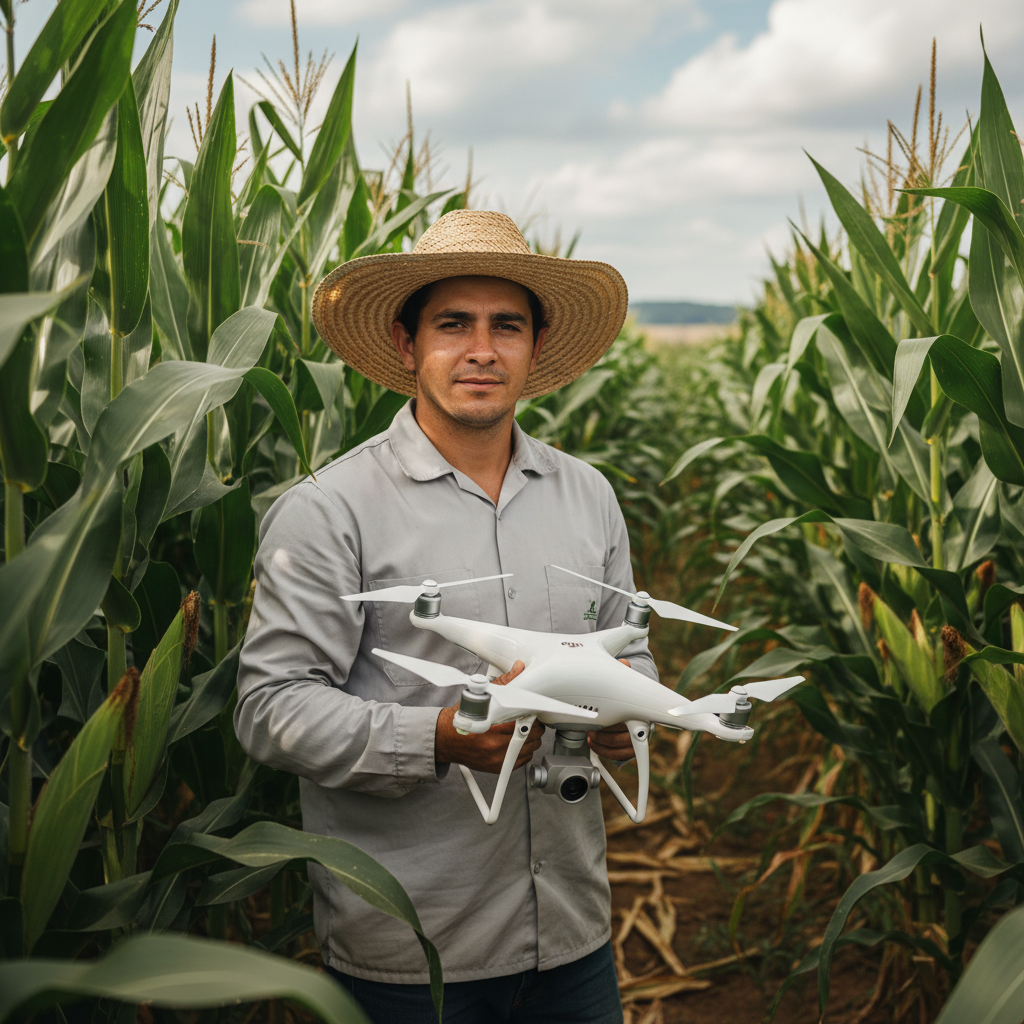
Lucas Fernandes Silva is an agricultural engineer with 12 years of experience in aerial mapping technologies and precision agriculture. ANAC-certified drone pilot since 2018, Lucas has worked on mapping projects across more than 500 rural properties in Brazil, covering areas ranging from small farms to large-scale operations. Specialized in multispectral image processing, vegetation index analysis (NDVI, GNDVI, SAVI), and precision agriculture system implementation. Lucas is passionate about sharing technical knowledge and helping agribusiness professionals optimize their operations through aerial technology.